
Emergency broadcasts
Get an urgent message on every screen in seconds
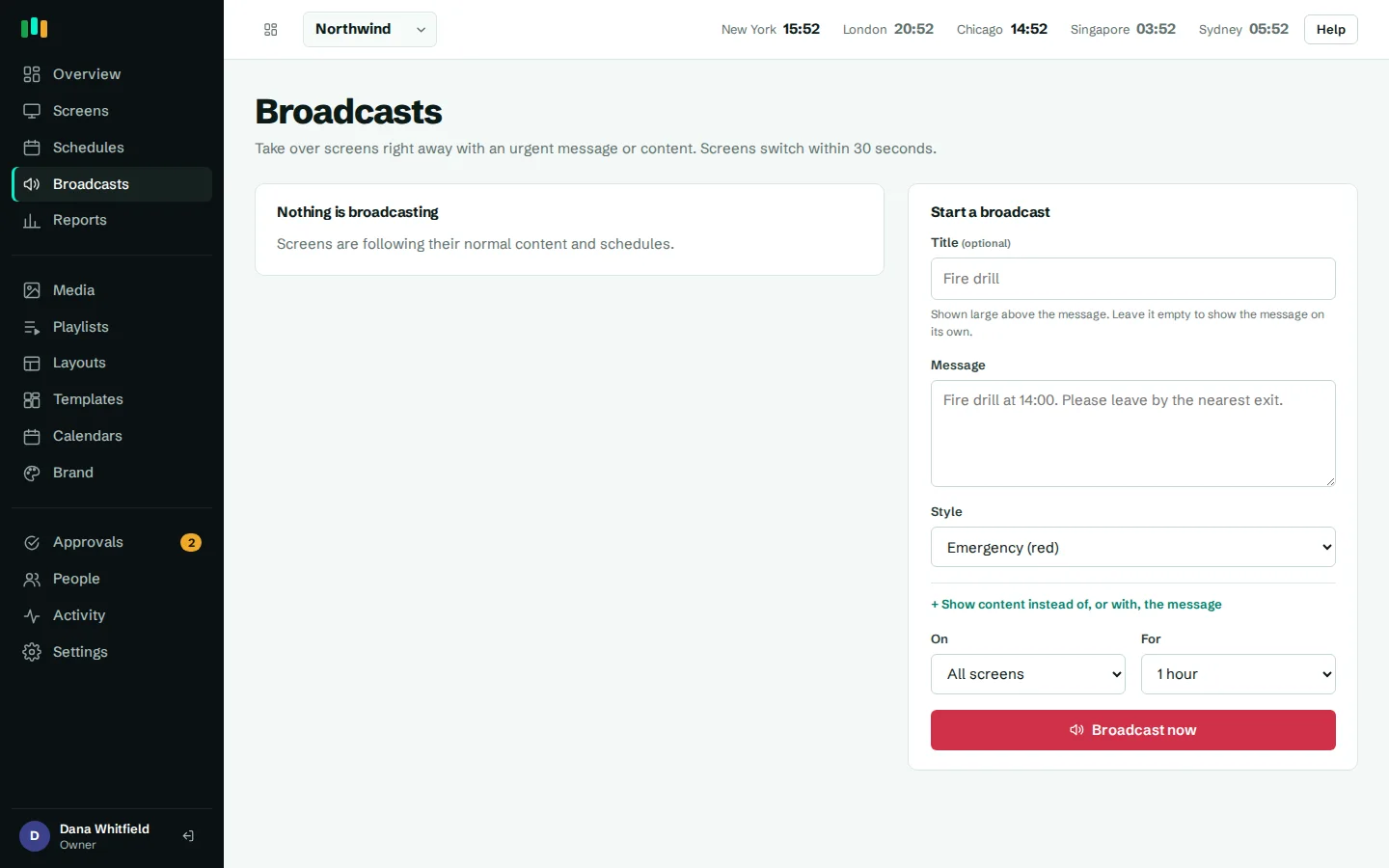
When something happens, you shouldn't have to edit playlists. With CompleteVantage, you type the message, choose where it goes and press Broadcast now. Screens switch within 30 seconds and go back to normal when you end it.
Fast takeover
Screens pick up a broadcast on their next check-in, within 30 seconds.
Overrides everything
A broadcast wins over every schedule, playlist and default content until it ends.
Aim it precisely
Send to all screens, one group such as a single building, or one screen.
Hard to miss
A red banner across the admin shows a broadcast is live, with an End button right there.
Emergency alert digital signage that anyone on duty can use
Emergencies don't wait for the person who built the lobby playlist. The Broadcasts page is one short form: a message, a style, where to show it and for how long. There is nothing to design and nothing to schedule.
Use it for a fire drill, a building evacuation, a severe weather warning, a system outage notice, a lockdown instruction, or simply "The east entrance is closed today, please use the main door."
- Write the message in plain text
- Pick one of four styles
- Choose all screens, a group or one screen
- Set 15 minutes, 1 hour, 4 hours, 24 hours or until you end it
Four tones for four kinds of message
Not every broadcast is an emergency, and screens shouldn't cry wolf. Each broadcast has one of four styles, so viewers can read its urgency before they read the words:
- Emergency (red) for evacuations, lockdowns and immediate safety instructions.
- Warning (amber) for weather, outages, closures and things people should act on soon.
- Announcement (blue) for important information that isn't urgent.
- Good news (green) for a record month, a big win or an all-hands reminder.
A message, content, or both
A broadcast can be text only, shown full screen in the chosen tone. It can also show content instead: an evacuation map, a prepared safety layout from the templates, a video or a playlist. When you choose content and a message together, the message runs as a banner across the content.
Tip: prepare your emergency layouts in advance, such as an evacuation map for each floor, so the person on duty only has to pick one.
Priority over everything else
Every screen follows the same order when deciding what to show: broadcast, then schedule, then the screen's own content, then its group's content. A live broadcast beats even a highest-priority schedule. Nothing needs to be paused or edited first, and nothing is lost: when the broadcast ends or its time runs out, each screen goes straight back to what it would have been playing.
Target a group, and every screen in it and in its subgroups is covered. Target one screen for a message at a single entrance.
Always clear that a broadcast is live
While a broadcast is running, a red banner appears at the top of every admin page for everyone signed in, so nobody forgets that screens are taken over. The Broadcasts page lists what's showing now, where, and until when, with an End broadcast button. Past broadcasts stay listed with who sent them and when, and every broadcast is recorded in the activity log.
Optional approval for broadcasts
Some organizations want every broadcast checked before it goes out. With approvals turned on, admins can also require approval for broadcasts: an editor's broadcast becomes a request, and it goes live when an admin approves it. Admins and owners can always broadcast straight away, so an urgent message is never stuck in a queue when the right person is on duty.
Questions people ask
How quickly do screens show a broadcast?
Screens check in every 30 seconds, so a broadcast appears within about half a minute of pressing Broadcast now.
Can it connect to our fire alarm or mass notification system?
Not today. Broadcasts are started from the CompleteVantage admin by a person with editor rights or above. There is no automatic trigger from alarm panels or alerting systems.
What happens to scheduled content during a broadcast?
It is paused on the affected screens only. When the broadcast ends, each screen returns to its normal schedule and content.
Does a screen that is offline receive a broadcast?
A screen needs to reach the server to receive a new broadcast. If it reconnects while the broadcast is still live, it shows it straight away. Monitoring and alerts tell you which screens are offline.
Who can start a broadcast?
Owners, admins and editors. Viewers can see the Broadcasts page but not start one. If broadcast approval is on, editors submit and an admin approves.
Related features
- SchedulingPlan what plays by day, time and place, and let each screen follow its own local clock.
- Team and approvalsGive each person the right access, and have an admin check editors' changes before they reach screens.
- Monitoring and alertsKnow which screens are live, see what they show right now, and get told when one goes dark.
- Screens and devicesPair a TV with a six-character code, see every screen live and fix problems without a site visit.
Put your first screen on in ten minutes
Try every feature free for 14 days. No card required. Pair a TV with a six-character code, pick a template, and it's live.