
Designer and templates
Design screens that look right the first time
Pick one of more than 20 designed templates in your brand colors, or build your own layout with zones and live widgets. The CompleteVantage designer previews your work with the same player the TV runs, so what you see is what goes on the wall.
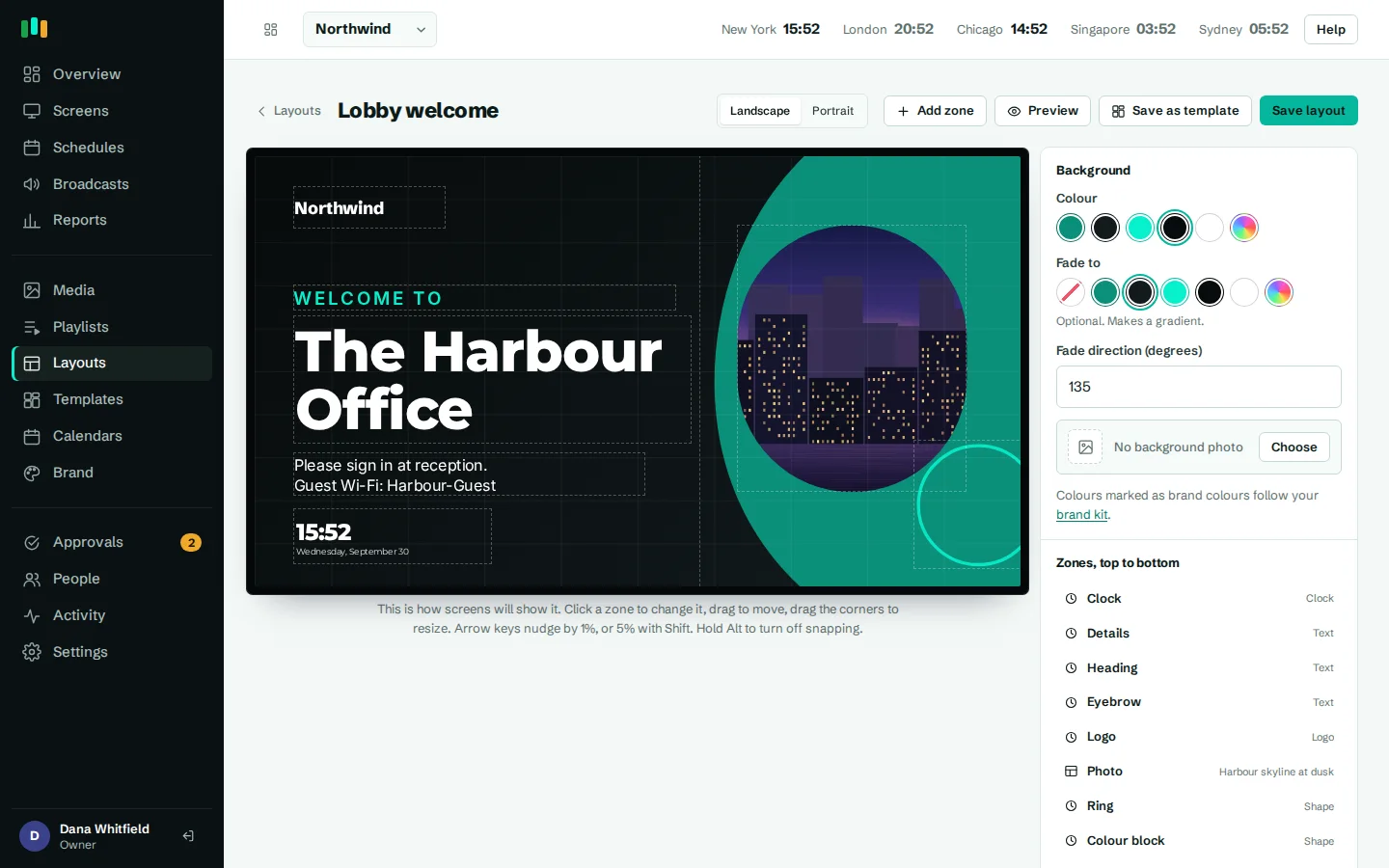
Preview with the real player
The design canvas is the actual screen player drawing your unsaved layout, not an approximation.
Templates in your brand
Every template picks up your logos, colors and fonts from the brand kit.
Live widgets
Clocks, weather, tickers, countdowns, calendars, menus and QR codes update on screen by themselves.
Landscape and portrait
Templates for wide lobby TVs and tall door panels or totems.
Digital signage templates ready to use
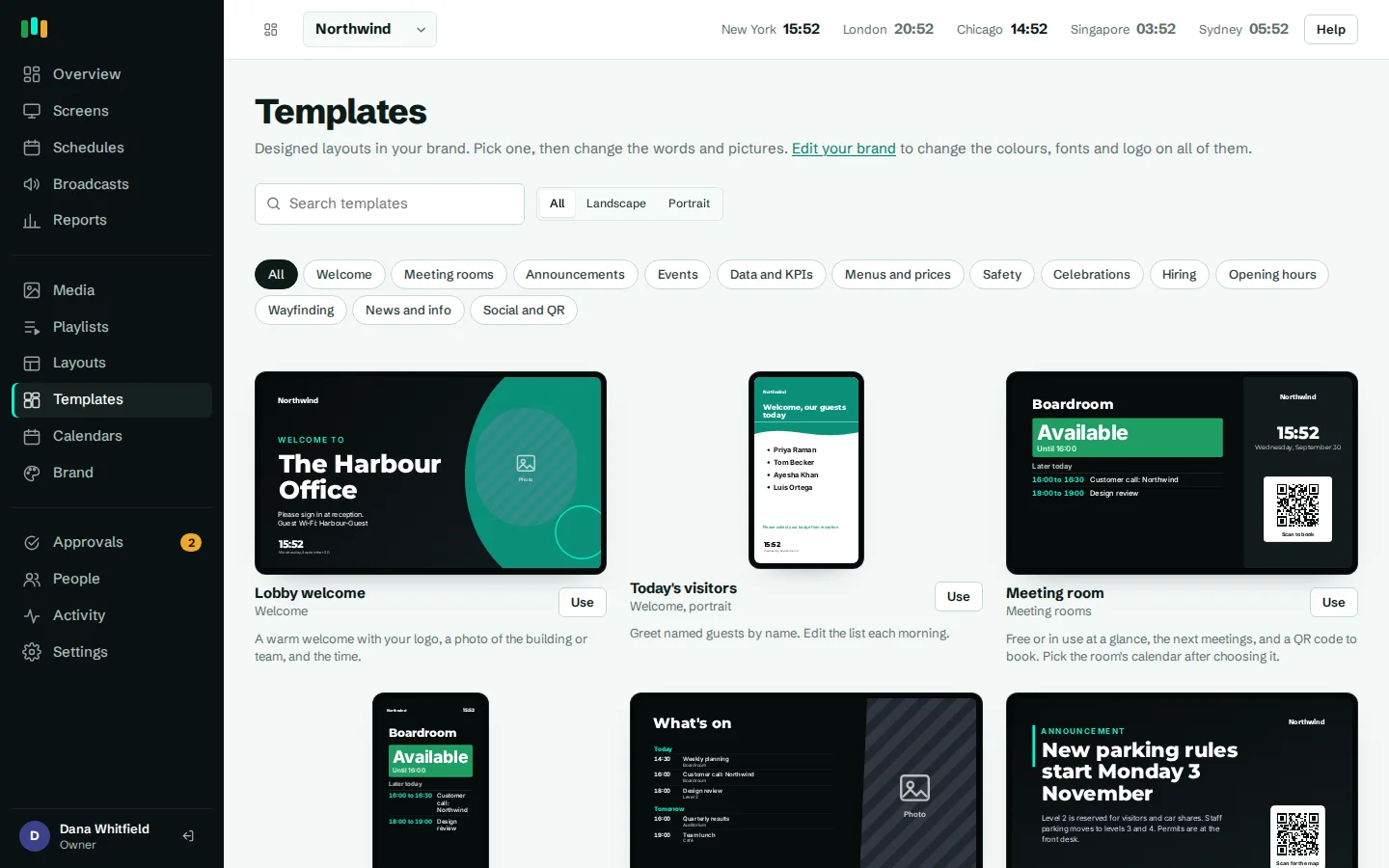
The template gallery holds more than 20 built-in designs across categories including welcome, announcements, meeting rooms, menus and prices, data and KPIs, events, news and info, opening hours, safety, celebrations, hiring, wayfinding, and social and QR. There are landscape designs for lobby TVs and portrait designs for door panels, menu boards and evacuation notices.
Previews in the gallery are drawn live in your organization's brand, so you see your own logo and colors before you choose. Select Use and the template becomes a layout you can edit. Photo zones show as placeholders until you fill them, and stay blank on screens rather than showing stock images.
- Welcome screens for lobbies and visitors
- Meeting room boards and door panels
- Menu and price boards
- KPI screens and a frame for live dashboards
- Safety notices and evacuation maps
A designer that previews with the real player
Many signage tools show you a mock-up in the editor and something slightly different on the TV. In CompleteVantage, the canvas is the real player rendering your unsaved design. Fonts, widget sizing and text fitting behave exactly as they will on the screen.
Zone frames sit on top of the preview so you can move and resize them. Zones can overlap and even hang off the edges, which is how decorative shapes and corner accents work. Each zone has its own opacity, and the layout background can be a color, a gradient or a photo with adjustable darkening so text stays readable.
Widgets that keep themselves current
Drop a widget into a zone and it updates on its own:
- Text with brand fonts, lists, spacing and capitals.
- Clock, digital or analog, in any time zone, for world clocks in a global office.
- Weather for any place, with a multi-day forecast.
- Ticker from your own lines of text or an RSS feed.
- Countdown to a launch, an event or a deadline.
- QR code linking to a sign-up form or a feedback page.
- Shapes: rectangles, circles, rings, waves, blobs, slants, corners and dots, with gradient fills.
- Logo, pulled from the brand kit.
- Menu or price list, with names, prices and short descriptions.
- Calendar, showing a room's availability or an agenda, from an iCal link. See meeting room signage.
Widgets size themselves to their zone and shrink text to fit, so a long menu item doesn't spill off the screen.
Digital signage design that stays on brand
Layouts can use your brand's primary color or heading font by reference rather than a fixed value. Update the brand kit with a new logo or color, and every layout that uses it restyles on every screen. Nine bundled fonts ship with the player, so text renders the same even when a screen is offline.
Save your own layouts as templates
When a layout works well, choose Save as template in the designer. It joins your organization's gallery with media removed, so colleagues at other sites can start from the same structure and add their own photos and text.
With approvals turned on, editors can design freely while an admin reviews the result, with a preview drawn by the real player, before it reaches screens.
Questions people ask
Do I need design skills to use the templates?
No. Pick a template, change the text and photos, and it already uses your brand colors and fonts. The designer is there when you want more control.
Can I make portrait layouts?
Yes. Several built-in templates are portrait, such as the room door panel, menu board and evacuation notice, and you can design your own in either orientation.
Will my layout look the same on the TV as in the editor?
Yes. The editor canvas is the same player the screen runs, drawing your unsaved design.
Can a layout show a video or a web page in one zone?
Yes. Media zones can hold images, video, PDFs, web pages or playlists from the media library.
Does the weather widget need internet?
It fetches the forecast over the internet and keeps the last result, so the screen still shows something if the connection drops.
Related features
- Brand kitSet your logos, colors and fonts once, and every template and screen follows them.
- Content and playlistsUpload images, video, PDFs and slides, add web pages and streams, and play them in timed playlists.
- Meeting roomsShow who has a room, until when and what is next, straight from the calendar you already use.
- DashboardsShow live web dashboards and KPI reports on TVs, with access keys kept out of sight.
Put your first screen on in ten minutes
Try every feature free for 14 days. No card required. Pair a TV with a six-character code, pick a template, and it's live.