
Team and approvals
User permissions and a content approval workflow for your screens
Let more people publish to your screens without losing control. CompleteVantage gives each person a role, can hold editors' changes for review, and keeps a record of who did what.
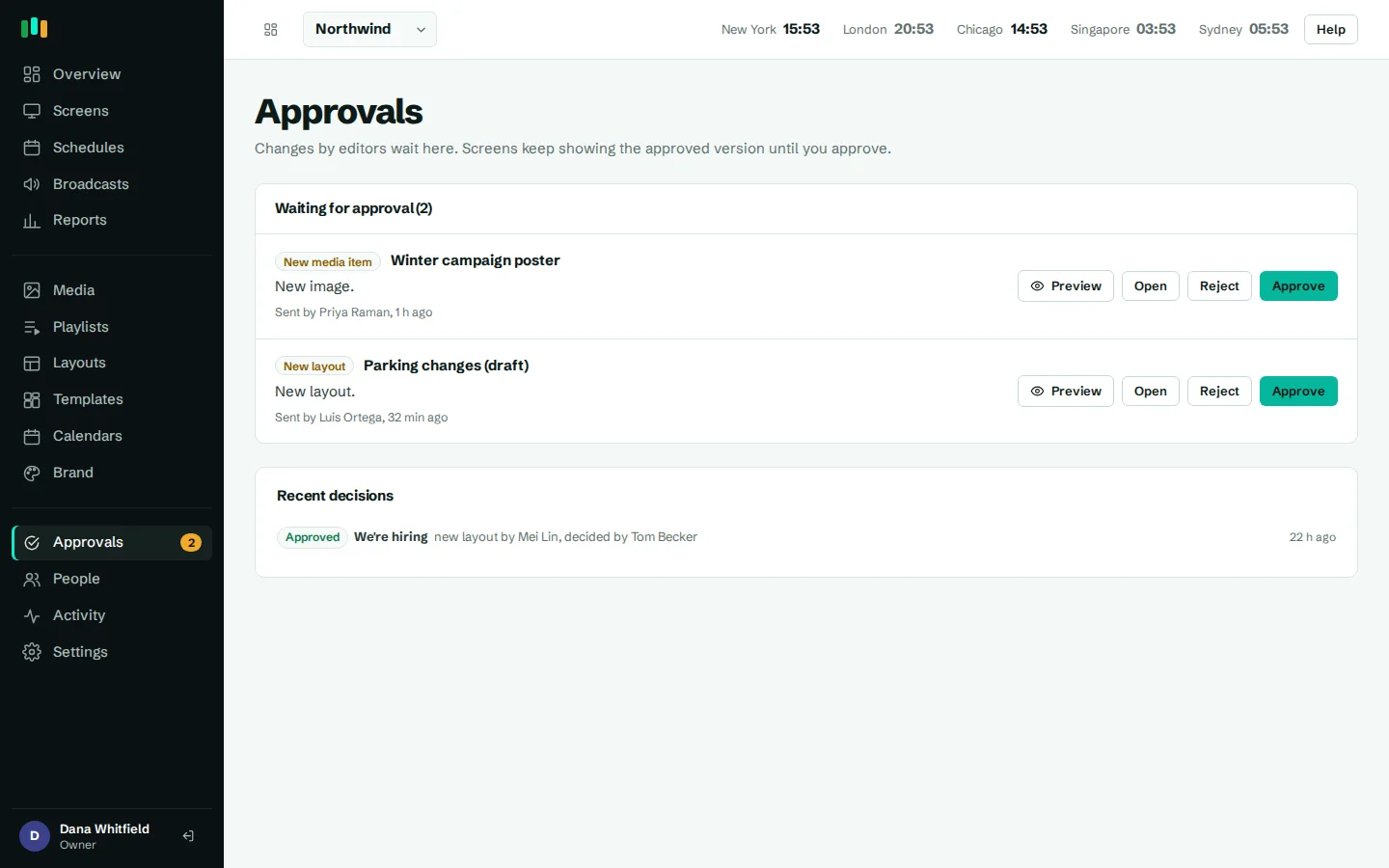
Four clear roles
Owner, admin, editor and viewer, so each person gets the access their job needs and no more.
Nothing goes live unchecked
With approvals on, editors' changes wait for an admin. Screens keep showing the approved version.
Preview with the real player
Reviewers see the proposed change exactly as a screen would draw it before they approve.
Separate organizations
Each client, brand or region can be its own organization with its own screens, content and people.
Digital signage user permissions by role
Every person in an organization has one of four roles:
- Owner: everything, including removing admins.
- Admin: pair screens, manage people, settings and alerts, and manage all content.
- Editor: create and change content, playlists, layouts, schedules and broadcasts.
- Viewer: look, but not change anything.
A typical setup: IT or facilities are admins, the internal comms team and site managers are editors, and senior staff who want to see what is on the screens are viewers.
Admins add people from the People page. New accounts get a temporary password and must choose their own on first sign-in. When an admin resets someone's password, that person is signed out everywhere. An admin cannot reset an owner's password, so the top-level account stays with the owner.
- Owner, admin, editor and viewer roles
- Temporary passwords with a forced change at first sign-in
- Password reset signs the person out on every device
- Role checks on every action, not just hidden buttons
A content approval workflow that keeps screens safe
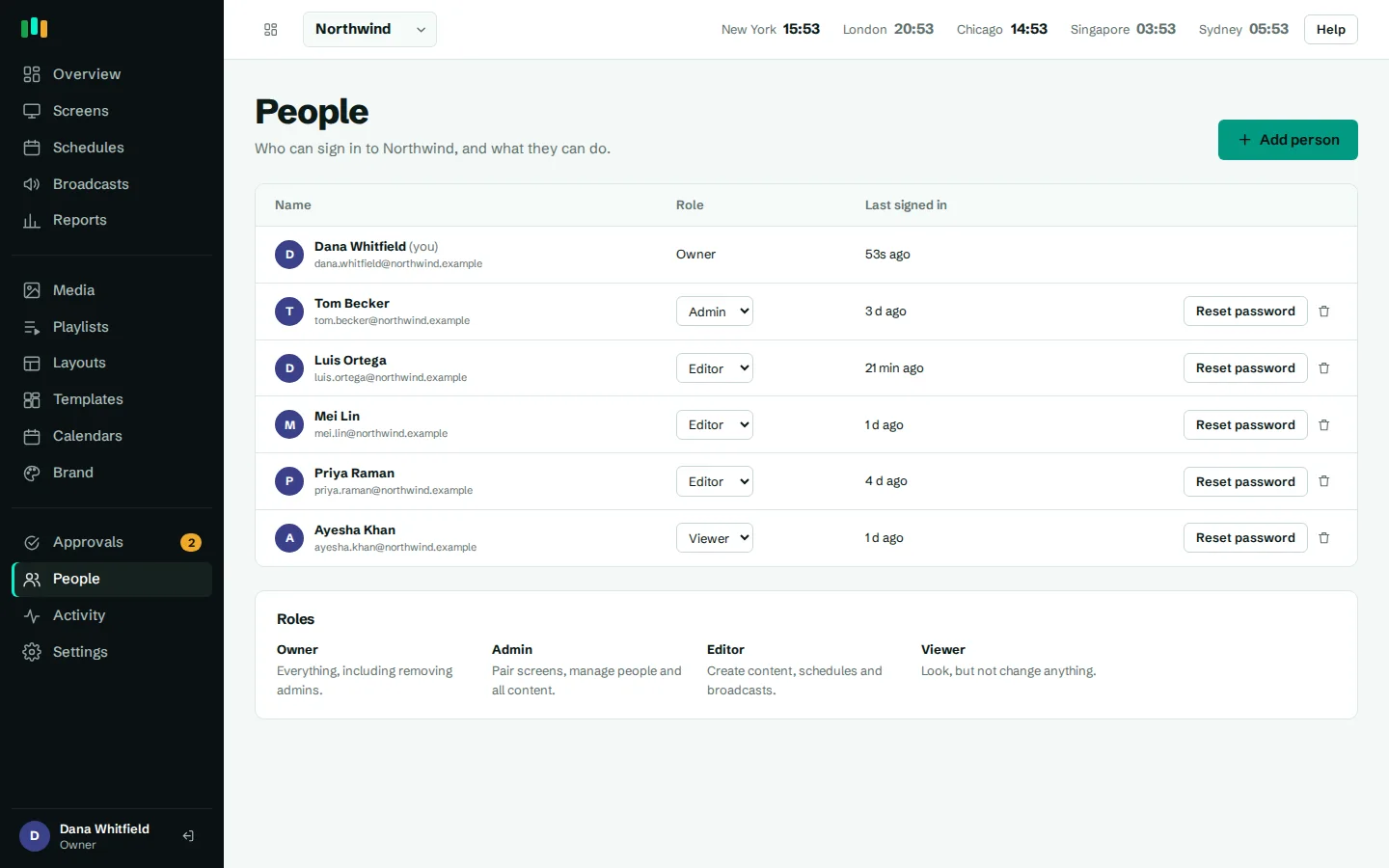
When many people can publish, mistakes reach screens: a typo in the lobby, last month's offer still running, a photo nobody cleared. Turn on approvals in Settings and every change made by an editor waits for an admin before it reaches a screen.
It covers media, web pages, video links, playlists, layouts and schedules. What happens depends on the item:
- New items are saved as pending. Screens never receive them until they are approved.
- Changes to approved items are stored as a draft. Screens keep showing the approved version while the draft waits.
- Deleting approved content becomes a delete request rather than an instant removal.
Editors see their draft in the designer or editor with a note: "Waiting for approval. Screens show the approved version." They can withdraw a request, and saving again replaces it rather than stacking up a queue. Admins' own changes go straight to screens, since they are the approvers.
Review, preview, approve or reject
The Approvals page lists what is waiting, with a plain summary of what changed. Preview draws the proposal with the real player, the same code the screens run, so what you approve is what will play. Then:
- Approve publishes the change, and screens pick it up on their next check-in.
- Reject with a note explaining why. The editor sees the note on the item and can fix it.
A count on the menu shows how many requests are open. Add Approval requested to an alert destination and admins hear about new requests by email, Teams, Slack or webhook.
- Plain summary of each change
- Preview drawn by the real player
- Reject with a note the editor can see
- Recent decisions kept on the page
Optional approval for broadcasts
Broadcasts take over screens immediately, so some teams want a second pair of eyes and others need them to go out without delay. It is your choice: a separate setting, "Broadcasts need approval too", decides whether editors' broadcasts wait for an admin. Leave it off if editors must be able to send an urgent notice on their own.
An activity log of who did what
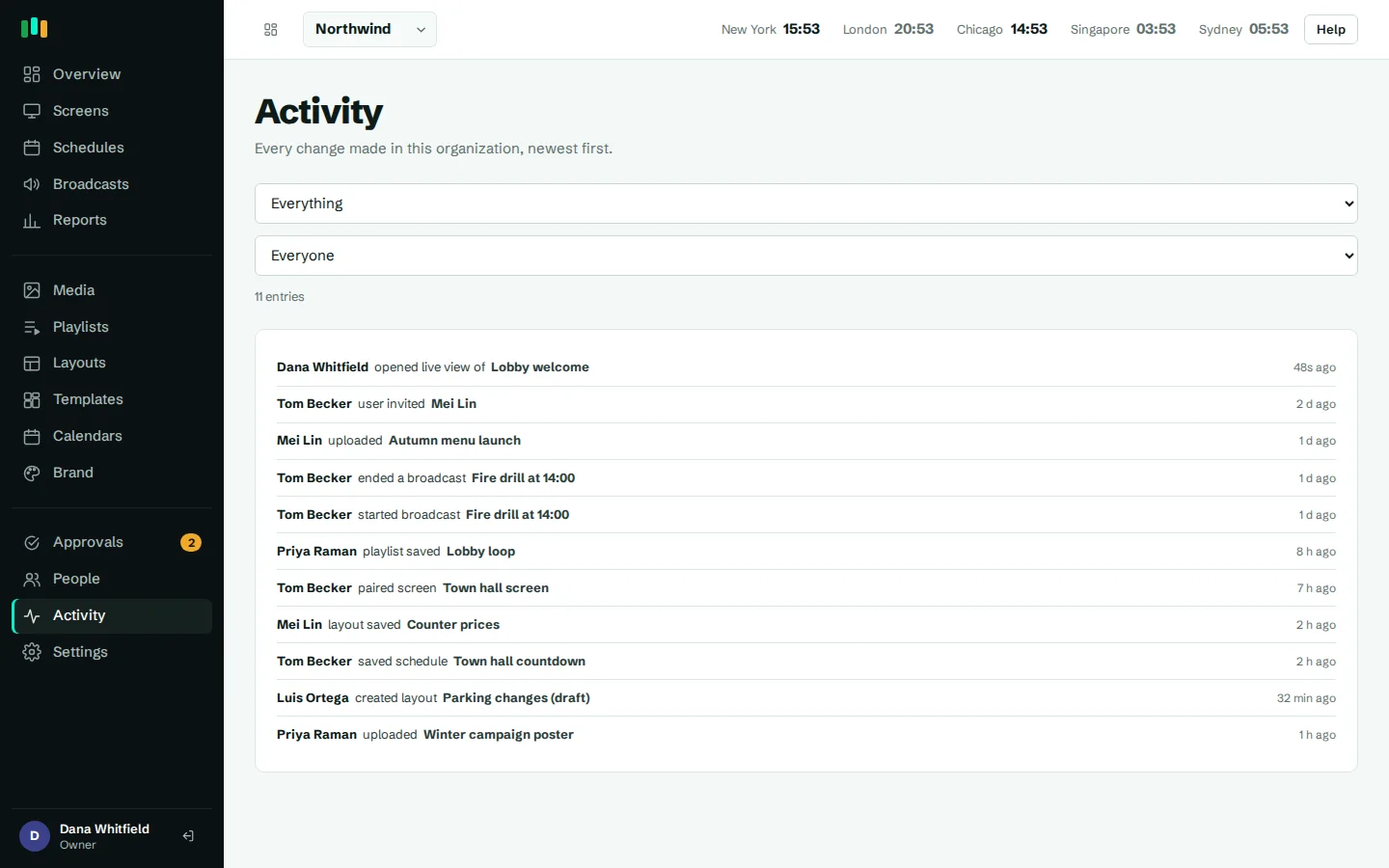
The Activity log records sign-ins, content and screen changes, remote commands, settings changes, and every approval step: submitted, approved, rejected and withdrawn. Each entry shows who did it and when. Entries are kept for two years, which covers most internal review and audit needs.
Organizations for clients, brands and resellers
CompleteVantage is multi-tenant. Each organization has its own screens, content, brand kit, people and reports, and every query is scoped to it, so one client never sees another's data. People who belong to several organizations switch between them from a menu.
For agencies and resellers there is a partner setup: a partner's staff can manage all of that partner's clients, create new clients, and show the admin with the partner's own product name, logo, accent color and support email, optionally on the partner's own domain. Contact us to talk about reselling.
Questions people ask
Is the approval workflow required?
No. It is off by default. An admin turns it on in Settings when the team needs it, and can require approval for broadcasts separately.
What do screens show while a change waits for approval?
The approved version. New items do not reach screens at all until approved, and edits to approved items stay as drafts.
Can an editor approve their own work?
No. Only admins and owners approve. Their own changes go straight to screens.
Do you support single sign-on?
Not today. People sign in with an email address and password. Password resets sign the person out everywhere. See security for more.
Can I manage signage for several clients?
Yes. Each client is its own organization with its own screens, content, brand and people, and you switch between them from one sign-in.
Related features
- Monitoring and alertsKnow which screens are live, see what they show right now, and get told when one goes dark.
- Emergency broadcastsTake over every screen, a building or one TV with an urgent message in about 30 seconds.
- Brand kitSet your logos, colors and fonts once, and every template and screen follows them.
- SchedulingPlan what plays by day, time and place, and let each screen follow its own local clock.
Put your first screen on in ten minutes
Try every feature free for 14 days. No card required. Pair a TV with a six-character code, pick a template, and it's live.