
Healthcare
Healthcare digital signage for waiting rooms, wards and staff
Give patients and visitors clear, current information while they wait, and give staff a reliable channel for notices and urgent messages. CompleteVantage runs clinic and hospital screens from one admin, across every site.
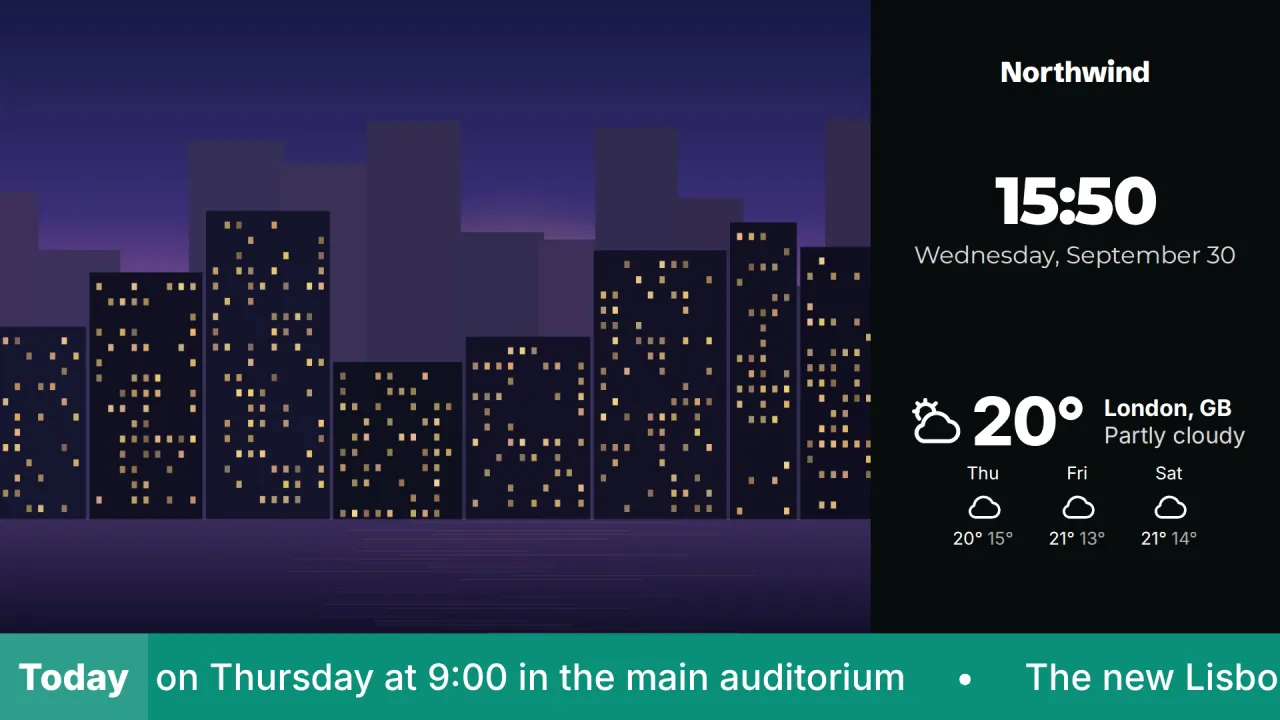
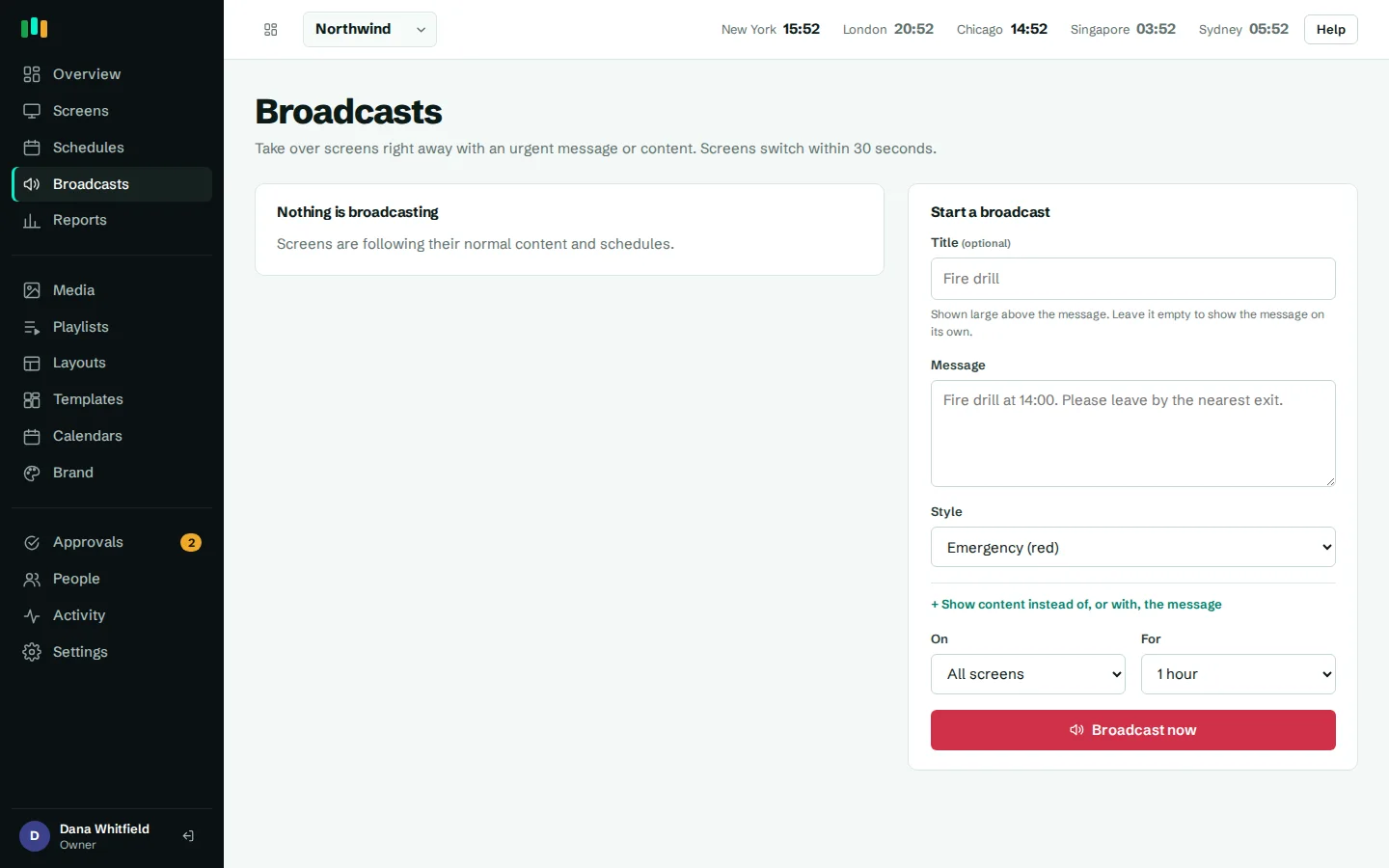
Urgent messages in seconds
Broadcast to every screen, one building or one waiting room, in red, amber, blue or green, until you end it.
Hours that are always right
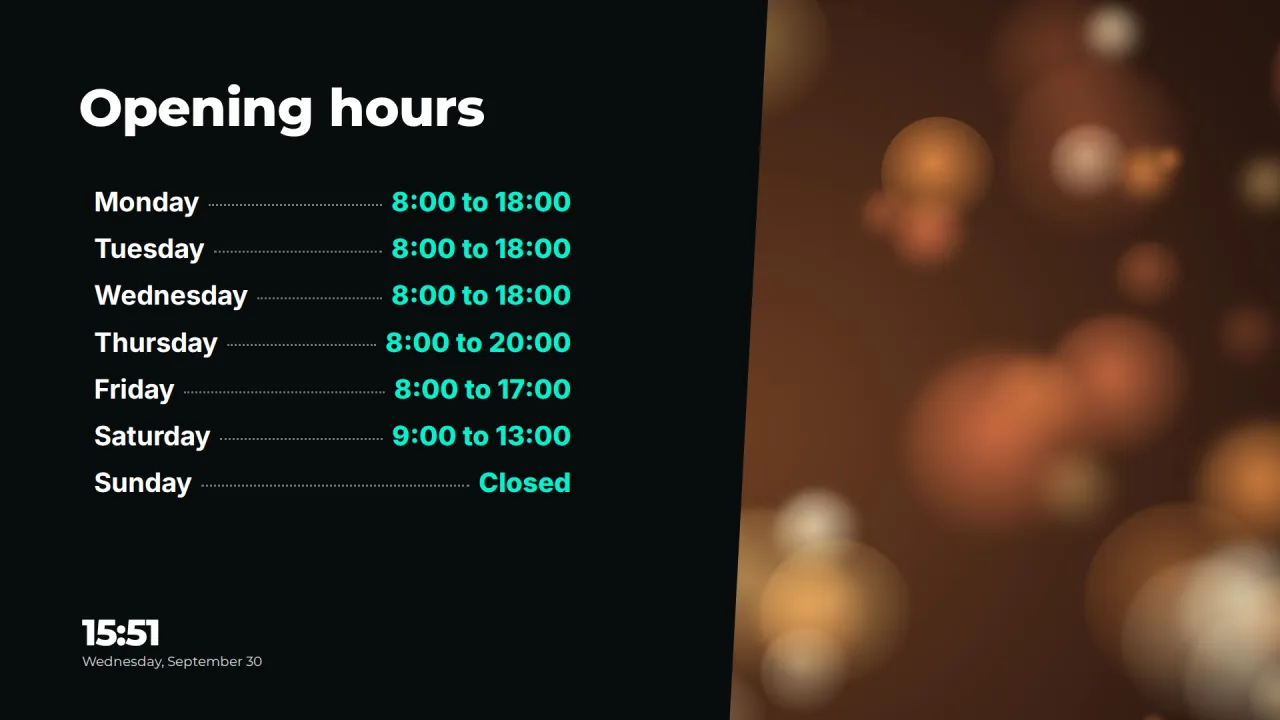
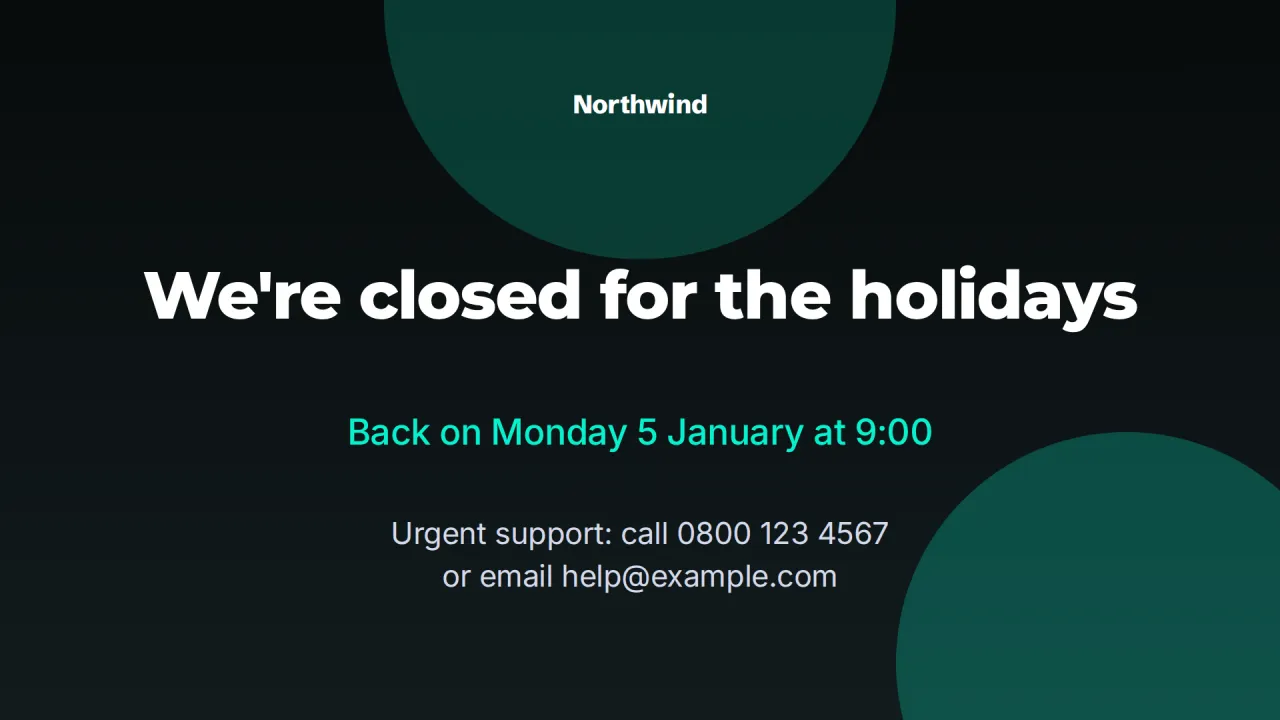
Opening hours, holiday closures and clinic times that appear and disappear on schedule.
Keeps playing offline
Content is cached on each screen, so a network outage does not blank the waiting room.
Waiting room screens that answer the usual questions
People in a waiting room ask the same things: how long, where do I go, when are you open, can I get the flu vaccine here. A waiting room screen can answer most of them before anyone reaches the desk.
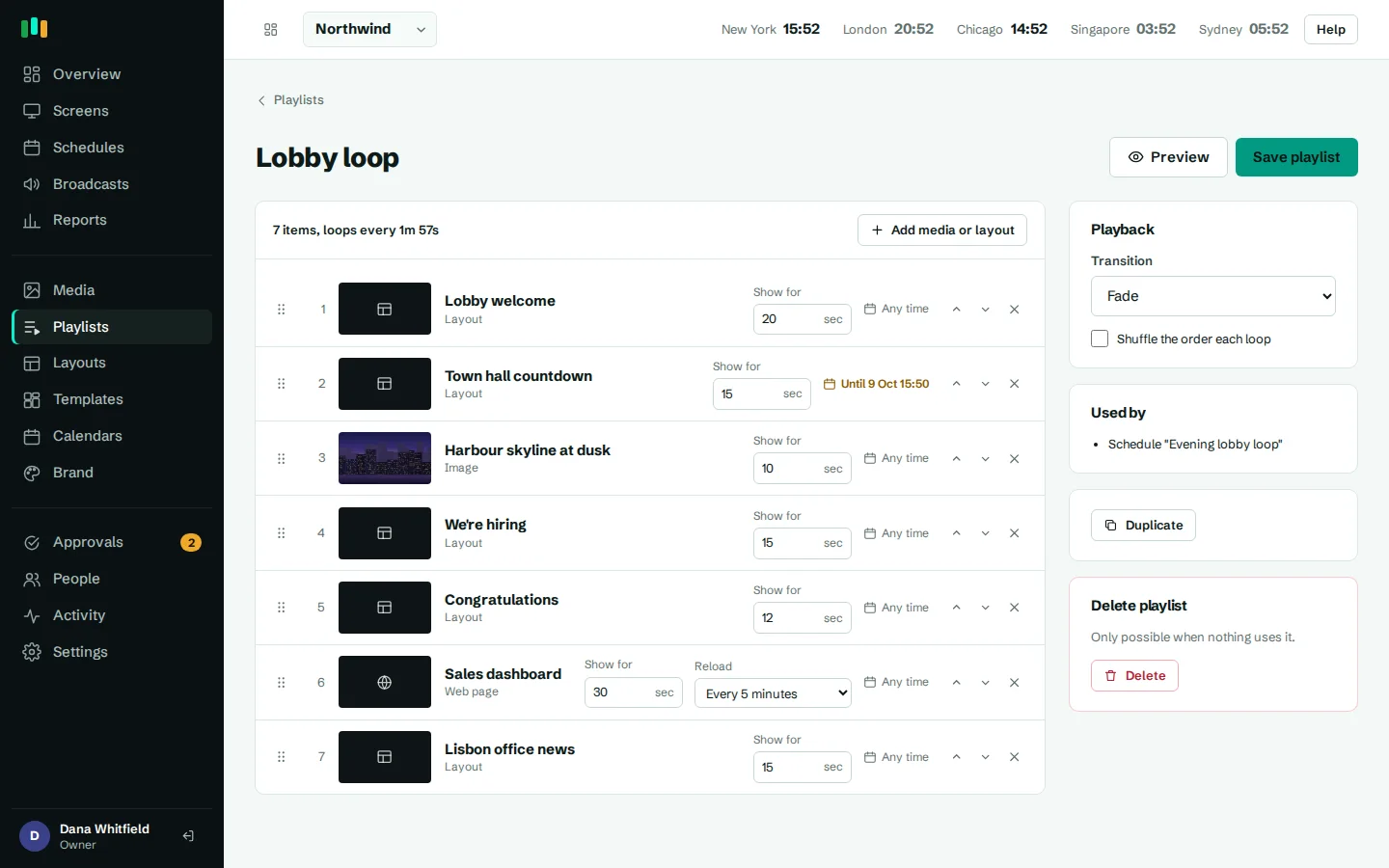
A typical waiting room playlist in CompleteVantage mixes the practice's Opening hours, a seasonal campaign slide (vaccinations, screening reminders, a new online booking service), a Scan me QR code for the patient feedback form, and News, weather and time to make the wait feel shorter. Campaign slides get "show from" and "show until" dates, so the winter vaccination campaign comes down on time without anyone remembering.
PDFs and PowerPoint files from a health promotion team convert to slides automatically, so existing materials can go on screen as they are.
A note on patient information
Signage screens are public. Most healthcare organizations use them for general information only: hours, directions, campaigns and notices. We recommend that screens do not display patient names or any other patient data unless your organization has assessed that use against its own privacy obligations.
CompleteVantage scopes all data to your organization, stores device tokens only as hashes and keeps web page access keys away from the admin once saved. See security for how the product handles data, and involve your information governance team before connecting any clinical system.
- Use screens for general, non-patient information by default
- Assess any patient-facing data use with your privacy team first
- Roles and an activity log show who changed what
Wayfinding for large sites
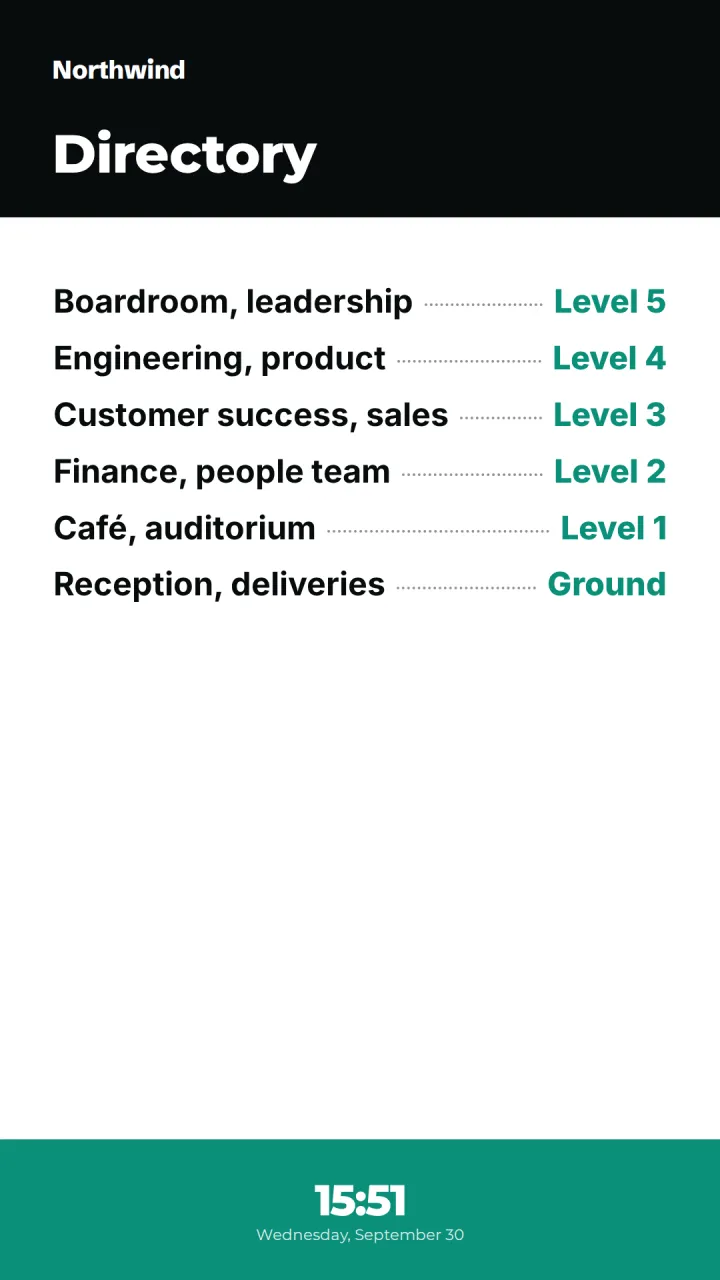
Hospitals and multi-department clinics are hard to navigate, especially for anxious visitors. A portrait Building directory at the main entrance and by each lift lists departments by floor: outpatients, radiology, pharmacy, the café. When a department moves, update one layout and every copy of it changes. Set a screen's orientation to portrait and the directory fits it properly.
Staff room screens and internal notices
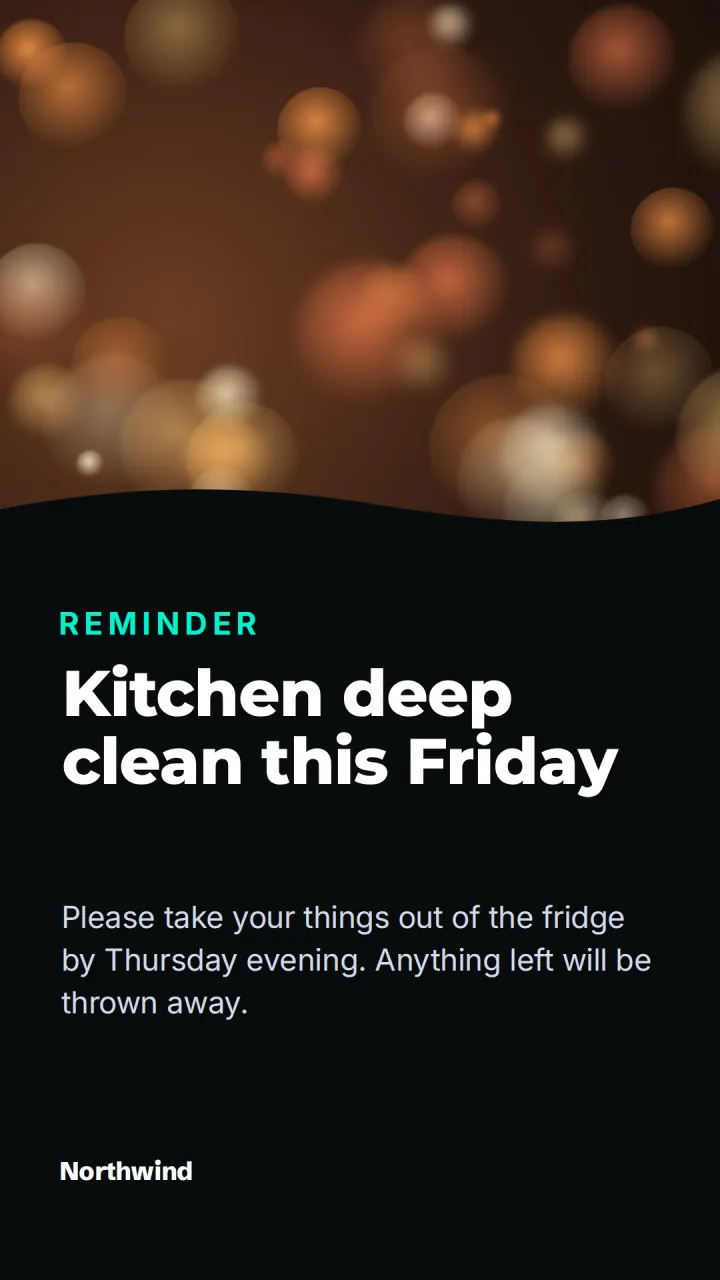
Clinical staff rarely have time to read email during a shift. A screen in the staff room or at a nursing station works better for short notices: a new infection control procedure, the mandatory training deadline, shift schedule changes for the holidays, recognition for a team that went beyond. Notice board fits corridors and kitchens, Congratulations covers service anniversaries, and We're hiring supports referral schemes.
Group those screens separately from patient-facing ones, so staff content never shows in a public waiting room. Scheduling can switch a screen between day and night shift content on local time.
Emergency broadcasts for healthcare sites
When a building has a fire alarm test, a water supply problem or a car park closure, you need every relevant screen to say so now. An emergency broadcast takes over all screens, a group (for example "North wing") or one screen at once. Choose Emergency (red), Warning (amber), Announcement (blue) or Good news (green), and run it for a set time or until it is ended. A red banner in the admin reminds everyone it is live.
Broadcasts are started from the admin by a person. They are not connected to fire panels or paging systems. You can require approval for broadcasts started by editors.
Reliable screens that do not need a technician
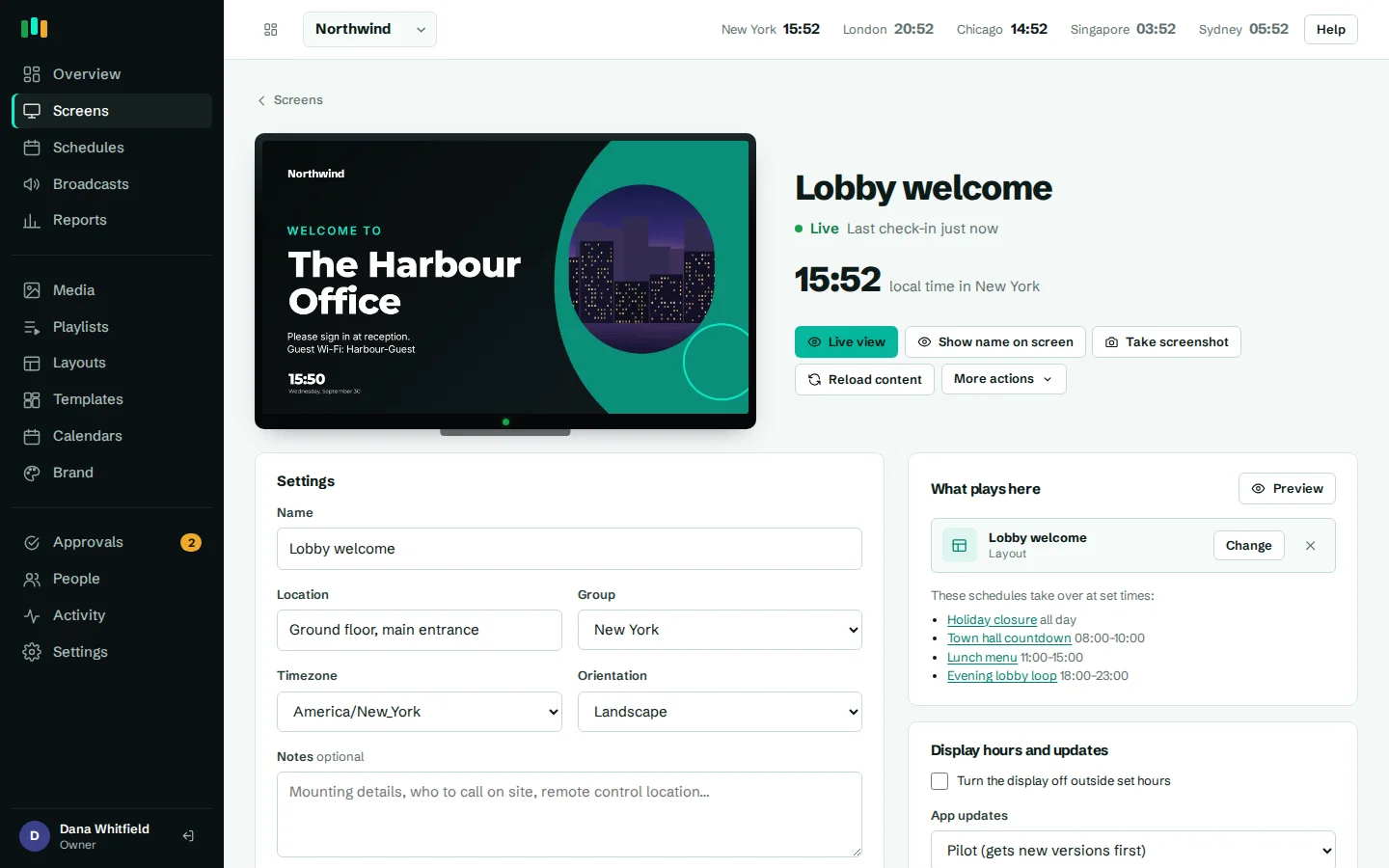
Every screen reports its status: live, not responding, offline or display off. Your IT team gets alerts by email, Teams, Slack or webhook when a screen drops off, can take a screenshot to see what it is actually showing, and can reload or restart it remotely. Display hours turn waiting room screens off after the clinic closes. More on monitoring and alerts.
Where the screens go
Waiting rooms
Opening hours, health campaigns, feedback QR codes and the time.
Main entrance
A portrait directory of departments by floor.
Staff rooms
Notices, training deadlines and team recognition, kept away from public screens.
Nursing stations
Short operational notices that change with the shift.
Pharmacy counter
Opening times, holiday closures and service information.
Templates to start from
Built-in designs that take your logo, colors and fonts. Pick one, change the words, and assign it to screens.
Features used most in healthcare
- Emergency broadcastsTake over every screen, a building or one TV with an urgent message in about 30 seconds.
- SchedulingPlan what plays by day, time and place, and let each screen follow its own local clock.
- Team and approvalsGive each person the right access, and have an admin check editors' changes before they reach screens.
- Monitoring and alertsKnow which screens are live, see what they show right now, and get told when one goes dark.
- Offline playbackScreens keep playing, and keep following their schedules, when the internet or the server is down.
Questions people ask
Is it HIPAA compliant?
We do not claim HIPAA compliance or any other certification. The product is designed for general information screens. If you are considering showing any patient information, assess it with your privacy and compliance team first. See security for how data is handled.
Can we show patient queue numbers or names?
There is no built-in patient queuing or calling feature. We recommend not showing patient data on signage unless your organization has assessed that use.
Can a fire alarm trigger the screens automatically?
Not today. Broadcasts are started by a person in the admin, and take over the chosen screens straight away.
Can different departments manage their own screens?
Yes. Group screens by department or site, give department staff the editor role, and turn on approvals so an admin checks changes before they go live.
What if the network goes down?
Screens keep playing cached content, and schedules keep running on local time. Live web pages and video streams need a connection.
Related features
- Emergency broadcastsTake over every screen, a building or one TV with an urgent message in about 30 seconds.
- Team and approvalsGive each person the right access, and have an admin check editors' changes before they reach screens.
- Monitoring and alertsKnow which screens are live, see what they show right now, and get told when one goes dark.
- Offline playbackScreens keep playing, and keep following their schedules, when the internet or the server is down.
Put your first screen on in ten minutes
Try every feature free for 14 days. No card required. Pair a TV with a six-character code, pick a template, and it's live.