
Scheduling
The right content at the right time, on every screen
Tell CompleteVantage what to show and when: breakfast menu until 11:00, lunch after, a holiday notice for one week in December. Each screen runs its schedule on its own clock, in its own time zone, even without internet.
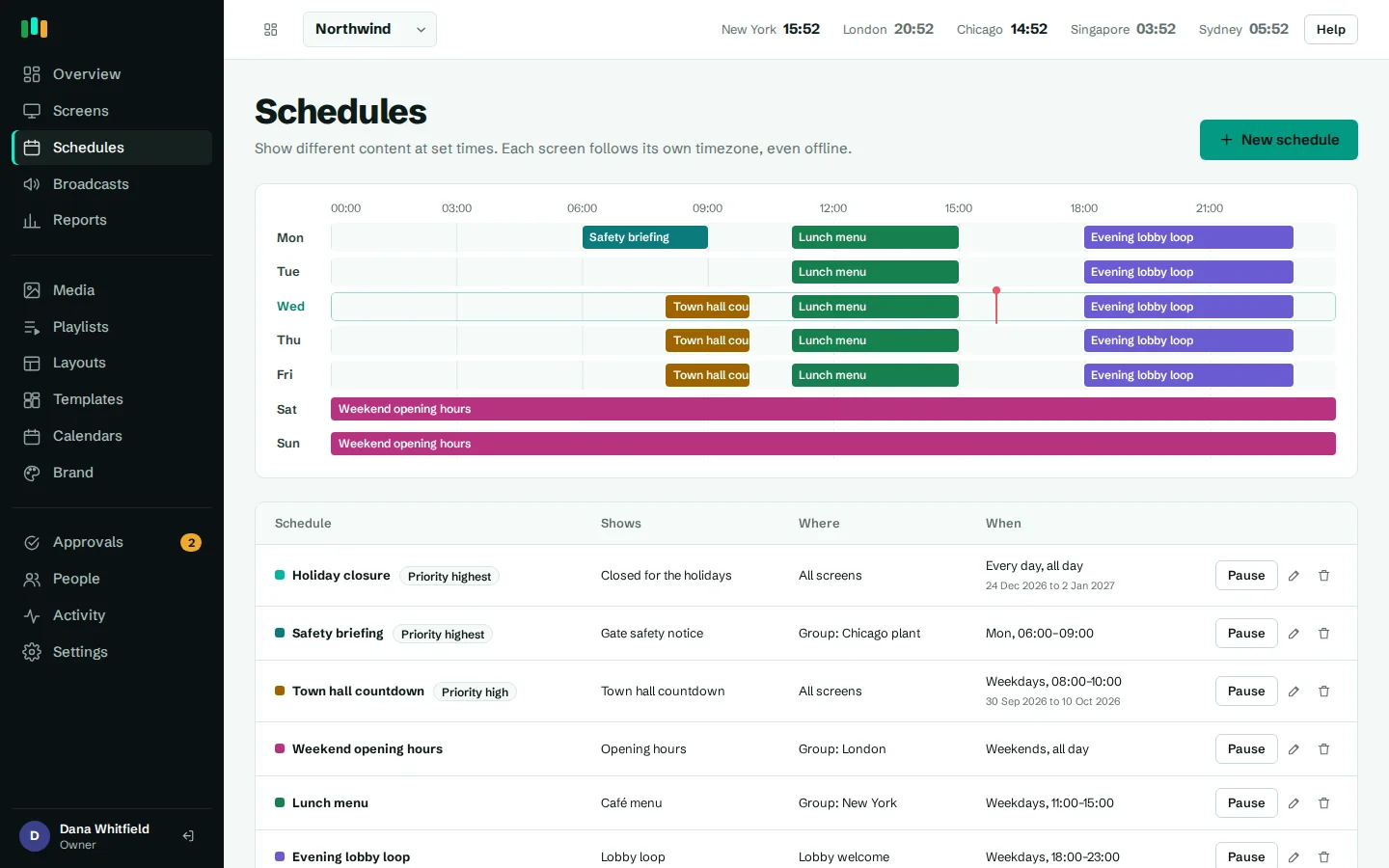
Local time, every screen
The Chicago lobby switches at 11:30 Chicago time and the Paris lobby at 11:30 Paris time, from one schedule.
Works offline
Schedules are stored on the screen and evaluated there, so a dropped connection doesn't stop a switch.
Clear priorities
Three priority levels plus a simple tie-break rule decide what wins when schedules overlap.
See the week
A week view shows what is scheduled when, so gaps and clashes are easy to spot.
Digital signage scheduling in plain terms
A schedule says: show this on these screens, on these days, between these times. What you show can be a media item, a playlist or a layout. Where you show it can be all screens, a group, or a single screen.
- Days: pick any combination, such as weekdays only or Saturday and Sunday.
- Times: a start and end time, or all day.
- Dates: an optional start and end date, for a campaign, a season or a holiday closure.
- Priority: normal, high, or highest.
When no schedule applies, a screen falls back to its own default content, then its group's, so it is never blank.
- Targets: all screens, a group, or one screen
- Any combination of weekdays
- Time ranges or all day
- Optional start and end dates
Dayparting, including overnight slots
Dayparting means changing content through the day. A café board can show breakfast from 06:00 to 11:00, lunch from 11:00 to 15:00 and the afternoon menu after that. A factory screen can show shift targets for the night shift from 22:00 to 06:00: set an end time earlier than the start and the slot runs past midnight.
Pair schedules with display hours to turn screens off when a building is empty.
Evaluated on the player, in each screen's time zone
Many systems decide on the server what each screen should play and push changes out. CompleteVantage sends each screen its full set of schedules, and the player decides locally, using the time zone set for that screen.
That has two practical benefits. First, one schedule works across a global fleet: "11:30 on weekdays" means 11:30 in Chicago for the Chicago screen and 11:30 in Singapore for the Singapore screen. Second, schedules keep working if the network drops. A screen that loses its connection at 10:00 still switches to lunch at 11:00. See offline playback.
The player follows the server's clock rather than trusting the box's own, so a TV box with the wrong time doesn't throw your schedule off.
Priorities that make overlaps predictable
Overlapping schedules are normal: a company-wide announcement runs all week while one office has a visitor welcome on Tuesday. CompleteVantage settles them with simple rules:
- Highest priority wins over everything except an emergency broadcast.
- High priority wins over normal schedules.
- With equal priority, a schedule for one screen beats one for a group, which beats one for all screens.
The full order on a screen is: broadcast, then schedule, then the screen's own content, then its group's content.
Week view and content windows
The week view lays out your schedules across the days and hours, so you can see at a glance what plays when and where schedules overlap. Schedules can be paused without being deleted, which is handy for seasonal content you reuse every year.
For single items, you don't always need a schedule. Any media item or playlist slot can have its own show from and show until date, and the player enforces it even offline. Use schedules for recurring patterns and content windows for one-off expiry. More in content and playlists.
- Week view of every schedule
- Pause and resume schedules
- Show-from and show-until on individual items
- Schedule changes can require admin approval
Questions people ask
Do schedules work if the internet drops?
Yes. Each screen stores its schedules and decides locally what to play, so switches happen on time without a connection.
We have screens in several time zones. Do I need separate schedules?
No. Each screen has its own time zone, and schedule times are read in that zone. One schedule for "weekdays 11:30 to 14:00" works everywhere.
Can a schedule run past midnight?
Yes. Set an end time earlier than the start, for example 22:00 to 06:00.
What wins if two schedules overlap?
The higher priority wins. With equal priority, the more specific target wins: one screen beats a group, and a group beats all screens. An emergency broadcast overrides every schedule.
How quickly do schedule changes reach screens?
Screens check in every 30 seconds and fetch new content when something has changed, so edits usually arrive within a minute.
Related features
- Emergency broadcastsTake over every screen, a building or one TV with an urgent message in about 30 seconds.
- Offline playbackScreens keep playing, and keep following their schedules, when the internet or the server is down.
- Content and playlistsUpload images, video, PDFs and slides, add web pages and streams, and play them in timed playlists.
- Screens and devicesPair a TV with a six-character code, see every screen live and fix problems without a site visit.
Put your first screen on in ten minutes
Try every feature free for 14 days. No card required. Pair a TV with a six-character code, pick a template, and it's live.