
Screens and devices
Manage every screen from one place, wherever it hangs
Pair a TV in under a minute, see which screens are live right now, and restart, update or power them down from your desk. CompleteVantage keeps a fleet spread across buildings and time zones easy to run.
Pair with a code
The TV shows a six-character code. Type it into the admin and the screen is yours, no cables or laptops needed.
Live status for each screen
See at a glance which screens are live, not responding, offline or switched off by their display hours.
Fix it remotely
Take a screenshot, reload, restart the app or reboot the box without sending anyone to the screen.
Updates you control
Roll a new Android app version to a pilot group first, then release it to everyone during a quiet install window.
Pairing a new screen takes a six-character code
Install the CompleteVantage app on an Android TV or Google TV box, an Amazon Fire TV, or any Android 5+ media player, or open the web player in a browser. The screen shows a short code. In the admin, choose Add screen, type the code, give the screen a name and pick its time zone. That's it: the screen downloads its content and starts playing.
Each paired device gets its own token, which the server stores only as a hash. A paired screen can't be taken over by someone re-registering it. See hardware for the boxes we test on and security for how devices authenticate.
Digital signage device management with live status
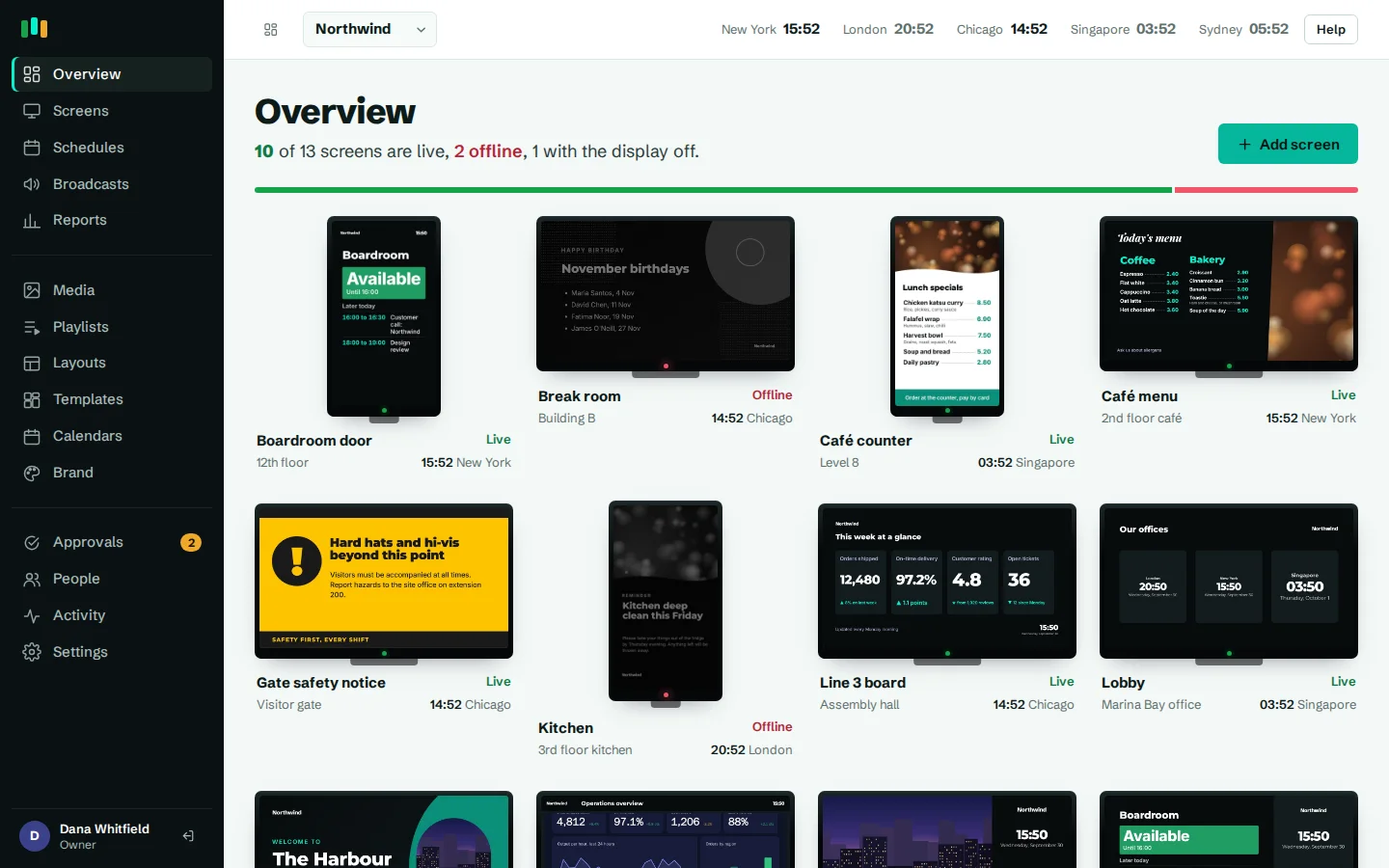
Every screen checks in every 30 seconds, so the admin always knows its state. The fleet overview draws your screens as TVs showing what they last displayed, grouped the way you organized them.
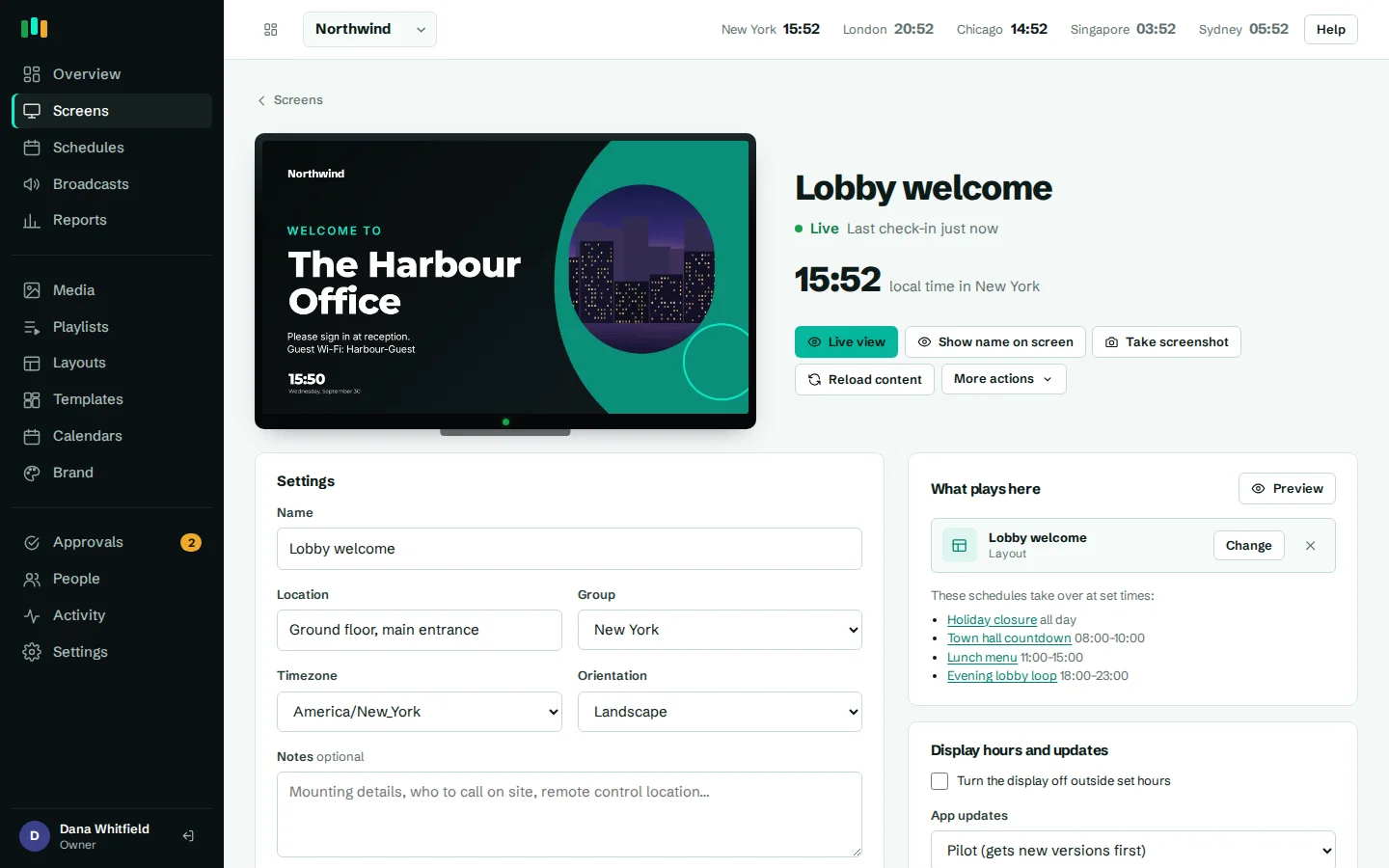
Open a screen to see its status, its local time, the last screenshot and what it's playing now. On Android screens, Live view streams a fresh screenshot every few seconds while the dialog is open, so you can check a lobby display in another country without calling reception.
When a screen stops responding, monitoring and alerts can tell your team by email, Teams, Slack or webhook.
- Four clear states: live, not responding, offline, display off
- Local time shown for every screen, in its own time zone
- Last screenshot and current content on the screen page
- Live view for Android screens, capped at five minutes per session
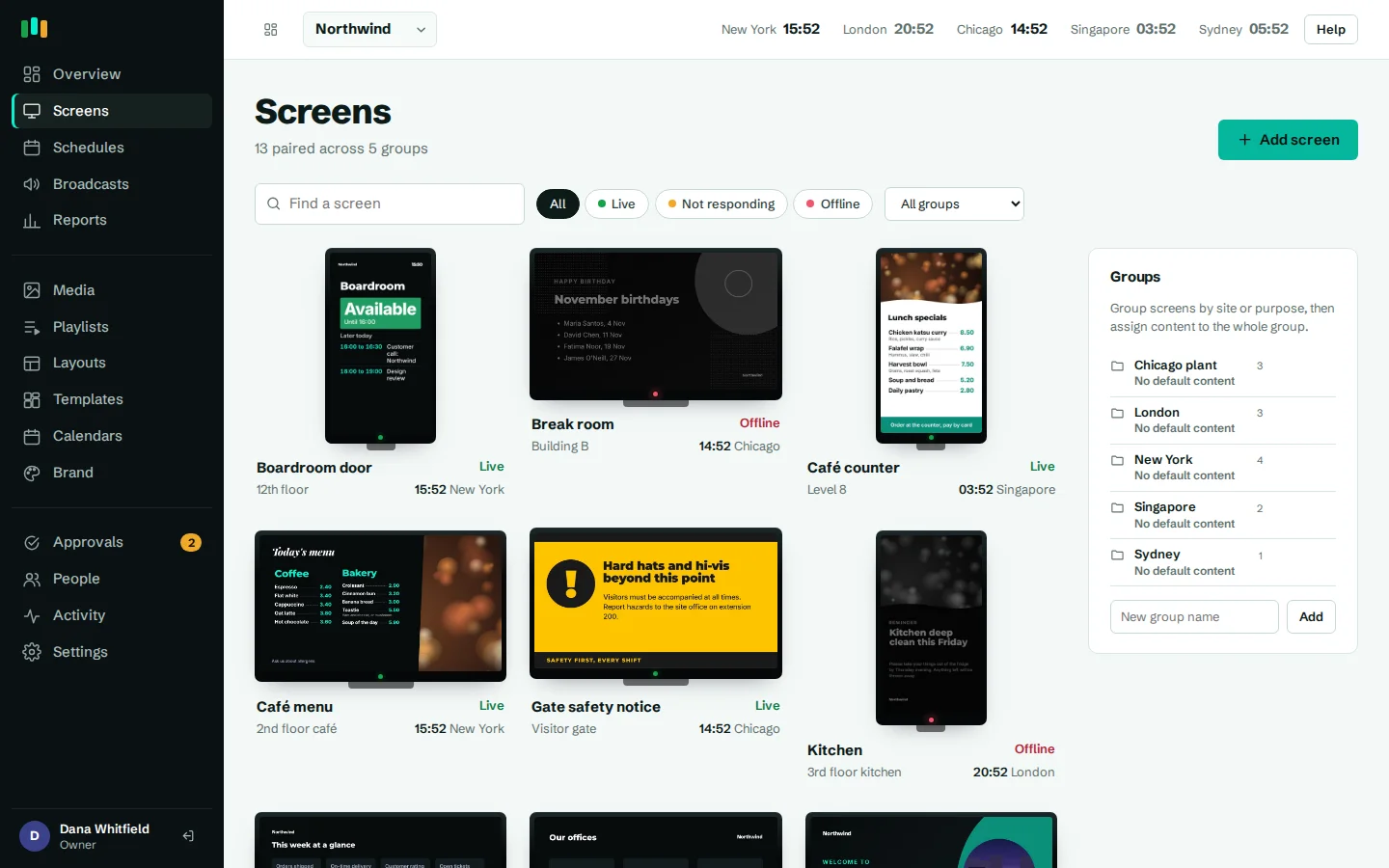
Groups that pass content down
Put screens into groups, and groups inside groups: Europe, then London office, then London reception. Give a group default content and every screen in it plays that content unless it has its own. Add a new screen to London office and it picks up the right playlist the moment it's paired.
Groups are also targets for scheduling, broadcasts and display hours, so one change covers a whole site.
Remote actions when something looks wrong
Most screen problems can be fixed from the screen page. Use Show name on screen to confirm which TV is which during an install. Take a screenshot to see exactly what viewers see. Reload the player to pick up a change straight away.
The More actions menu covers the heavier fixes: restart the app, reboot the box, turn the display off or on, and clear the cache.
- Show name on screen
- Screenshot and reload
- Restart app or reboot device
- Display off, display on, clear cache
Display hours that save power
Set display hours per screen or per group, for example 07:00 to 19:00 on weekdays. Outside those hours the screen turns its display off and wakes itself again in the morning, in its own time zone. A screen that is off by schedule isn't counted as offline, so it won't trigger alerts overnight.
On boxes where the app has display power control, the box sleeps and HDMI-CEC can switch the TV off too, if CEC is turned on in the TV. Without that permission the screen goes black while the box stays on.
Android app updates with a pilot ring
The player is a web app inside a small native Android shell, so most improvements arrive from the server with nothing to install. When the Android app itself changes, upload the new APK in the admin. Screens download it, check its SHA-256 fingerprint and install it.
Mark a few screens as the pilot ring and release to them first. When they look good, choose Release to all. An install window, such as 02:00 to 05:00 local time, keeps updates away from opening hours. The App updates page shows each screen's update status.
Kiosk mode with device owner
On a box with no accounts, you can set the app as device owner. It then becomes the permanent home screen and pins itself, so viewers and passers-by can't exit to the launcher. Updates install silently, reboots work from the admin, and the app sets the box's clock to the screen's time zone.
Without device owner, the app still starts on boot where Android allows it, restarts itself after a crash, and reloads when the network returns.
Questions people ask
Which devices can I use?
Android TV and Google TV boxes, Amazon Fire TV, and most Android 5+ media players run the app. Any modern browser can run the web player too.
What happens if a screen loses its internet connection?
It keeps playing from its local cache and reports in again when the connection returns. See offline playback.
Can I reboot a TV box remotely?
Yes, from the screen page under More actions. Rebooting the box needs the app to have device owner or device admin rights; restarting the app works everywhere.
Do updates interrupt what is on screen?
Updates install during the install window you set, and you can test them on pilot screens first. Without device owner, Android asks someone at the TV to confirm the install.
How many screens can I manage?
Screens are organized in nested groups, so large fleets stay manageable. Plans count paired screens; see pricing.
Related features
- Monitoring and alertsKnow which screens are live, see what they show right now, and get told when one goes dark.
- Offline playbackScreens keep playing, and keep following their schedules, when the internet or the server is down.
- SchedulingPlan what plays by day, time and place, and let each screen follow its own local clock.
- Content and playlistsUpload images, video, PDFs and slides, add web pages and streams, and play them in timed playlists.
Put your first screen on in ten minutes
Try every feature free for 14 days. No card required. Pair a TV with a six-character code, pick a template, and it's live.