
Proof of play
Proof of play reporting that answers "did it actually run?"
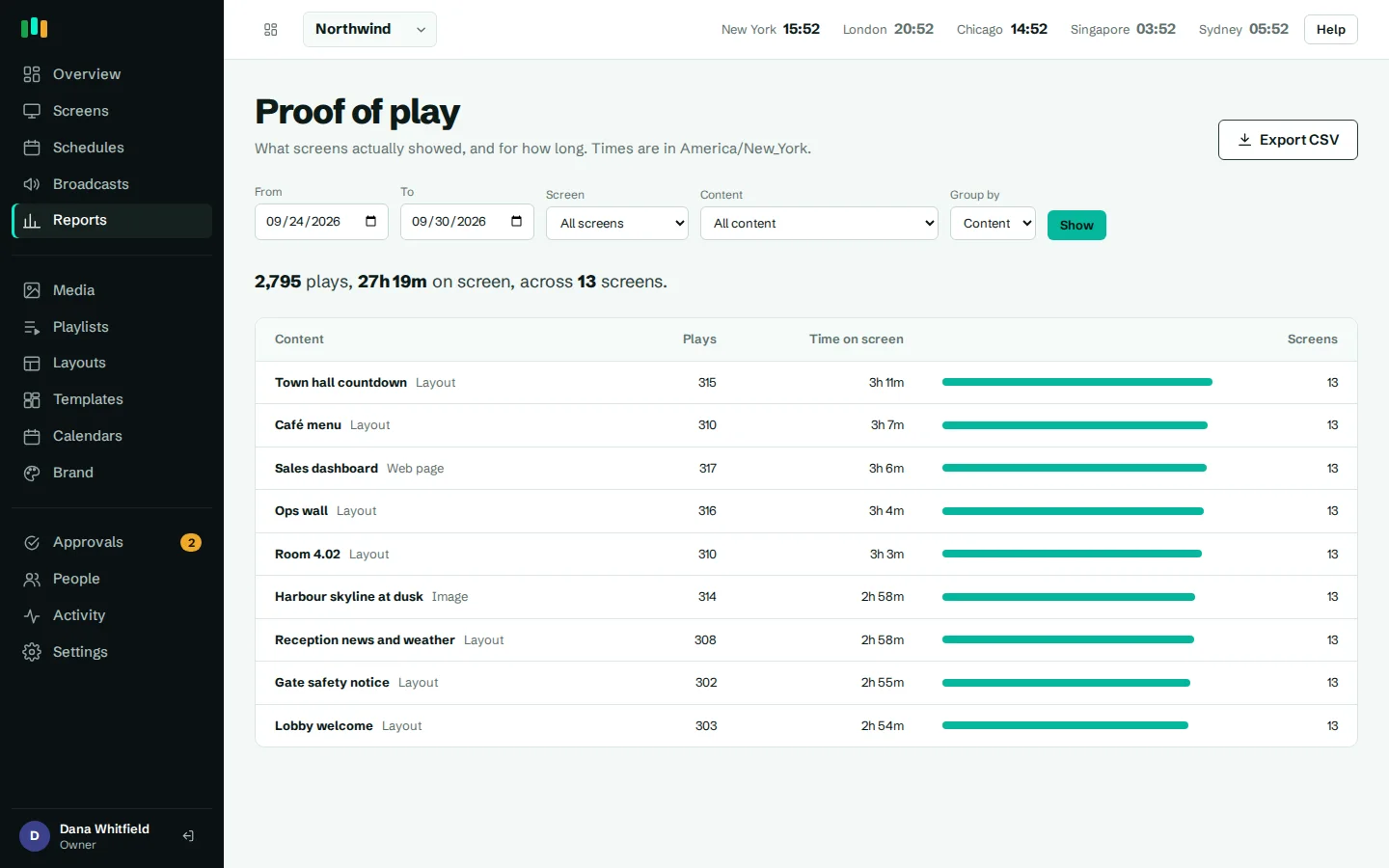
Every screen running CompleteVantage records what it played, when, and for how long. Reports group those plays by content, screen or day, and a CSV export gives you the full record.
Three ways to look
Group plays by content, by screen or by day, for any date range, and filter to one screen or one item.
Every play in a CSV
Export one row per play with local time, duration, screen, location, content and why it played.
Offline plays still count
Screens keep their plays while the internet is down and upload them once they reconnect.
Counted once
Each play has its own key, so a play sent twice after a flaky connection is stored only once.
Why proof of play reporting matters
Scheduling content is only half the job. Sooner or later someone asks whether it ran: the marketing lead who paid for a promotion in the shop window, the facilities manager checking that the fire drill notice was on every floor, or a client who wants evidence before paying an invoice.
CompleteVantage answers from the players themselves. A play is recorded when a screen actually shows something, not when the server thinks it should have. If a screen was unplugged, the report shows the gap.
Reports by content, screen or day
The Reports page starts with the last seven days and a summary of total plays, total play time and how many screens took part. Pick a date range and choose how to group the plays:
- By content: each image, video, layout or playlist, with its play count, total time, number of screens, and first and last play. Useful for "how often did the summer offer run?"
- By screen: each screen and its location, so you can compare the lobby with the canteen, or spot a screen that has gone quiet.
- By day: a day-by-day total, useful for checking a campaign ran every day it was booked.
Filter to a single screen or a single piece of content to narrow it down. Dates are in your organization's time zone, and days are counted correctly across daylight saving changes.
- Any date range, defaulting to the last seven days
- Plays, total time and screens for each row
- Filter by one screen or one piece of content
- Plays from screens you later removed still count
Export every play to CSV
When a summary is not enough, export the range as CSV. You get one row per play with:
- The start time in your organization's time zone
- How many seconds it played
- The screen name and location
- The content, its type, and the layout and playlist it was part of
- Why it played: assigned content, a schedule, or a broadcast
The file opens cleanly in Excel and Google Sheets. It is the record you send to an auditor, a client or an advertiser, and it shows not just that something played, but whether it played because of a schedule or an emergency broadcast.
Plays recorded offline, uploaded later
Screens do not stop playing when the network drops, and they do not stop counting either. The player keeps its play records on the device while it is offline and uploads them when the connection comes back. Your report fills in the missing hours without anyone touching the screen.
Uploads over a poor connection sometimes get sent twice. Each play carries its own key, so the server stores a repeated play once. Your counts stay honest. Read more about how screens keep running in offline playback.
- Plays kept on the device while offline
- Uploaded automatically after reconnecting
- Repeated uploads are stored once
How long play history is kept
Play history is kept for 400 days by default, so you can compare this year's campaign with last year's. Older plays are removed automatically in the background.
Plays are stored per organization. Someone in one organization, or one client of a reseller, never sees another's reports.
Proof of play for teams and clients
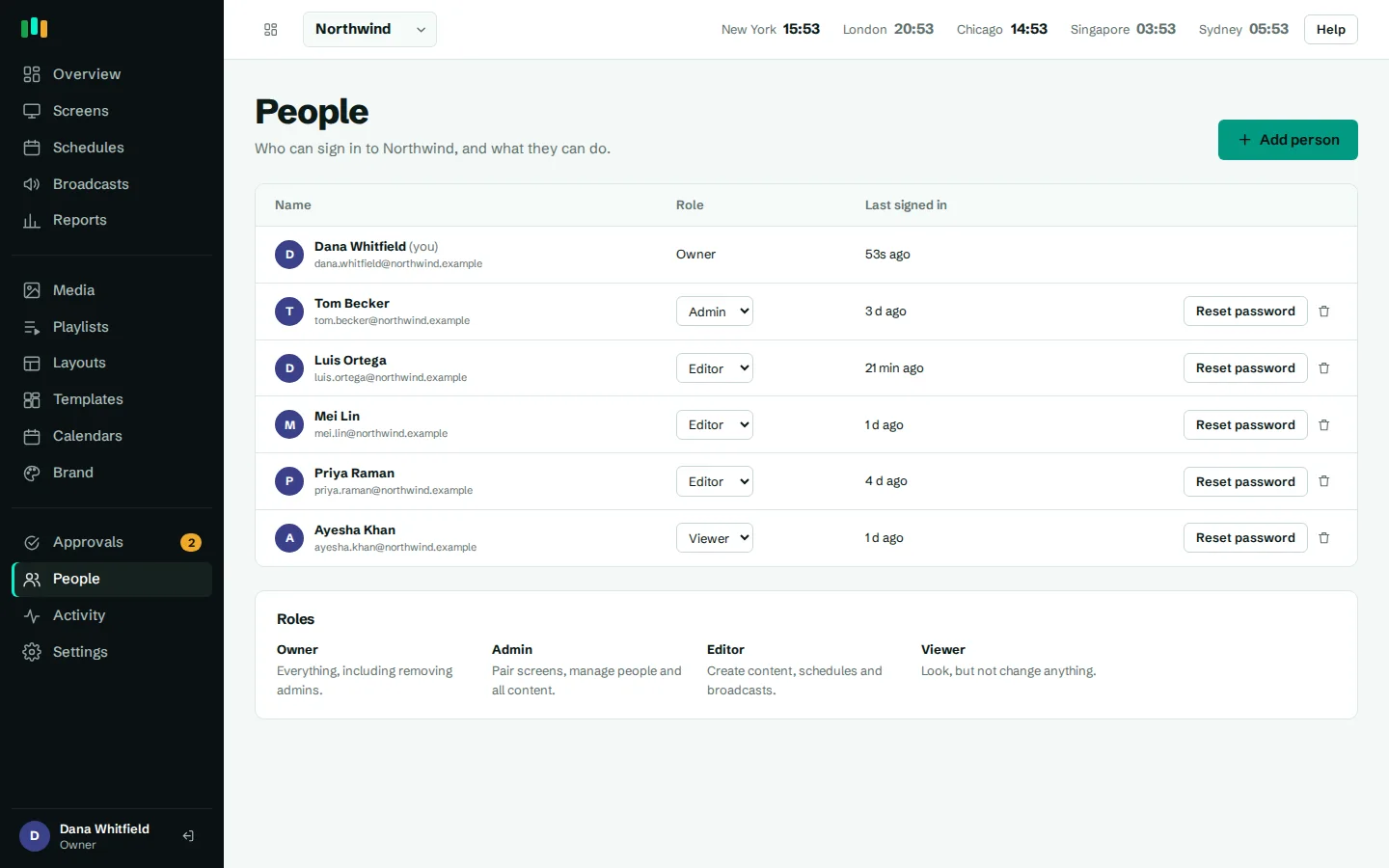
Reports are open to editors, admins and owners, so the people who plan campaigns can check them without asking IT. If you manage signage for clients, each client is its own organization with its own screens, content and play history, and each client's CSV contains only its own plays. See team and approvals for how roles and organizations work.
Questions people ask
Does a play count if the screen was offline?
Yes. The player records plays on the device while offline and uploads them once it reconnects. They appear in reports at the time they actually played.
Can plays be counted twice?
No. Each play has a unique key, so if a screen resends plays after a dropped connection, the server keeps a single copy.
What is in the CSV export?
One row per play: local start time, seconds played, screen, location, content name and type, layout, playlist, and whether it played as assigned content, from a schedule or as a broadcast.
How far back can I report?
Play history is kept for 400 days by default, so a full year of comparison is available.
Who can open reports?
Editors, admins and owners in an organization can open reports and export the CSV. Plays are kept per organization, so each client only ever sees its own screens.
Related features
- SchedulingPlan what plays by day, time and place, and let each screen follow its own local clock.
- Offline playbackScreens keep playing, and keep following their schedules, when the internet or the server is down.
- Monitoring and alertsKnow which screens are live, see what they show right now, and get told when one goes dark.
- Team and approvalsGive each person the right access, and have an admin check editors' changes before they reach screens.
Put your first screen on in ten minutes
Try every feature free for 14 days. No card required. Pair a TV with a six-character code, pick a template, and it's live.