
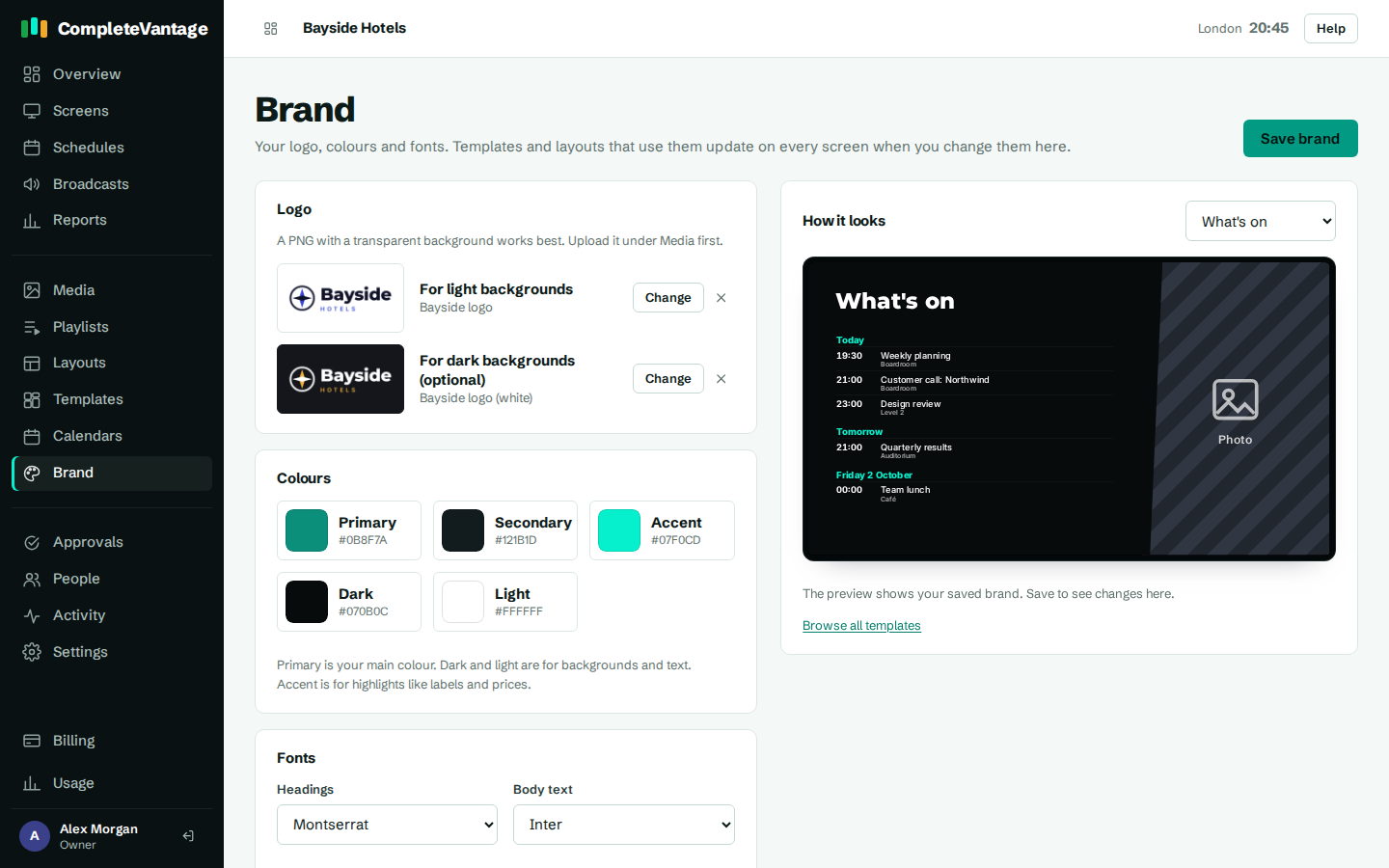
Your brand has five colours. Templates use them for backgrounds, text, labels and prices. In this article you'll set them and see how they flow into your layouts.
You'll need: the admin or owner role.
The five colours
| Colour | Used for |
|---|---|
| Primary | Your main colour: bold backgrounds, shapes and highlights. |
| Secondary | A supporting colour, often for panels and sidebars. |
| Accent | Highlights such as labels, prices and times. |
| Dark | Dark backgrounds and text on light backgrounds. |
| Light | Light backgrounds and text on dark backgrounds. |
Set your colours
- Go to Brand.
- Under Colours, select a colour's swatch to open the colour picker.
- Choose the colour, or type its hex code (for example
#3346D3). The code shows under the colour's name. - Repeat for the others.
- Select Save brand.
Brand-linked colours in layouts
In the layout designer, every colour setting shows five brand swatches (Brand primary, Brand secondary and so on) and a custom colour picker.
- Pick a brand swatch, and the zone stays linked to your brand. Change the brand later, and it changes too.
- Pick a custom colour, and it stays that exact colour whatever happens to your brand.
Templates use brand swatches throughout. That's why one template can look right for every organization. A few templates, like Safety notice, deliberately use fixed colours so safety signs keep their standard look.
When changes reach screens
After you select Save brand, screens showing layouts that use brand colours update within a minute. There's no need to open or save each layout.