
The background sits behind every zone. It can be a colour, a gradient between two colours, or a photo from your media library.
You'll need: the editor role or higher.
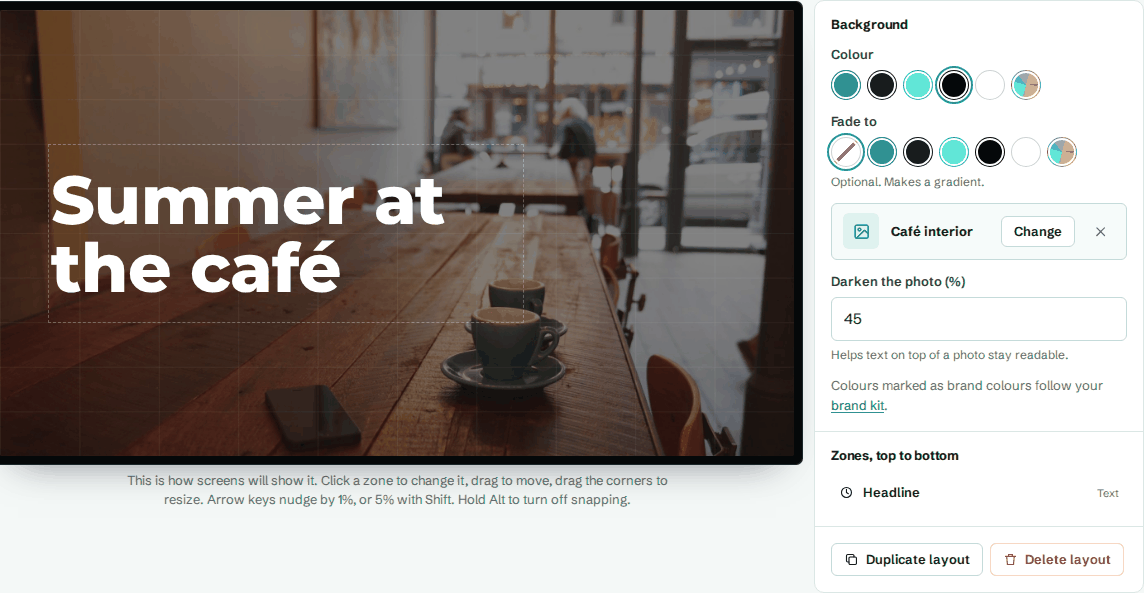
Set the background
- Open the layout in the designer.
- Click an empty part of the canvas, or press Esc, so no zone is selected. The Background settings appear on the right.
- Choose a Colour. Pick a brand swatch to follow your brand, or the last swatch for a custom colour.
Make a gradient
- In Fade to, choose a second colour.
- Fade direction (degrees) appears. Set the direction of the fade: 90 goes left to right, 180 goes top to bottom, 135 goes diagonally from the top left.
To go back to a solid colour, choose the empty swatch (None) in Fade to.
Use a photo
- Under the colours, select Choose next to No background photo.
- Pick an image, for example "Harbour view". Only images are offered.
- In Darken the photo (%), set how much to darken it. 30 to 50 is usually enough for white text to read clearly. The maximum is 90.
To remove the photo, select the cross next to its name.
Good to know
- The photo sits on top of the colour. The colour shows while the photo loads, and if the photo is ever missing.
- Colours marked as brand colours follow your brand kit.
- For a coloured panel behind just one part of the screen, use a zone's own background instead. See Layers and zone style.