
The template library is a collection of designed layouts: lobby welcomes, meeting room boards, menus, safety notices and more. Every preview is drawn by the real player, in your organization's brand. Pick one you like, then change the words and pictures.
You'll need: any role can browse templates. To use one, you need the editor role or higher.
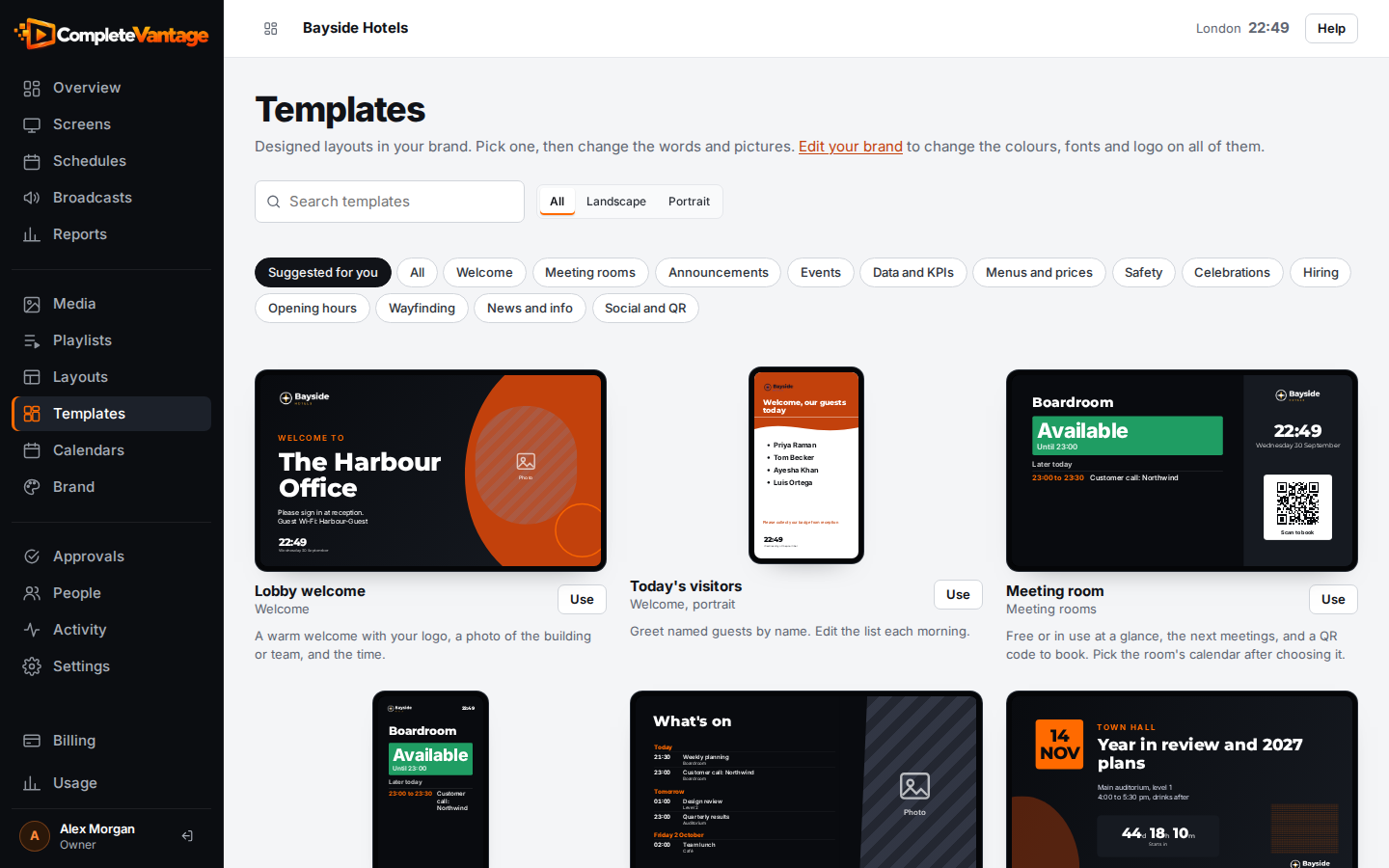
Open the library
- In the menu, choose Templates.
- Scroll through the previews. Each card shows the template's name, its category and a short description.
Previews load as you scroll, so the page stays quick even with many templates.
Filter and search
- Search templates: type a word from the name, description or category, such as "menu" or "room".
- All, Landscape or Portrait: show only templates for wide screens or for screens mounted on their side.
- Category chips: choose a category to narrow the list. Choose All to see everything again.
- Suggested for you: if you told us what your screens are for when you signed up, the library opens on the categories that suit you. Choose All to see every template.
If nothing matches, you'll see "No templates match. Try another category or search."
The categories
| Category | Good for |
|---|---|
| Welcome | Lobby greetings and today's visitors |
| Meeting rooms | Room boards, door panels and "What's on" agendas from a calendar |
| Announcements | One big message, a photo and message, or a portrait notice board |
| Events | An event spotlight with a countdown, or an agenda |
| Data and KPIs | Key numbers, or a branded frame around a live dashboard |
| Menus and prices | A café menu or a portrait price board |
| Safety | High-visibility notices and evacuation steps |
| Celebrations | Birthdays and milestones |
| Hiring | Open roles with a QR code to apply |
| Opening hours | Weekly hours, or "Closed for the holiday" |
| Wayfinding | A building directory for lobbies and lifts |
| News and info | News, weather and time, or world clocks |
| Social and QR | A big QR code with a call to action |
| Saved | Templates your team saved from its own layouts |
Templates your team saved show a Your team label. Templates your provider added for all customers show For all clients.
How brand colours work in templates
Templates use your brand kit instead of fixed colours and fonts. When you change your logo, colours or fonts under Brand, every template preview changes too, and so does every layout made from a template (unless someone picked a custom colour for a zone).
A few templates keep their own colours on purpose. For example, Safety notice stays safety yellow whatever your brand.
Photo zones
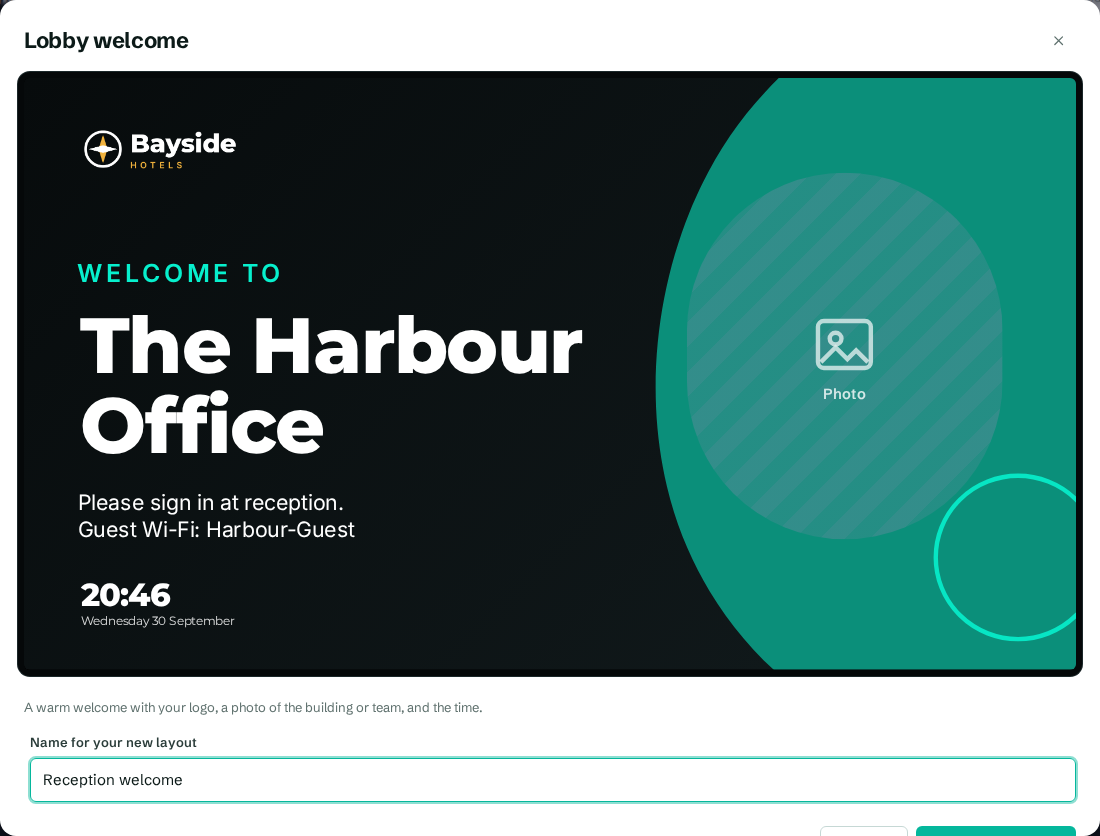
Many templates have zones marked Photo. In previews they appear striped with a picture icon. On a real screen they're blank until you choose an image or video for them. You fill them in after you use the template.
Preview a template up close
Select a template's preview to open it in a larger window. You'll see it at full size with its description.
Delete a saved template
Admins can delete templates their team saved. Select the bin icon on the template's card, then confirm. Layouts that were made from it stay as they are. Built-in templates can't be deleted.