
A room board shows at a glance whether a meeting room is free. It's perfect for a screen by the door or in the corridor. In this article you'll make one from a template and put it on a screen.
You'll need: the editor, admin or owner role, and the room's calendar added under Calendars. See Add a calendar.
What a room board shows
- A big status: Available (green) or In use (red).
- When the room is in use: the meeting's title (or "Busy") and Until the time it ends.
- When it's free: Until the next meeting starts, or For the rest of the day.
- Later today: up to four more bookings, with their times. If there are none, it says Nothing else booked today.
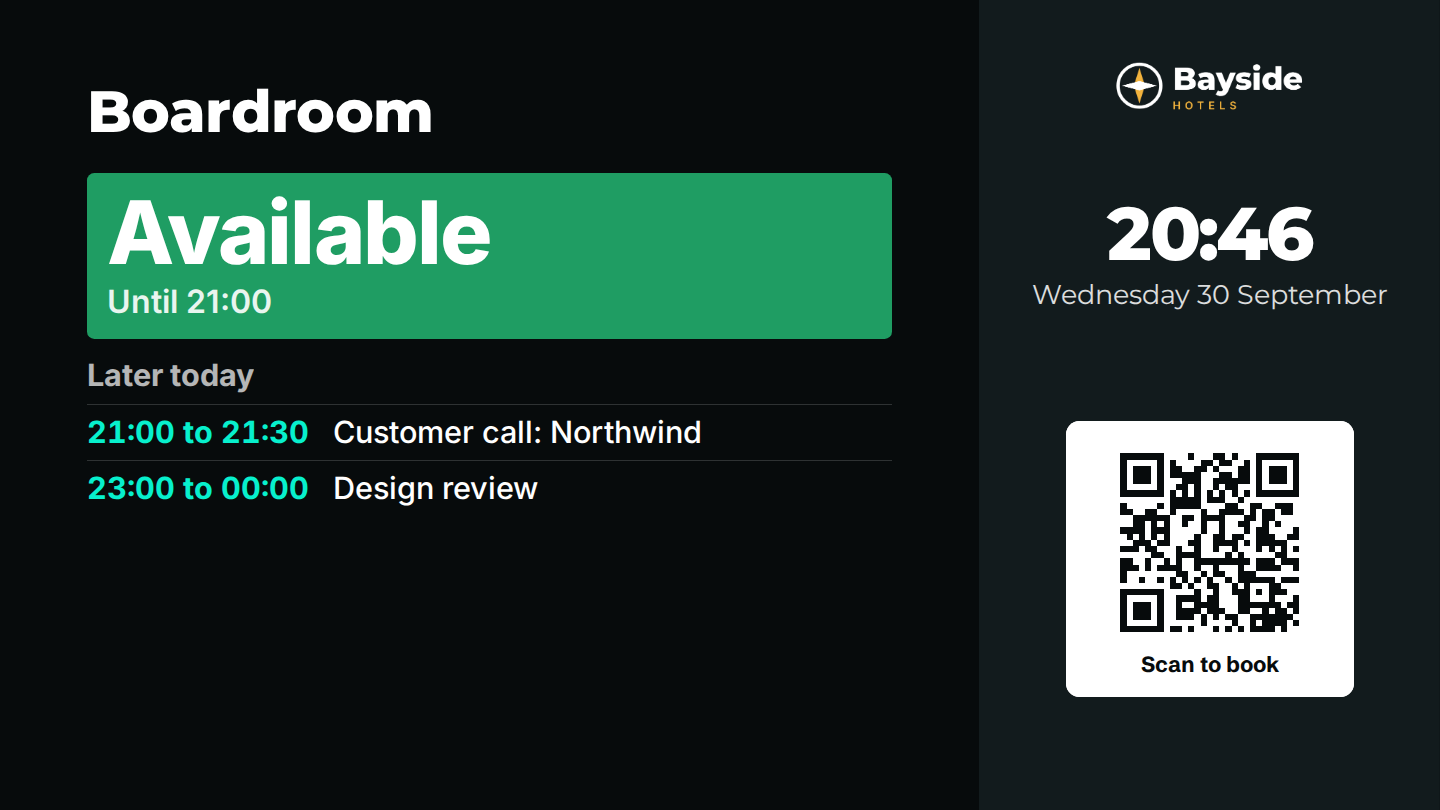
All-day events are left out of room boards, so a holiday or "out of office" entry doesn't make the room look busy all day. Times are shown in the screen's timezone, and the board updates itself every 30 seconds.
Create a room board
- In the menu, select Templates.
- Select the Meeting rooms category.
- Choose Meeting room (landscape, for a screen in a corridor) or Room door panel (portrait, for a tall screen by the door), then select Use.
- In Name for your new layout, type a name, for example "Boardroom panel", and select Use this template. The layout designer opens.
- On the canvas, select the Room calendar zone. Its settings open on the right.
- In Calendar, choose the room's calendar, for example "Boardroom".
- Change anything else you like. For example, in Heading type the room name, or leave it blank to use the calendar's name.
- Select Save layout.
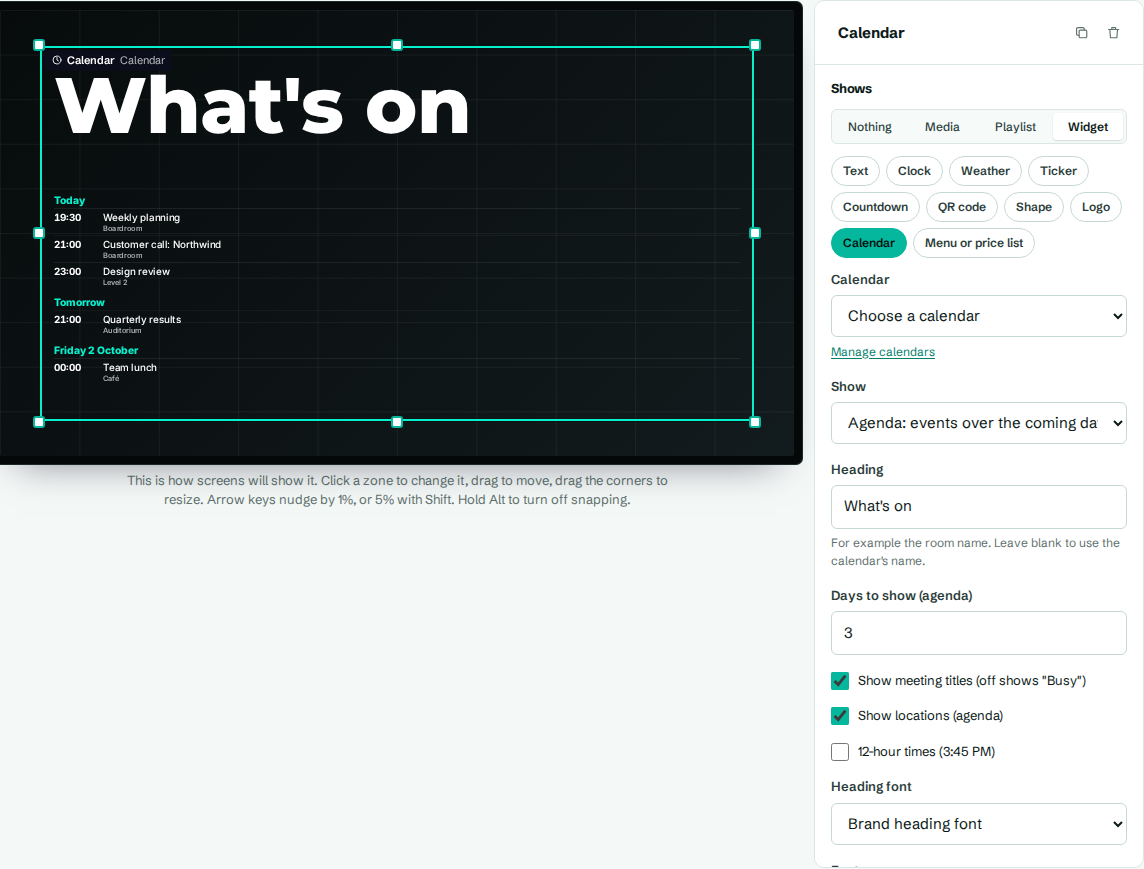
The Meeting room template also has a QR code with "Scan to book". Select the Book zone and change Link to your booking page, or remove the zone.
Put it on the screen
- Go to Screens and open the screen by the room, for example "Boardroom door".
- Under What plays here, select Choose, then pick the layout "Boardroom panel".
The screen switches within a minute. See Choose what plays on a screen.
Settings you can change
With the Room calendar zone selected, you can change:
- Show: keep Room board: free or in use, then later today.
- Show meeting titles (off shows "Busy"): turn it off to hide all titles.
- 12-hour times (3:45 PM).
- Heading font, Font, Text colour, Times and day colour, Available colour and In use colour.
For every setting, see Calendar widget.