
An agenda lists what's coming up: today, tomorrow and the days after. Use it for a lobby screen with the week's events, a training room's sessions or a team's calendar. In this article you'll make one.
You'll need: the editor, admin or owner role, and the calendar added under Calendars. See Add a calendar.
Room board or agenda?
| Room board | Agenda | |
|---|---|---|
| Best for | One meeting room | A lobby, team or event calendar |
| Shows | Available or In use now, then later today | Events grouped by day, over 1 to 7 days |
| All-day events | Left out | Shown as All day |
| Locations | No | Optional |
Create an agenda from a template
- Go to Templates and select the Meeting rooms category.
- Choose What's on and select Use.
- Name your layout, for example "Lobby events", and select Use this template.
- On the canvas, select the Events zone.
- In Calendar, choose your calendar, for example "Company holidays".
- In Days to show (agenda), enter 1 to 7. The default is 3.
- Select Save layout, then show the layout on a screen from its What plays here panel.
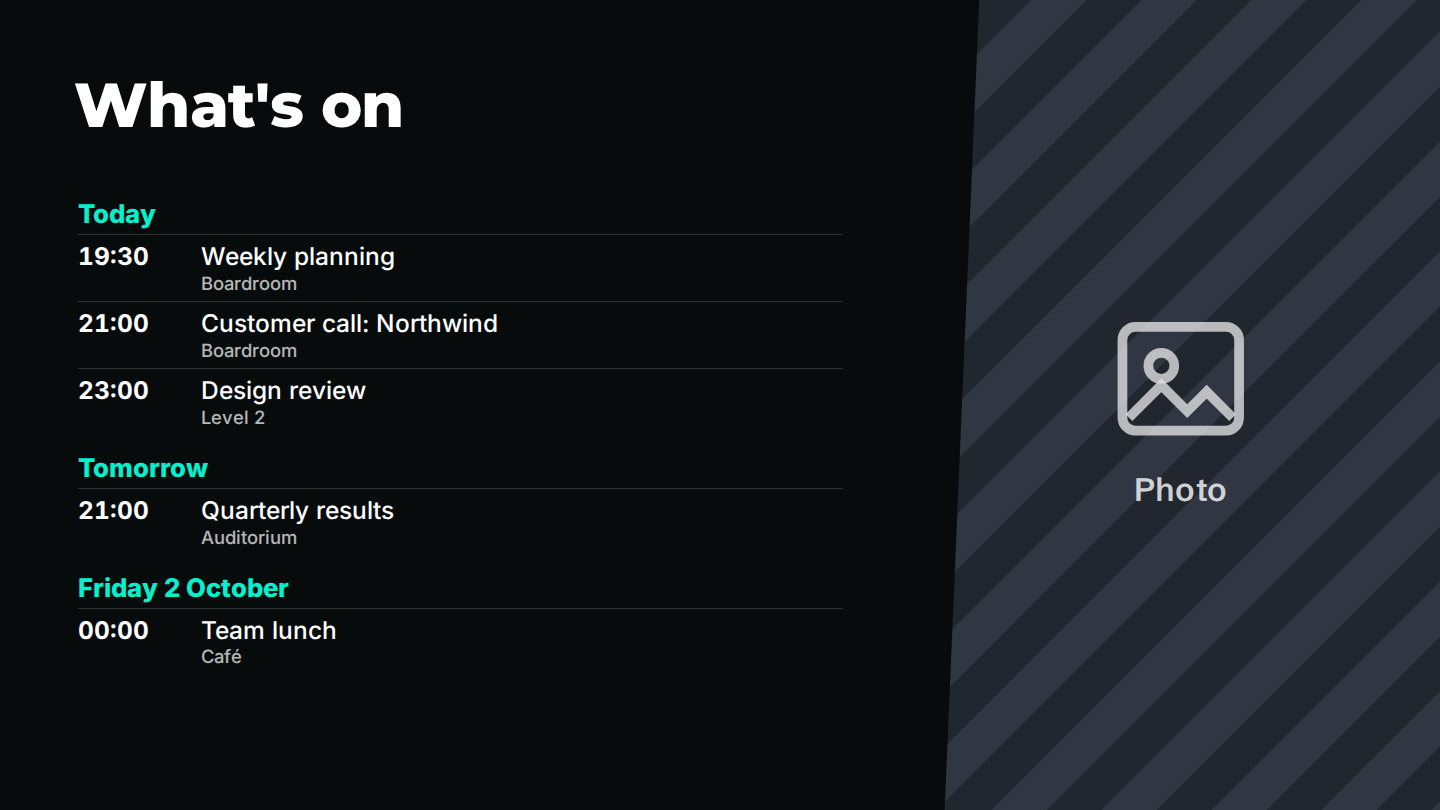
You can also add an agenda to any layout: add a zone, choose Widget, then Calendar, and set Show to Agenda: events over the coming days. See Calendar widget.
What the agenda shows
- Days are headed Today, Tomorrow, then the weekday and date, for example "Thursday, 2 October". Days with nothing on are skipped.
- Each event shows its start time (or All day) and its title.
- Turn on Show locations (agenda) to add the location under each title.
- Up to 12 events fit on the board. If nothing is coming up, it says Nothing scheduled.