
Before a screen can show a room's bookings or a team's events, CompleteVantage needs to read that calendar. You connect it with the calendar's published iCal link. In this article you'll add one.
You'll need: the editor, admin or owner role, and the calendar's iCal link. Get it from Outlook or Microsoft 365 or Google Calendar.
How it works
- CompleteVantage reads the calendar on its own server using the link. The link itself never goes to your screens.
- It reads the next two weeks of events, including repeating meetings, and checks for changes every five minutes.
- Screens receive only the upcoming events they need, and keep the last copy so a room board still works if the internet drops for a while.
- Nothing is written back. CompleteVantage can't book or change meetings.
Add the calendar
- In the menu, select Calendars.
- Select Add calendar.
- In Name, type a name people will recognise, for example "Boardroom". Room boards use it as their heading unless you set another.
- In iCal link, paste the link. It starts with
https://orwebcal://. - Select Save and check.
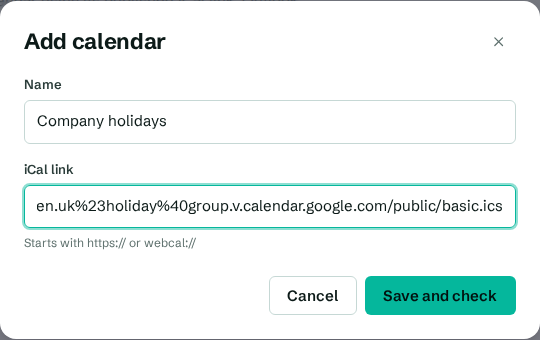
CompleteVantage reads the calendar straight away and tells you the result:
- "5 upcoming events found." It's working.
- "Connected. No events in the next two weeks." The link works but the calendar is empty for now.
- "Saved, but the calendar couldn't be read: …" Something's wrong with the link. See Calendar troubleshooting.
The calendar list
Each calendar shows the web address it comes from, how many upcoming events it has and when it was last checked, for example "calendar.google.com. 12 upcoming events, checked 2 minutes ago". If the last check failed, you'll see "Couldn't read it:" and the reason.
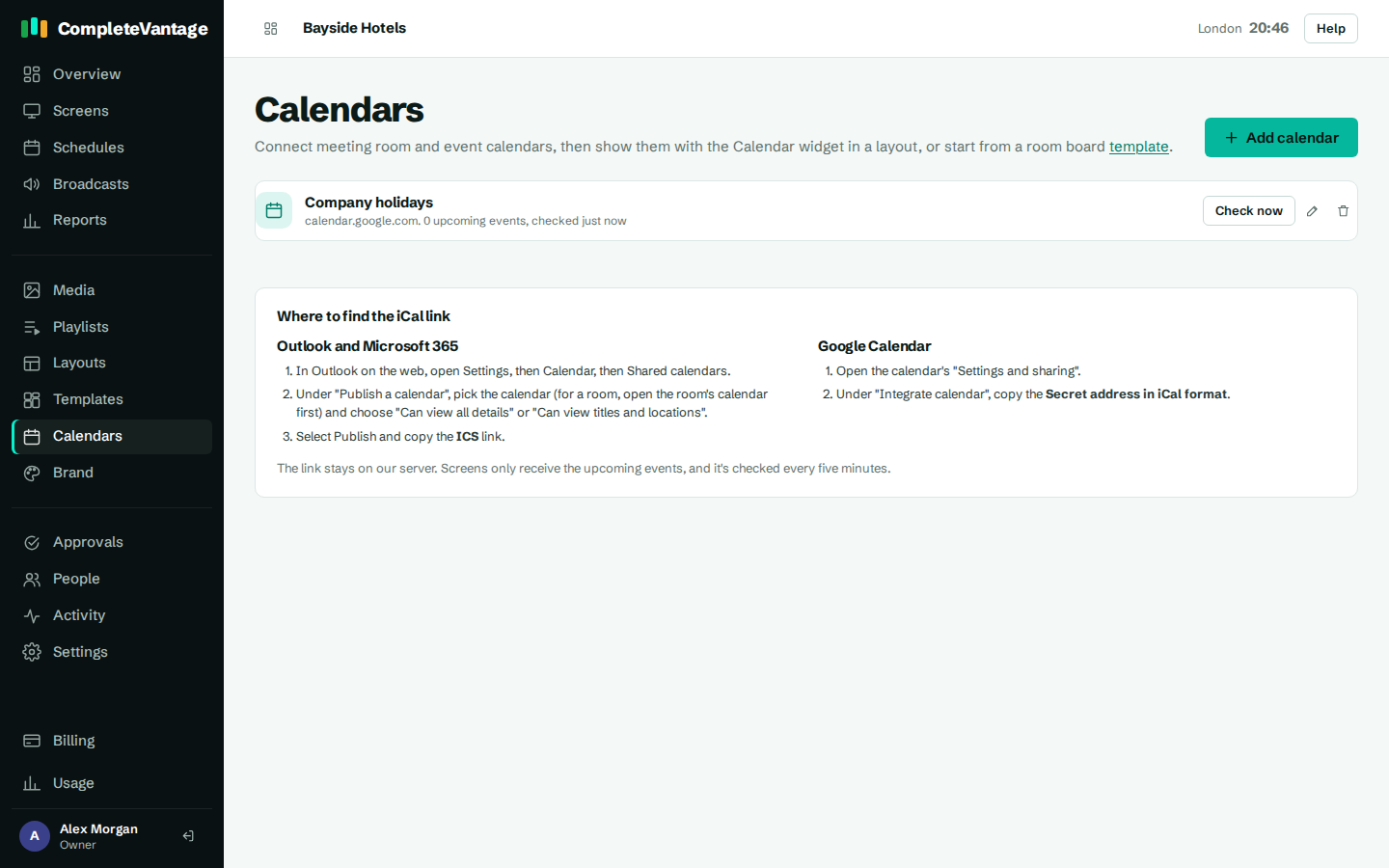
- Check now reads the calendar again immediately, for example after a meeting was booked.
- The pencil button lets you rename the calendar or replace its link. The saved link is never shown again. Leave iCal link empty to keep it, or paste a new one to replace it.
- The bin button removes the calendar. Room boards that use it will show nothing.
Show it on a screen
A calendar on its own doesn't appear anywhere. Show it with:
- a room board: see Show a meeting room board
- an agenda: see Show an agenda of upcoming events
- the calendar widget in any layout: see Calendar widget
If Calendars isn't in your plan
Calendars depend on your plan. If yours doesn't include them, the Calendars page says Calendars isn't included in your plan. An owner can choose a plan that includes them. See Plans and limits.