
When you've designed a layout you'd like to reuse, for example a monthly announcement or a standard lobby screen for every site, save it as a template. It then appears in your template library for your whole team.
You'll need: the editor role or higher. Deleting a saved template needs the admin role.
Save a template
- Open the layout in the designer.
- Select Save as template.
- In Template name, type a name, such as "Monthly announcement".
- Choose a Category. Saved is selected by default. You can pick any of the library's categories instead, such as Announcements.
- Add a Description if you like. It appears under the template in the library.
- Select Save template.
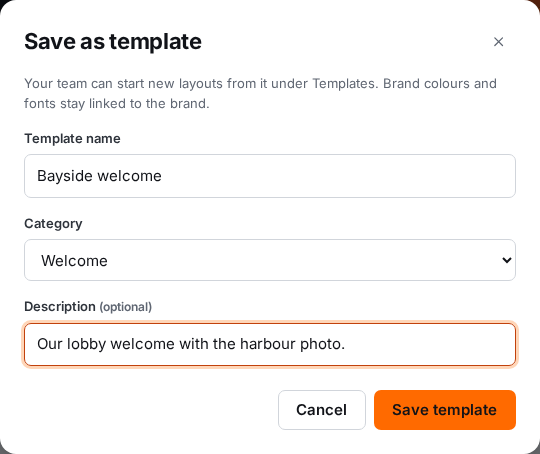
If the layout has unsaved changes, they're saved first so the template matches what's on screen. You'll see a message like '"Monthly announcement" is in your template library.'
What a template keeps
- Every zone, widget and setting, and the background.
- Brand links. Colours and fonts chosen from your brand kit stay linked to the brand, so a template made today still matches your brand after it changes.
- Your own photos, videos and playlists in zones, because the template is only for your organization.
Your saved templates show a Your team label in the library.
Change or delete a template
Templates don't update when you change the layout they came from. To update one, save the layout as a template again with the same name, then delete the old one.
To delete a saved template, an admin selects the bin icon on its card under Templates and confirms. Layouts made from it stay as they are.