
The weather widget shows the current temperature and conditions for a place, plus a forecast for the next few days. Forecasts come from Open-Meteo.
You'll need: the editor role or higher.
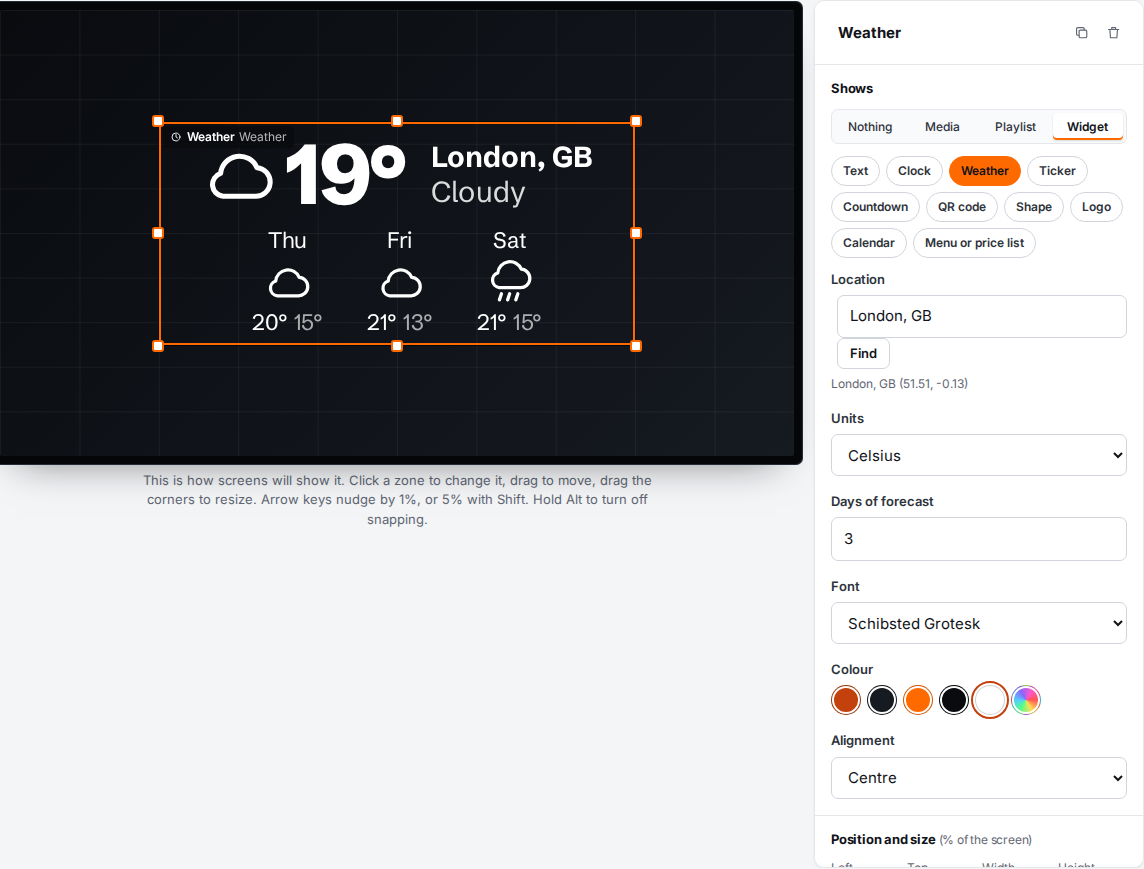
Add the weather
- In the designer, select a zone.
- Under Shows, choose Widget, then Weather.
- In Location, type a city name, for example "London", and select Find.
- Pick the right place from the list, such as "London, England, United Kingdom".
- Adjust the other settings and select Save layout.
Once a place is chosen, the hint under Location shows its name and coordinates.
Settings
| Setting | What it does |
|---|---|
| Location | The place to show. Search for a city, then pick it from the list. |
| Units | Celsius or Fahrenheit. |
| Days of forecast | How many days after today to show, from 0 to 7. 0 shows only the current weather. |
| Font | A brand font or a specific font. |
| Colour | Colour of the text and icons. |
| Alignment | Left, Centre or Right. Centre is the default. |
How it fits the zone
The widget arranges itself to the zone's shape. In a wide, short zone (a strip across the top or bottom), the forecast sits beside today's weather in one row. In a taller zone, the forecast goes underneath. The text shrinks to fit if needed.
Good to know
- Screens fetch the weather directly, so they need internet access. They update every 15 minutes.
- Each screen remembers the last forecast. If the internet drops, it keeps showing that until it can update.
- If no location is chosen, the zone shows "Weather: choose a location in the layout."
Troubleshooting
"No places found. Try a nearby city." Try a bigger nearby city or a different spelling.
"Couldn't reach the place search. Check your connection." Your computer couldn't reach the place search. Check your internet connection or network filter and try again.
The weather is blank on the screen. The screen can't reach the internet, or hasn't yet. Check the screen's network. Screens on a network that blocks outside sites need api.open-meteo.com allowed.