
The clock widget shows the current time, and optionally the date. By default it uses the screen's timezone, so one layout shows the right local time in every office.
You'll need: the editor role or higher.
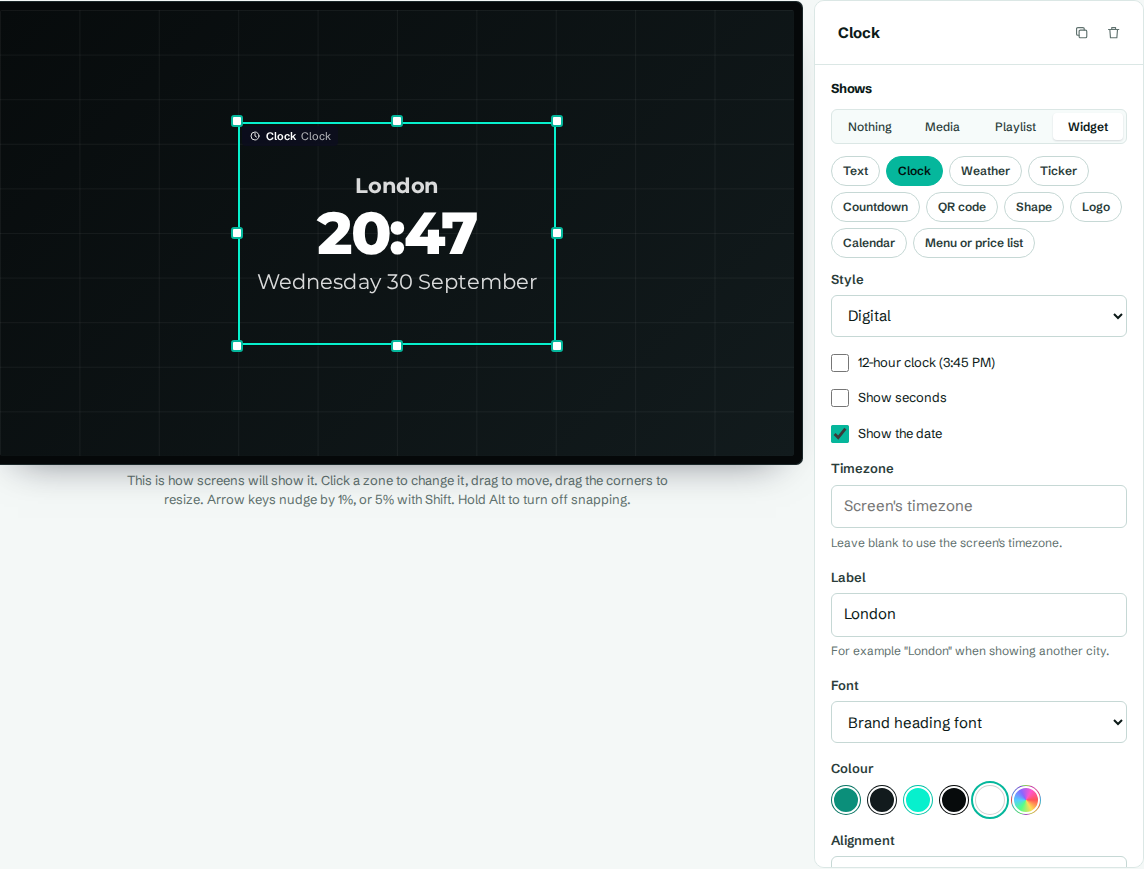
Add a clock
- In the designer, select a zone.
- Under Shows, choose Widget, then Clock.
- Adjust the settings and select Save layout.
Settings
| Setting | What it does |
|---|---|
| Style | Digital numbers, or an Analog clock face. |
| 12-hour clock (3:45 PM) | Shows 12-hour time with AM and PM. Off shows 24-hour time, like 15:45. |
| Show seconds | Adds seconds. On an analog clock, it adds a second hand. |
| Show the date | Shows the date below the time, like "Sunday, September 27". |
| Timezone | Leave blank to use the screen's timezone. Or type a timezone such as America/New_York or Asia/Tokyo to show another city. Suggestions appear as you type. |
| Label | Text above the time, for example "London" when showing another city. |
| Font | A brand font or a specific font. |
| Colour | A brand colour or a custom colour. |
| Alignment | Left, Centre or Right. |
World clocks
To show several cities, add one clock zone per city. Set each one's Timezone and Label. The World clocks template in News and info already has this set up.
Why is the time wrong?
The clock uses the screen's timezone, which you set on the screen's page. If a screen is in Manchester but set to America/New_York, the clock shows New York time. See Screen settings.
The time itself comes from CompleteVantage's server, not the TV box, so it stays correct even if the box's own clock drifts.