
Sometimes a web page or dashboard on a screen shows the wrong time, even though CompleteVantage's own clocks are right. This article explains why and how to fix it.
Why it happens
There are two clocks involved:
- The screen's timezone, set on the screen's page in CompleteVantage. Clock widgets, schedules, display hours and content dates all use this. It's always right if you set it right.
- The box's own timezone, set inside Android on the TV box. Web pages and dashboards you show on the screen use this one, because they run their own code on the box.
Many Android TV boxes can't work out where they are, so they fall back to GMT. A dashboard in New York could then show London times.
How you'll know
When the two don't match, the screen's page shows a notice under the local time, like:
The box's own clock is set to London time, so web pages on this screen show London times.

The Device panel also lists the Box timezone.
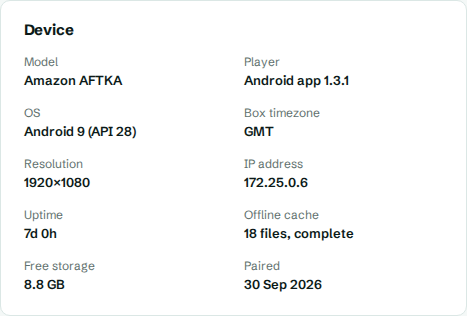
Fix it on the box
- On the TV, open the box's own Settings. Use the settings button on the remote, or press Home and choose Settings. (In kiosk mode you can't leave the app, but then CompleteVantage sets the timezone for you. See below.)
- In Settings, look for Date & time. It's often under Device preferences or System.
- Turn off Automatic time zone (sometimes called Use network-provided time zone).
- Select Time zone and choose the screen's city.
- Go back to the CompleteVantage app.
Within a minute or so the notice disappears from the screen's page.
Fix it from a computer (adb)
If you've set up network debugging on the box, you can set the timezone without the remote. Replace the address and the timezone:
adb connect 192.168.1.50:5555
adb shell settings put global auto_time_zone 0
adb shell service call alarm 3 s16 America/New_York
Use the same timezone name you chose for the screen in CompleteVantage, like Europe/London or Asia/Singapore.
Let CompleteVantage fix it automatically
In kiosk mode (device owner), app version 1.3.1 and later sets the box's timezone to match the screen's timezone for you, and keeps it in step when you change it. See Set up kiosk mode.
The notice tells you which situation you're in:
- "Set it on the box under Settings, Date and time, or make the app the device owner and it will be set automatically." The app isn't the device owner. Set it by hand, or set up kiosk mode.
- "The app tried to change it and Android refused." Set it by hand on the box.
- "Update the app to 1.3.1 or later". The app is too old to set it. It updates by itself; see App updates.
Browser players
For a screen running in a web browser, the notice says Set the time zone on the computer running this browser. Change it in the computer's date and time settings.