
Groups let you manage many screens at once. Put screens in a group by site or purpose, then give the group content and display hours. Every screen in it follows along, unless it has its own.
Before you start: creating and deleting groups needs the admin role. Editors can change a group's content and display hours.
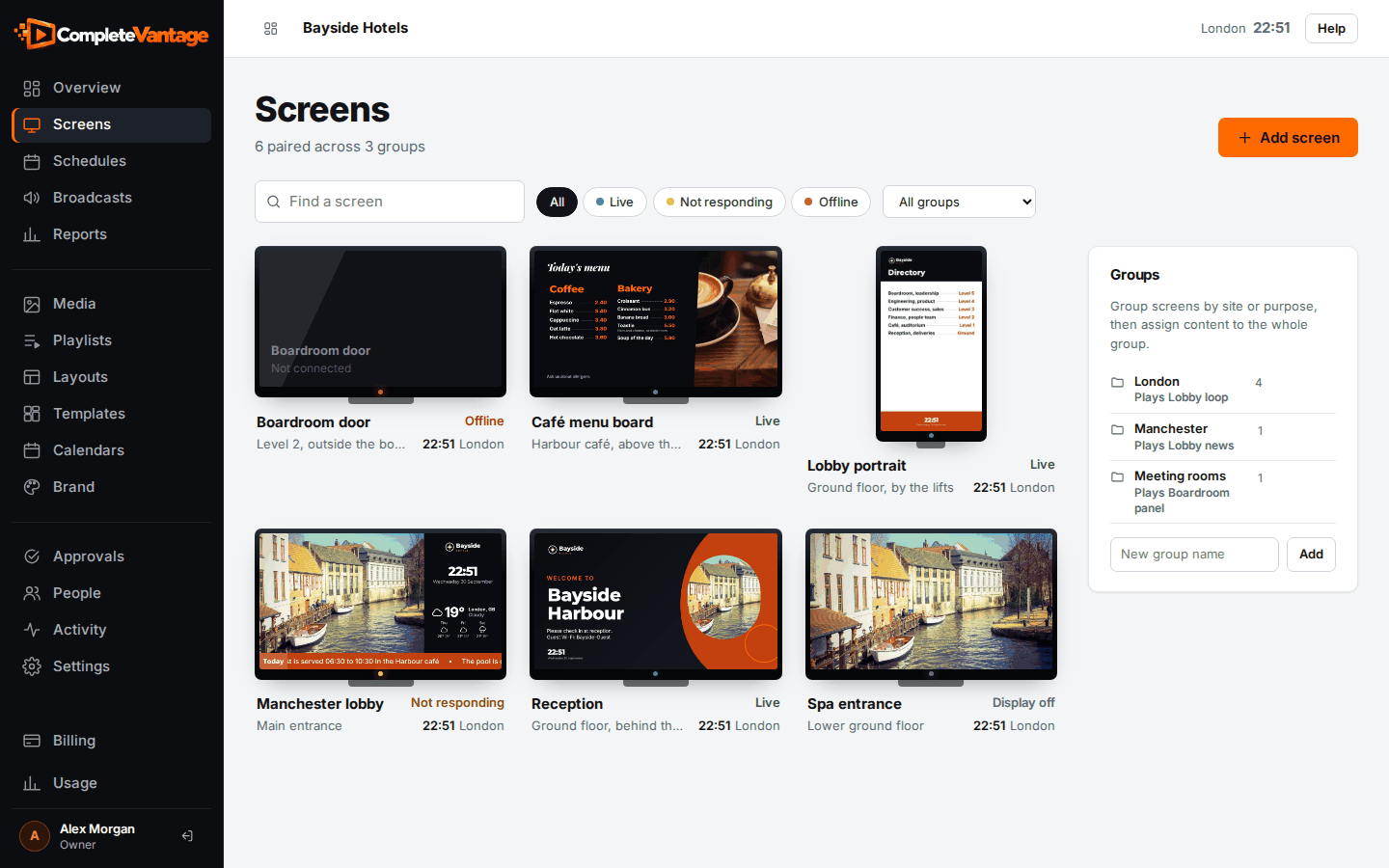
Create a group
- Go to Screens.
- In the Groups panel on the right, type a name in New group name, like
London. - Select Add.
Put screens in a group
Choose the group when you pair a screen, or later on the screen's page:
- Open the screen from Screens.
- In Settings, choose the Group.
- Select Save changes.
A screen belongs to one group at a time.
Give a group default content and display hours
- In the Groups panel, select the pencil icon next to the group.
- In the Edit group dialog:
- Change the Name if you like.
- Under Default content, select Choose and pick media, a playlist or a layout.
- Under Display hours, optionally tick Turn the display off outside set hours and add hours. See Display hours.
- Select Save group.
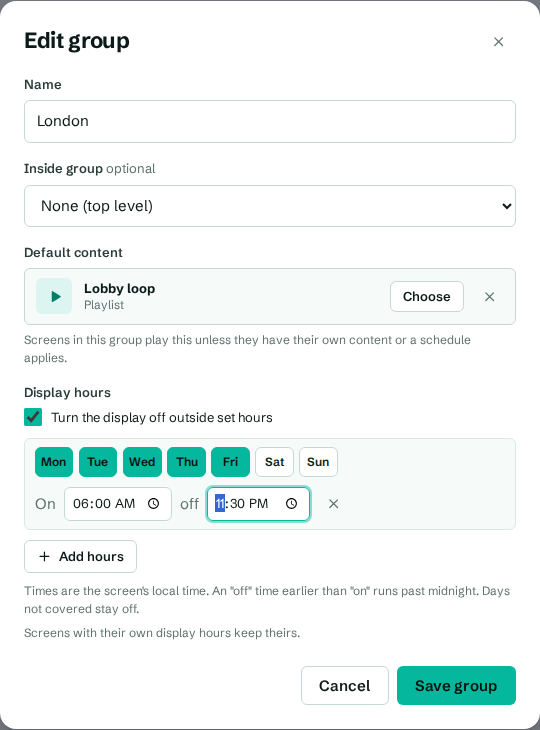
Screens in the group switch within a minute. The group's row now says what it plays, like Plays Lobby loop.
Groups inside groups
A group can sit inside another group. For example, Café inside London. To do that, open the inner group's Edit group dialog and choose the outer one under Inside group. Choose None (top level) to move it back out.
How screens inherit from groups
A screen uses the nearest setting it finds, starting with its own:
- The screen's own content, from What plays here on its page.
- Its group's Default content.
- The parent group's default content, and so on up.
- A clock, if nothing is set anywhere.
Display hours work the same way. A screen with its own display hours keeps them. Otherwise it follows its group, then the group above.
Schedules and broadcasts aimed at a group also reach screens in the groups inside it.
Filter screens by group
On Screens, use the All groups menu in the toolbar to show one group's screens. The number next to each group is how many screens it has.
Delete a group
- In the Groups panel, select the bin icon next to the group.
- Confirm with Delete group.
Its screens stay paired and become ungrouped. Schedules and broadcasts aimed at the group are removed.
Troubleshooting
A screen in the group doesn't show the group's content. It probably has its own content. Open the screen and look at What plays here. Clear it with the × button so it follows the group. A schedule may also be taking over. See Why is my screen showing this?
"A group can't sit inside itself." You chose the group itself, or one of the groups inside it, as its parent. Pick a different group.