
The CompleteVantage Android app updates itself over the internet. You don't need to visit screens. This article explains how updates reach your screens and the two settings that control them: the pilot ring and the install window.
How updates work
- CompleteVantage publishes a new version of the app.
- It's offered to pilot screens first. Once it's proven, it's released to all screens.
- Each screen downloads the update, checks it hasn't been tampered with, and installs it.
- The screen goes blank for about a minute while it installs, then carries on.
Most improvements don't even need an app update: they arrive with the player, which every screen fetches automatically. Browser players are always up to date.
Test new versions on pilot screens
Choose one or two screens to get new versions first, ideally ones you walk past every day.
- Go to Screens and select the screen.
- In Display hours and updates, set App updates to Pilot (gets new versions first).
- Select Save.
Leave the rest on Stable (normal updates). They get new versions once they're released to everyone.
Only install at quiet times
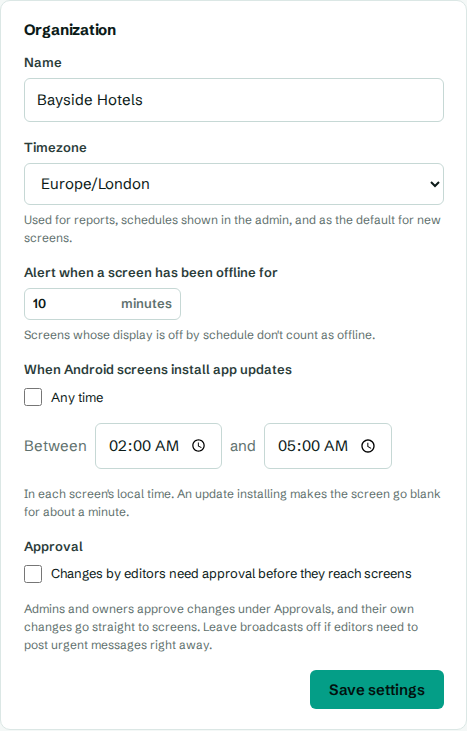
By default, screens install updates at any time. To keep installs out of opening hours:
- Go to Settings. You need the admin role.
- Under When Android screens install app updates, untick Any time.
- Set the hours, for example between
02:00and05:00. - Select Save settings.
The hours are in each screen's local time, so screens in different countries each update in their own night.
Check a screen's update
On a screen's page, the Device panel shows the app version next to Player, and while an update is under way, an App update line:
| You see | Meaning |
|---|---|
| Downloading | The new version is downloading. |
| Checking | The download is being checked. |
| Installing | It's installing. The screen goes blank briefly. |
| Waiting for someone to press Update on the TV | Android is asking for permission on the TV. See below. |
| Waiting for install permission on the TV | The app isn't allowed to install apps yet. See below. |
| Failed | It didn't work. The reason follows. |
Screens that ask before updating
On boxes that aren't in kiosk mode, Android shows an Update? prompt on the TV the first time. Someone at the TV needs to select Update. If Android asks, also allow Install unknown apps for CompleteVantage.
- The prompt shows at most once a day.
- If someone cancels it, the status says Cancelled on the TV, and the update is offered again next time the app restarts.
To avoid prompts altogether, set up kiosk mode. Updates then install silently. See Set up kiosk mode.
Get told when an update fails
Add an alert destination and tick An app update fails on a screen. See Set up alerts.