
Organization settings apply to all your screens and everyone in your organization.
Before you start: you need the admin or owner role.
Open the settings
- In the menu, select Settings.
- Find the Organization panel on the right.
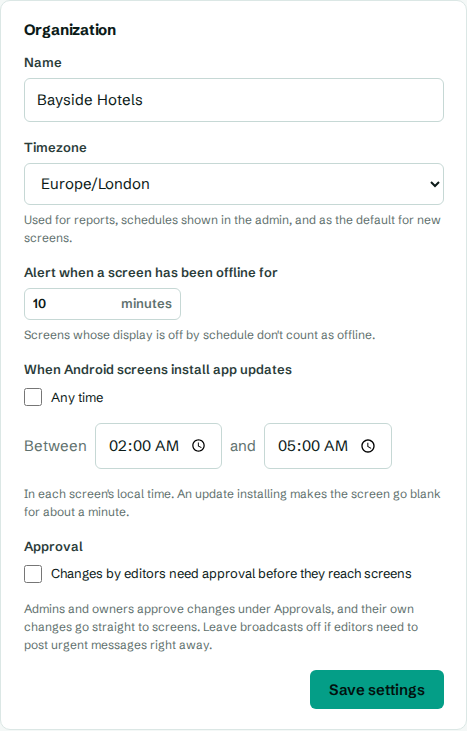
Name
The name appears at the top of every page, in alert messages and in templates that show your organization's name when there's no logo. Change it in Name.
Timezone
Your organization's timezone is used for:
- reports and the proof of play export,
- the week view on the Schedules page,
- dates you type for Show from and Show until on media and playlist items,
- the default timezone for new screens.
It doesn't change screens you've already paired. Each screen keeps its own timezone, and schedules run in the screen's local time. See Schedules and timezones.
Offline alerts
Alert when a screen has been offline for sets how many minutes a screen can be out of touch before an offline alert is sent. You can choose 2 to 1440 minutes. See Set up alerts.
App updates
When Android screens install app updates controls when screens install a new version of the CompleteVantage app.
- Any time installs updates as soon as they're available.
- Untick Any time and set Between and and, for example 02:00 and 05:00, to install only in that window.
Times are in each screen's local time. A screen goes blank for about a minute while it installs, so a night-time window is best. See App updates.
Approval
- Changes by editors need approval before they reach screens holds editors' changes until an admin or owner approves them.
- Broadcasts need approval too also holds editors' broadcasts. Leave it off if editors must post urgent messages straight away.
See Turn on approvals.
Save your changes
Select Save settings. You'll see "Settings saved."