
When you sign up, CompleteVantage sends you a link to confirm your email address. Confirming it makes sure password reset emails and trial reminders reach you.
Confirm your address
- Open the email Confirm your email address.
- Select Confirm email address.
- You'll see "Thanks, your email address is confirmed." If this is your first time, the welcome screen opens next.
The link works once, for 48 hours.
You can start before you confirm
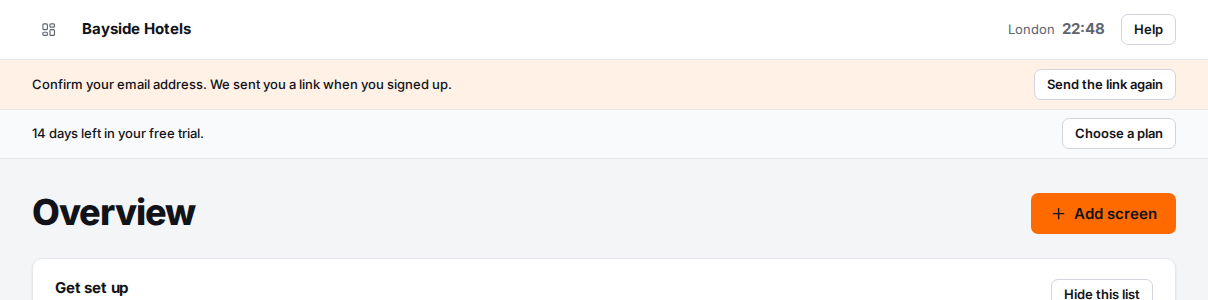
You don't have to wait for the email. You can use CompleteVantage straight away. Until you confirm, a banner at the top of each page says "Confirm your email address. We sent you a link when you signed up."
After 7 days, you'll need to confirm before you can carry on. CompleteVantage then shows Confirm your email to continue when you sign in.
Get a new link
- From the banner, select Send the link again.
- Or, on Confirm your email to continue, select Send a new link.
You'll see "We sent a new link to" and your address. Always use the newest email: sending a new link cancels the old one.
Troubleshooting
The email hasn't arrived. Wait a few minutes, then check your spam or junk folder. Search your inbox for "Confirm your email address". If your company filters email, ask IT to allow messages from CompleteVantage.
"We've sent a few links already. Check your spam folder, or try again in an hour." You can ask for three links an hour. Wait, then try again.
"That link has expired." The link is older than 48 hours, or you've already used it. If you've already confirmed, you're all set. Otherwise sign in and send a new link.
The address is wrong. Change it from your profile. The new address needs confirming too. See Your profile.
I was added by a colleague. If someone added you under People, you sign in with the temporary password they gave you. See Your first sign-in.