
If you can't remember your password, you can choose a new one yourself. You'll need access to the email address you sign in with.
Reset your password
- On the sign-in page, select Forgot your password?
- Enter the Email you sign in with.
- Select Send reset link.
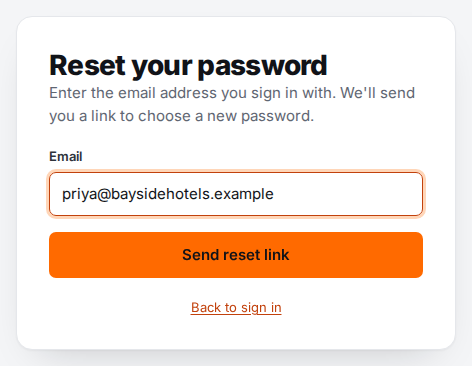
You'll see Check your email. For your privacy, the page looks the same whether or not the address has an account.
- Open the email Reset your password and select Choose a new password. The link works once, for 60 minutes.
- Enter a New password of at least 10 characters, then type it again in Repeat new password.
- Select Save new password.
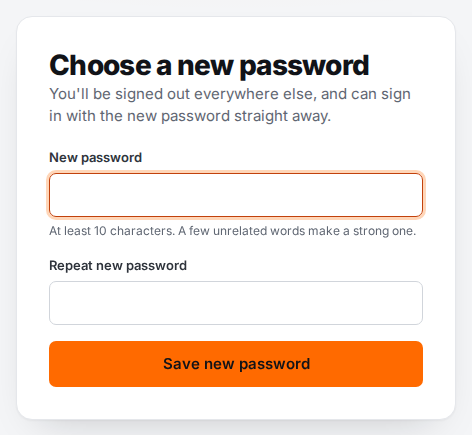
You're taken back to the sign-in page with "Your password is changed. Sign in with the new one."
If you can't get the email
Ask an admin or owner in your organization to reset your password for you. They'll give you a temporary password, and you'll choose your own the next time you sign in. See Reset someone's password.
An admin can't reset an owner's password. If you're an owner and can't receive email, ask another owner in your organization, or contact whoever provides your CompleteVantage account.
Troubleshooting
The email hasn't arrived. Check your spam or junk folder, and that you typed the address you sign in with. You can ask for up to three reset emails an hour for one address.
"That link has expired." Reset links work once, for 60 minutes. Select Send a new link and use the newest email.
"Too many reset requests from this network. Wait 15 minutes and try again." Wait, then try again.
"The two passwords don't match." Type the same new password in both boxes.
"That password is too common. Try a few unrelated words together." Choose a longer, less predictable password. It can't contain the first part of your email address either.
I work for more than one organization. You have one password for all of them. Resetting it changes it everywhere.