
When someone adds you to CompleteVantage, they give you a temporary password. The first time you sign in, you swap it for a password of your own.
Sign in
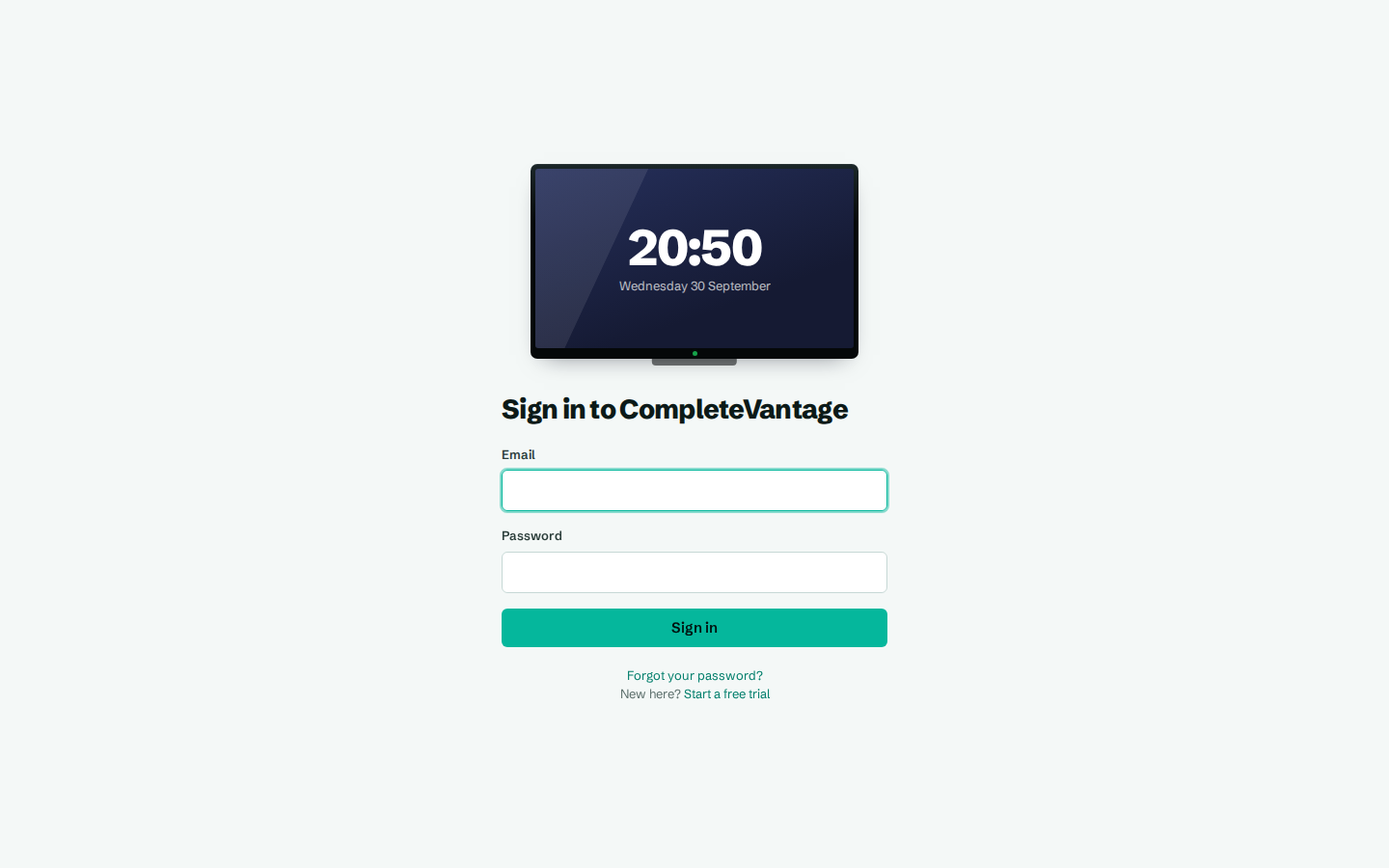
- Open the sign-in address your colleague gave you.
- Enter your Email and the temporary Password. The temporary password looks like
k7pm-3xqa-h2ds-9wne. Type it with the dashes. - Select Sign in.
Choose your own password
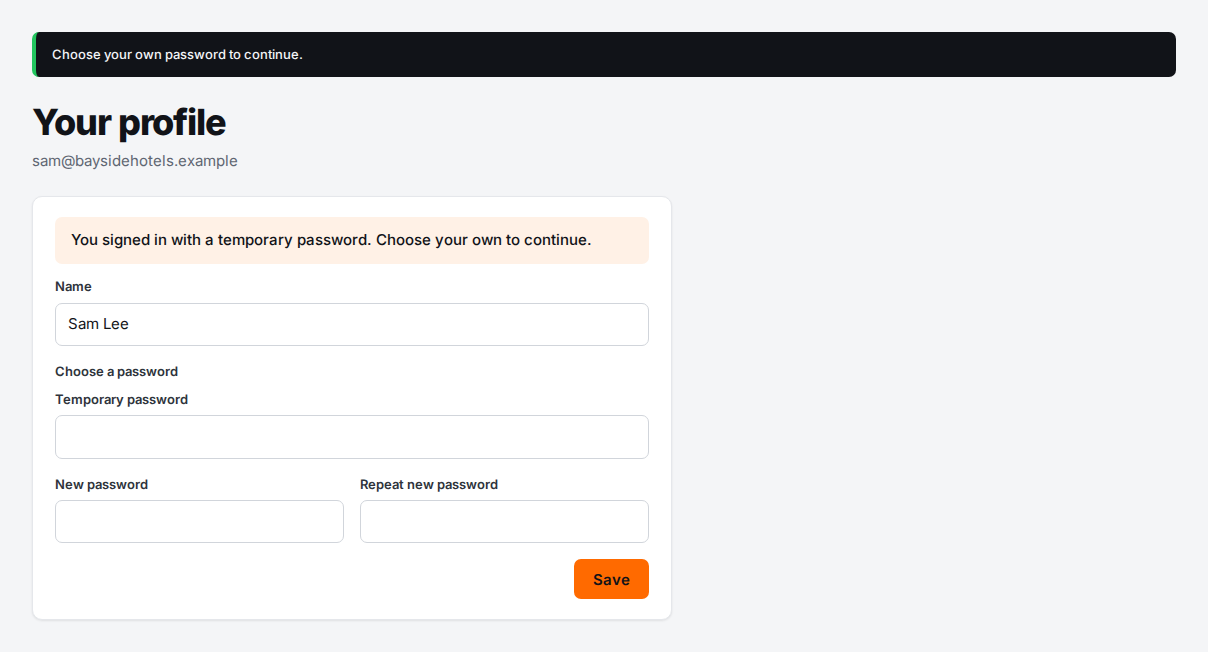
You go straight to Your profile, with the message "You signed in with a temporary password. Choose your own to continue." You can't use anything else until you've done this.
- Check your Name is right.
- In Temporary password, enter the temporary password again.
- In New password, enter a password of at least 10 characters.
- Enter it again in Repeat new password.
- Select Save.
You'll see "Password changed." and the Overview page. Next time, sign in with your new password.
Troubleshooting
"That email and password don't match an account." Check for typing mistakes in the email and the temporary password. If it still fails, ask the person who added you to give you a new temporary password with Reset password.
"Too many failed sign-ins. Wait 15 minutes and try again." Wait 15 minutes, then try again carefully.
"That isn't your current password." In Temporary password, enter the temporary password you signed in with, not your new one.
"Use at least 10 characters." Choose a longer new password.
"The two new passwords don't match." Type the same new password in both boxes.