
This short tour shows where everything is in the dashboard, so you can find your way quickly.
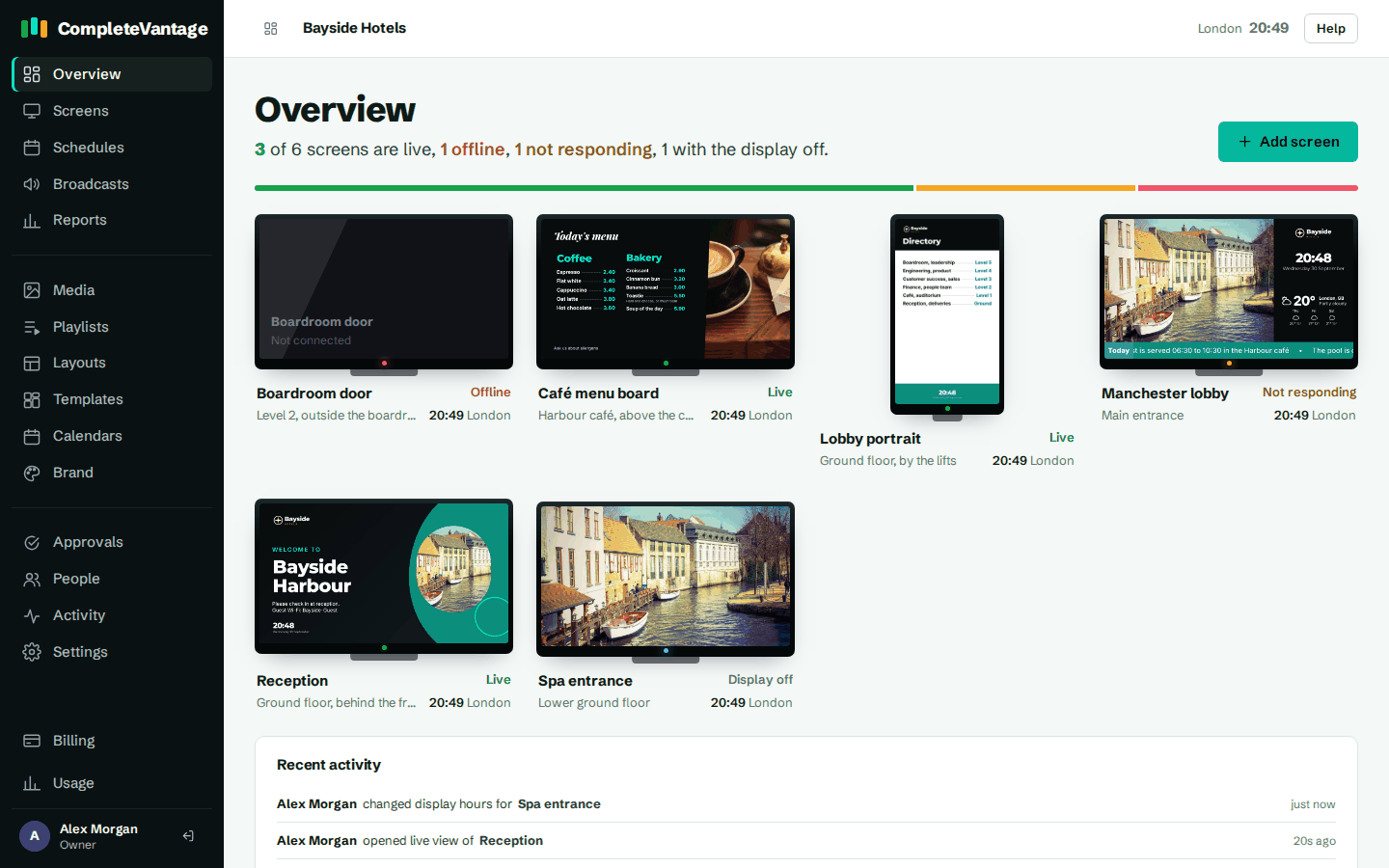
The menu
The menu on the left is split into three parts.
Your screens
- Overview: how your screens are doing right now.
- Screens: every paired screen, and your groups.
- Schedules: content that plays at set times.
- Broadcasts: urgent messages that take over screens.
- Reports: proof of play. Editors and above.
Your content
- Media: images, video, documents, web pages and more.
- Playlists: media and layouts that play in turn.
- Layouts: screens split into zones and widgets.
- Templates: designed layouts in your brand.
- Calendars: meeting room and event calendars.
- Brand: your logos, colours and fonts.
Your organization (admins and owners)
- Approvals: changes waiting for approval. A number shows how many are waiting.
- People: who can sign in, and their roles.
- Activity: every change, newest first.
- Settings: alerts, organization details and approval rules.
At the bottom of the menu you'll see your name and role. Select your name to open your profile. The arrow icon next to it signs you out.
Depending on your account, you may also see:
- Setup: your setup list, with how many steps are done. It goes away when you hide the list.
- Usage: what your organization uses against your plan or trial (admins and owners). See Plans and limits.
- Billing: your plan and payment details (owners).
The Overview page
Overview is your home page. It shows:
- A line like 5 of 6 screens are live, 1 offline, with a coloured bar that sums it up.
- A card for every screen, with its latest picture, status, location and local time. Select a card to open the screen.
- Recent activity: the latest changes made by your team.
- The Add screen button, for pairing a new screen (admins and owners).
- For new organizations, Get set up: a short setup list that ticks itself off as you go. Select Hide this list when you're done with it.
The top bar
- Organization name. If you belong to more than one organization, this is a menu. Choose another organization to switch to it. Everything you see then belongs to that organization.
- Help. Opens this help center in a new tab, at the articles for the page you are on, so you can read while you work.
- World clock. On the right, the current time in each timezone your screens use, labelled by city. It helps you check what time it is where a screen is before you change something.
Account banners
Banners under the top bar tell you about your account when something needs doing:
- Confirm your email address. Select Send the link again if you can't find the email. See Confirm your email address.
- Days left in your free trial, for admins and owners, with Choose a plan.
- Your free trial has ended, so changes are paused. See What happens when your trial ends.
The live broadcast banner
While a broadcast is showing, a red banner at the top of every page says A broadcast is showing on screens now. Manage broadcasts. Select it to go to Broadcasts, where you can end it. The Broadcasts menu item also shows how many are live.
Messages after you save
When you save something, a short message confirms it, like Saved. Screens update within a minute. If something needs fixing, the message says what to do.