
CompleteVantage is digital signage you run from a web browser. You upload content once, decide which screens show it and when, and every TV updates by itself. This article explains the moving parts so the rest of the help center makes sense.
The two halves
CompleteVantage has two parts that talk to each other over the internet.
- The dashboard. The website you sign in to. It's where you add screens, upload media, design layouts, set schedules and send urgent messages. You can use it from any computer, tablet or phone.
- The player. The software on each TV. It's usually the CompleteVantage app on a small Android TV box plugged into the TV, but any web browser can be a player too.
You never need to walk up to a TV to change what it shows. Once a screen is paired, everything happens from the dashboard.
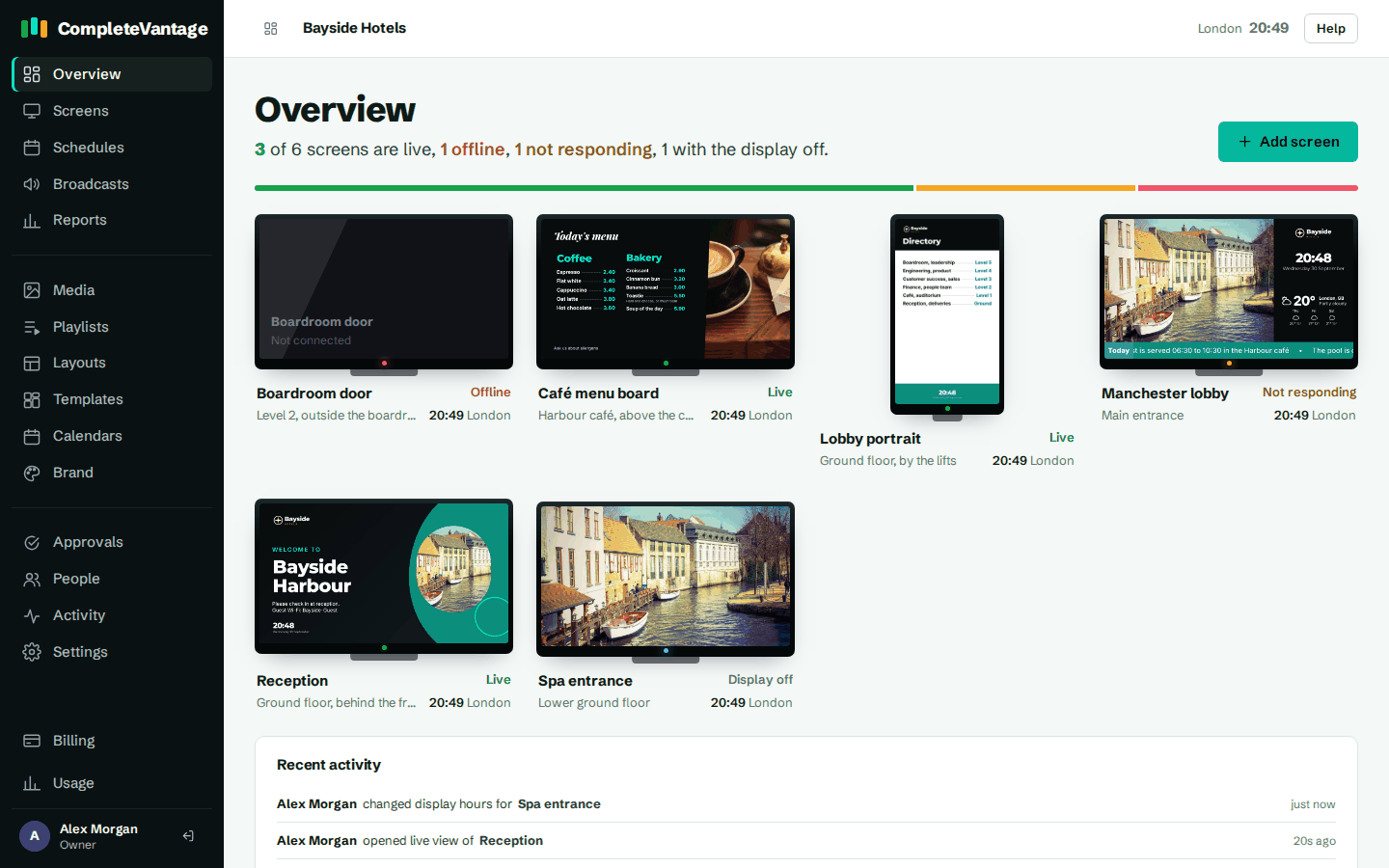
What happens when you make a change
- You save something in the dashboard, like a new playlist or a changed layout.
- Each screen checks in with CompleteVantage about every 30 seconds.
- When a screen notices a change, it downloads the new content and switches over. Most changes reach screens within a minute.
Screens keep a copy of everything they need. If the internet drops, they carry on showing your content, following your schedules, until the connection comes back. See How screens work offline.
What a screen can show
- Media. Images, videos, PDFs, PowerPoint presentations, live web pages and dashboards, YouTube videos and streams, and HTML snippets.
- Playlists. A list of media and layouts that plays in order and loops.
- Layouts. A screen split into zones, each showing media, a playlist, or a widget like a clock, the weather, a news ticker or a meeting room board. You can start from a designed template in your own brand.
Deciding what plays when
Each screen follows a simple order. The first thing that applies wins:
- A broadcast, when you've sent an urgent message.
- A schedule, when one is set for this time.
- The screen's own content.
- Its group's content.
- A clock, when nothing else is set.
Read more in What plays when.
Who can do what
Everyone who signs in has a role: owner, admin, editor or viewer. Editors create content. Admins also pair screens and manage people. See Roles and permissions.