
In about 10 minutes you'll have a real screen showing a designed layout with your logo and colours. You'll pair a screen, make a layout from a template, and send it to the screen.
You'll need:
- A CompleteVantage account with the admin or owner role. Pairing screens needs admin. If you've just signed up, you're the owner. No account yet? See Sign up and start your free trial.
- A TV with an Android TV box and the CompleteVantage app installed, or any computer with a web browser. A browser is the quickest way to try things out.
Step 1: Sign in
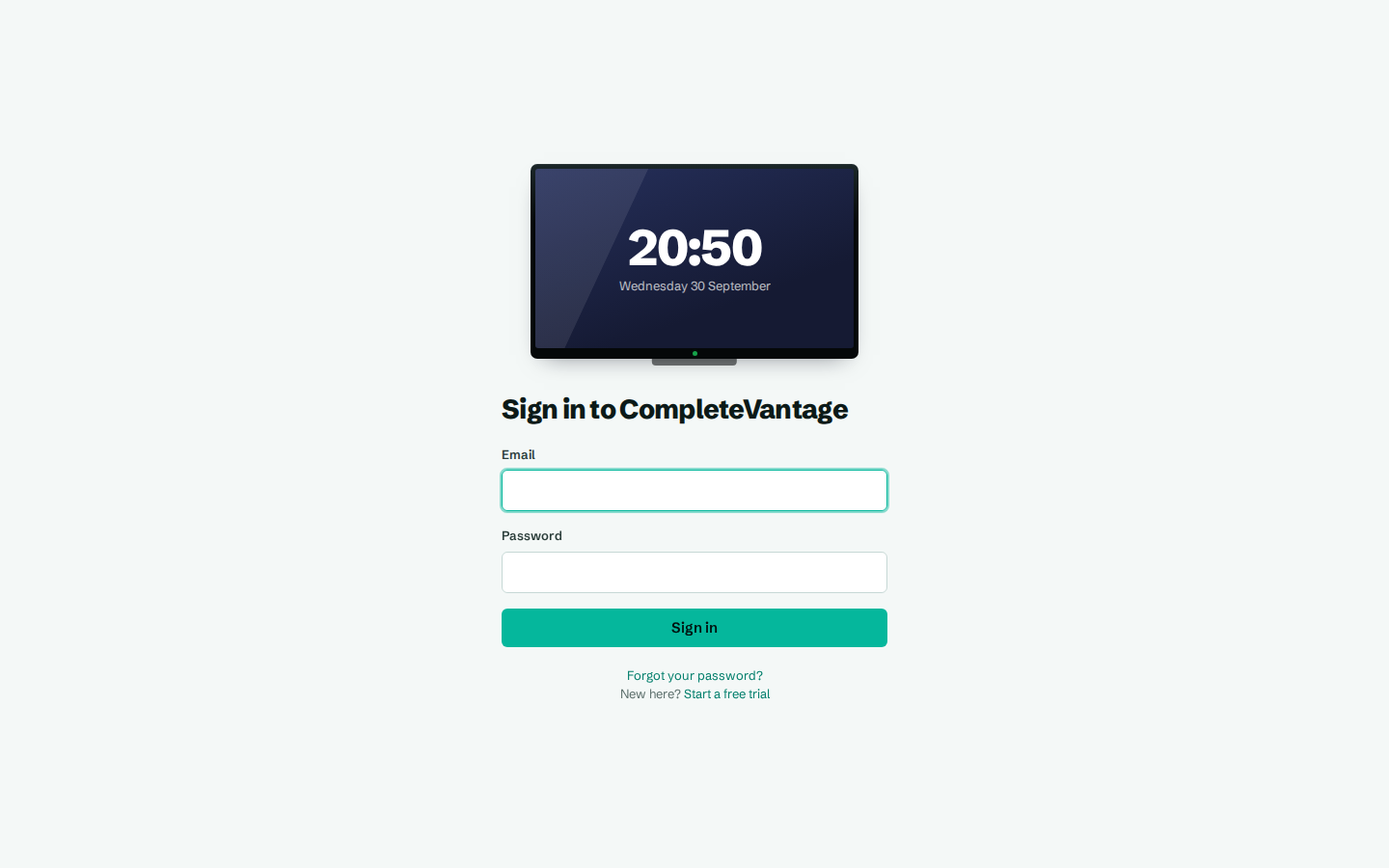
- Open your CompleteVantage address in a browser and sign in with your email and password. If you've just signed up, you're already signed in.
- You land on Overview. New organizations see Get set up, a setup list that ticks itself off as you follow the steps below. If you haven't added a screen yet, the page says Connect your first screen.
Step 2: Get a pairing code on the screen
Pick one:
- Android TV box. Open the CompleteVantage app. If it asks for a server address, type the same address you use to sign in and select Connect. See Install the Android app.
- Web browser. On the computer connected to the TV, open your CompleteVantage address followed by
/player/, for examplehttps://signage.example.com/player/.
After a moment the screen shows Link this screen and a six-character code, like A7K2QX.
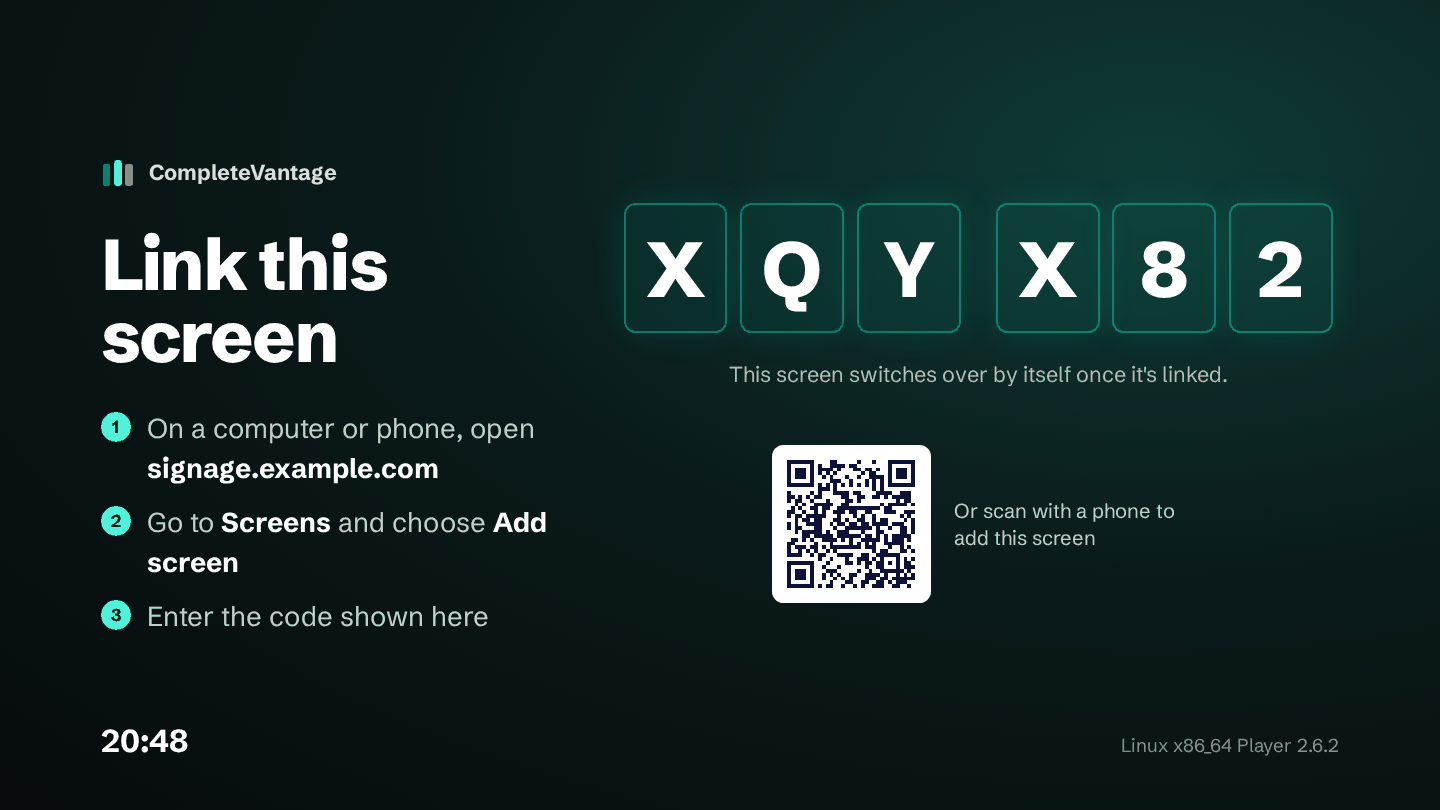
Step 3: Pair the screen
- In the dashboard, select Add screen (on Overview or Screens).
- Type the code shown on the TV. Capital or small letters both work.
- Give the screen a Screen name, like
Reception. - Check the Timezone. Clocks and schedules on this screen use it.
- Select Pair screen.
Within a few seconds the TV switches over by itself and shows a clock, because nothing is assigned to it yet.
Step 4: Make a layout from a template
- Go to Templates.
- Find a template you like, for example Lobby welcome, and select Use.
- Change the name in Name for your new layout if you like, then select Use this template.
- The layout designer opens. Select a text zone on the canvas and change its words in the panel on the right.
- Select Save layout.
The template already uses your brand's logo, colours and fonts. If you haven't set them up yet, it uses sensible defaults. You can change them any time under Brand. See Set up your brand.
Step 5: Put it on the screen
- Go to Screens and select the screen you just paired.
- In What plays here, select Choose.
- Select the Layouts tab, then your new layout.
The screen switches within a minute. Select Preview in the same panel to see exactly what it shows.
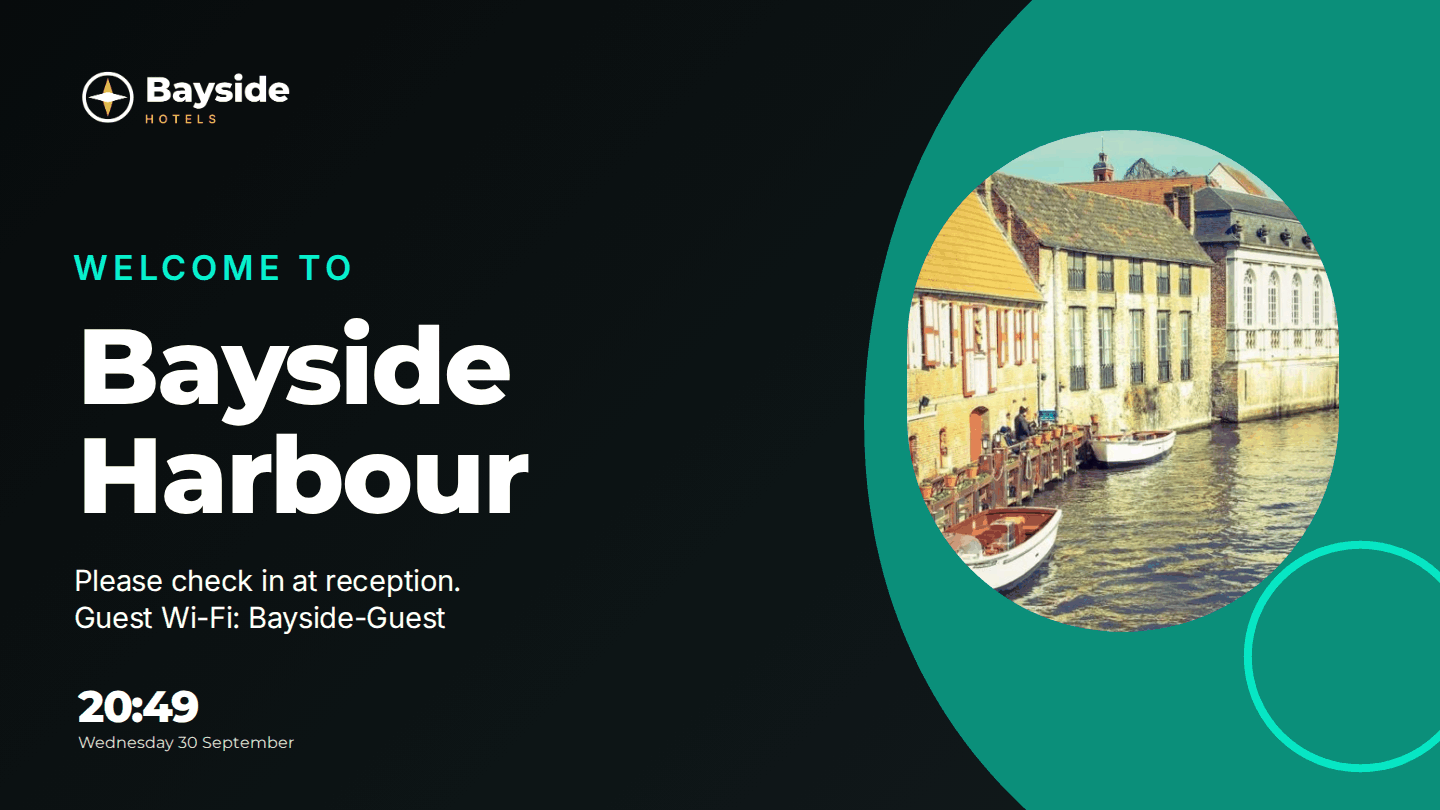
You're done
You have a live screen. From here you can:
- Upload your own images and videos under Media.
- Build a playlist that rotates several things.
- Show different content at different times with a schedule.