
This article shows you how to install the CompleteVantage app on an Android TV box, stick or Fire TV device and connect it to your dashboard. At the end, the TV shows a six-character code ready for pairing.
Before you start:
- An Android TV box, stick or Fire TV device connected to the TV and to the internet.
- The box's remote.
- The CompleteVantage app as an APK file, or a link to download it. Ask your CompleteVantage administrator or support contact for the latest link.
- Your CompleteVantage address, the one you use to sign in, for example
https://signage.example.com.
Step 1: Allow the install
Android only installs apps from outside the store if you allow it for the app that opens the file.
- On the box, open Settings.
- Find the setting for installing unknown apps. Depending on the box it's under Apps, Security or Device preferences, and called Install unknown apps or Unknown sources.
- Allow it for the app you'll use to open the APK: your file manager, or the Downloader app.
On Fire TV, go to Settings, My Fire TV, Developer options, then Install unknown apps, and turn it on for Downloader. If you don't see Developer options, open Settings, My Fire TV, About and select the device name seven times.
Step 2: Install the APK
Choose the method that suits you.
From a download link (Downloader app)
- Install the free Downloader app from the box's app store.
- Open it and type the APK download link.
- When the download finishes, select Install.
From a USB stick
- Copy the APK file to a USB stick and plug it into the box.
- Open a file manager app on the box and find the file.
- Select it, then select Install.
From a computer (adb)
If you've set up network debugging on the box (see Set up kiosk mode), run this on your computer:
adb connect 192.168.1.50:5555
adb install tvdashboard.apk
Replace the address with your box's and the file name with your APK's.
Step 3: Connect to your dashboard
- Open the CompleteVantage app from the box's app list.
- The app shows Connect to your dashboard. Type your CompleteVantage address, for example
https://signage.example.com. - Select Connect. The app shows Checking and the address while it makes sure it found the right server.
If your copy of the app was set up with your address already, it skips this step.
When it connects, the TV shows Link this screen and a six-character code.
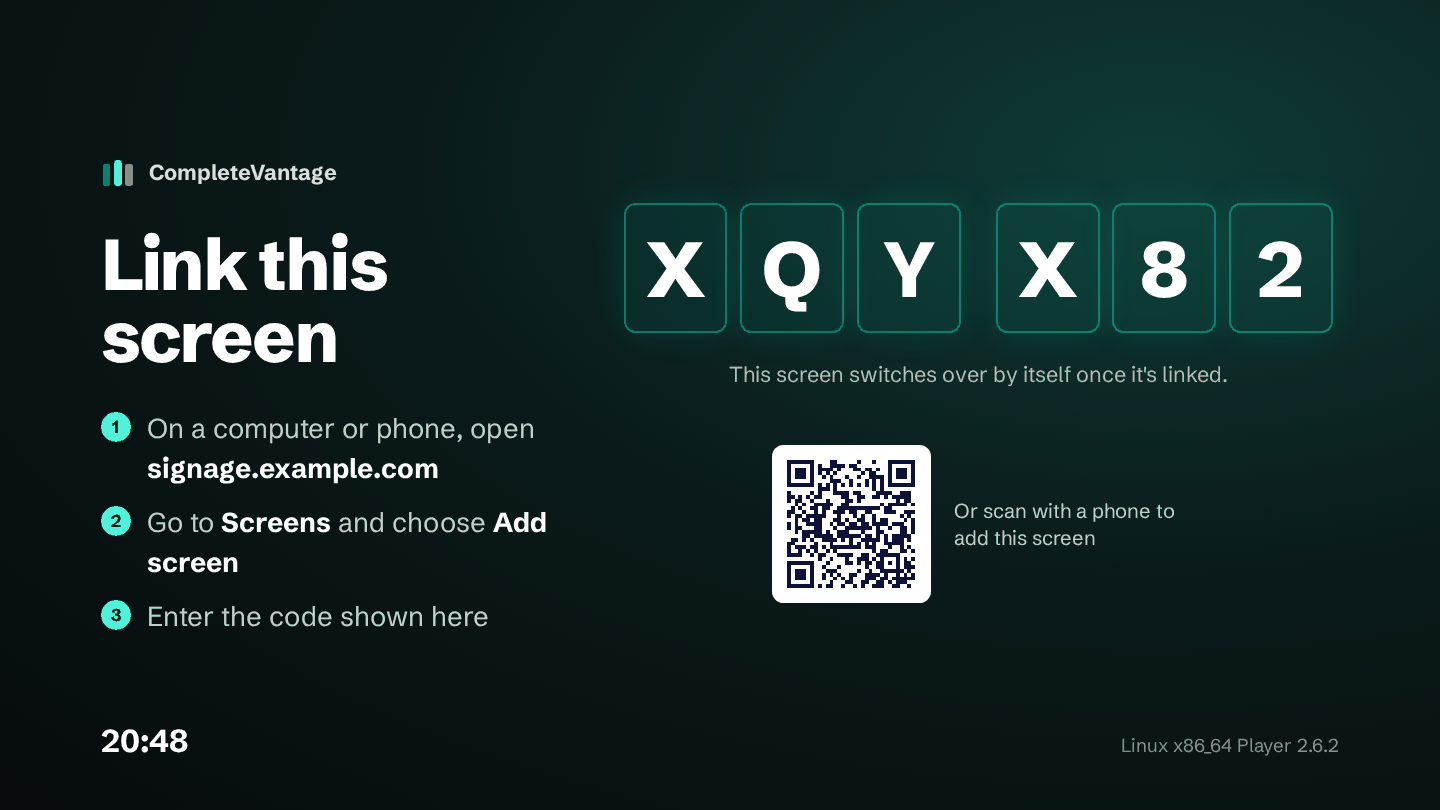
Step 4: Give the app the permissions it needs
On the Connect to your dashboard screen you may see two extra buttons. Use them now, while you're at the TV:
- Allow display power control lets CompleteVantage turn the display off outside its hours. Accept the Android prompt that follows. See Display hours.
- Allow start on boot opens an Android setting. Turn it on for CompleteVantage so the app can bring itself back after a restart. See Start automatically after a power cut.
If you've already connected, press Back five times quickly to return to this screen. See The app's settings screen.
Step 5: Pair it
Now pair the screen from the dashboard. See Pair a screen.
Troubleshooting
"Couldn't reach" the address. Check the address for typos and that the box is online. Try opening the address in a browser on another device on the same network.
"answered, but not like a CompleteVantage server" or "isn't a CompleteVantage server". The address works but points somewhere else. Use exactly the address you sign in with, without anything after the domain.
The install button is greyed out or nothing happens. Allow unknown apps for the app you're installing from (Step 1).
"App not installed". The box may already have a copy signed differently. Uninstall the old app first, then try again. You'll need to pair the screen again afterwards.