
Pairing links a TV to your organization. You enter the six-character code the TV shows, and the screen appears in your dashboard, ready for content.
Before you start:
- You need the admin or owner role.
- The TV must show a pairing code. Install the app (Install the Android app) or open the browser player (Use a web browser as a player).
Pair the screen
- On the TV, note the code under Link this screen, for example
A7K2QX. - In the dashboard, go to Screens (or Overview) and select Add screen.
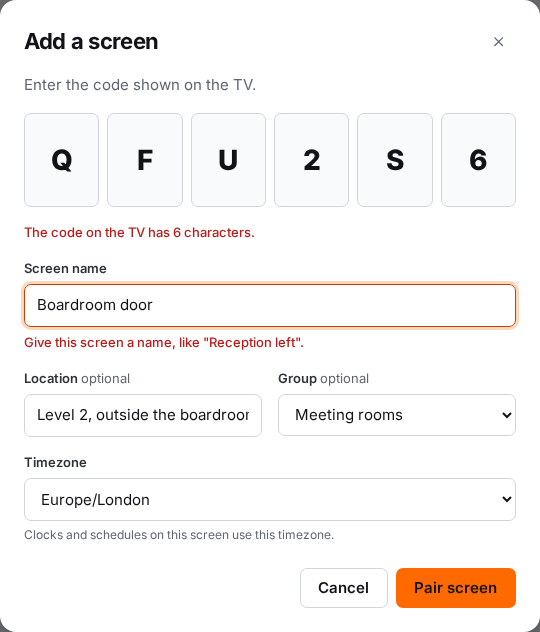
- Type the code into the six boxes. Letters can be capitals or not. Codes never use the easily confused characters 0, O, 1 or I.
- Enter a Screen name people will recognise, like
ReceptionorCafé menu board. - Optionally, add a Location, like
Ground floor, behind the desk, and choose a Group. - Check the Timezone. It starts as your organization's timezone. Change it if the screen is somewhere else. Clocks and schedules on this screen use it.
- Select Pair screen.
You'll see "Reception" is paired. It will switch over within a few seconds. and the screen's page opens. The TV leaves the pairing code and shows a clock until you give it something to play.
Name screens well
Good names save time later, especially in reports and alerts.
- Say where the screen is:
Reception,Lobby portrait,Manchester lobby. - Add a side or number if there are several:
Reception, left wall. - Put extra detail in Location and in the screen's Notes, not the name.
Next: give it something to play
Pairing doesn't choose content. On the screen's page, use What plays here to pick media, a playlist or a layout. See Choose what plays on a screen.
Troubleshooting
"No screen is showing that code." Check each character against the TV. If the TV has been showing the same code for a day, the code may have changed. Codes refresh every 24 hours, and the TV always shows the current one.
"That code was just used. Check the TV for a new code." Someone paired it a moment ago, perhaps in another organization. Look at the TV: if it still shows a code, try the new one.
"The code on the TV has 6 characters." You've missed a character. Each box takes one.
You don't see Add screen, or pairing is refused. Only admins and owners can pair screens. Ask an admin to pair it or to change your role.
"Your free trial includes 3 screens, and they're all paired." (or "Your plan includes …"). You've reached your screen limit. Remove a screen you don't need, or ask an owner to choose a plan with more screens under Billing. See Plans and limits.
"Your free trial has ended, so changes are paused." Pairing is a change, so it waits until an owner chooses a plan. See What happens when your trial ends.
The TV doesn't show a code at all. See Troubleshooting screens.