
Remote actions let you control a screen without going to it. Find out which TV is which, check what's on it, or give it a fresh start.
Before you start: you need the editor role or above.
Send an action
- Go to Screens and select the screen.
- Under the screen's name, select an action button, or open More actions for the rest.
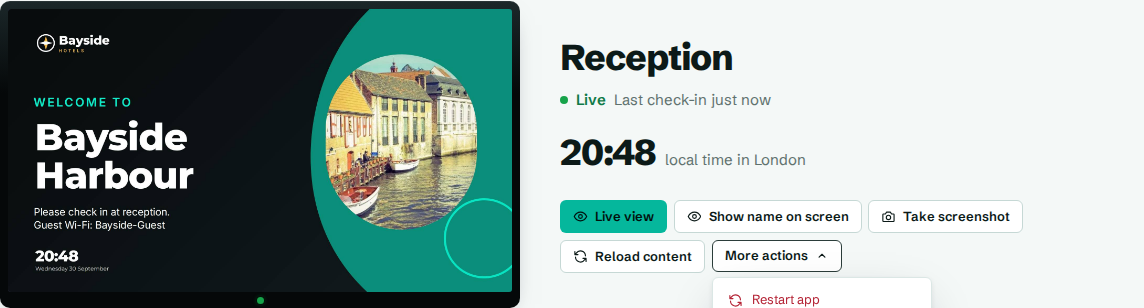
You'll see a message like Take screenshot sent. The screen picks it up on its next check-in. Screens check in about every 30 seconds, so most actions happen within half a minute.
The buttons sit under the screen's name, next to its latest picture:
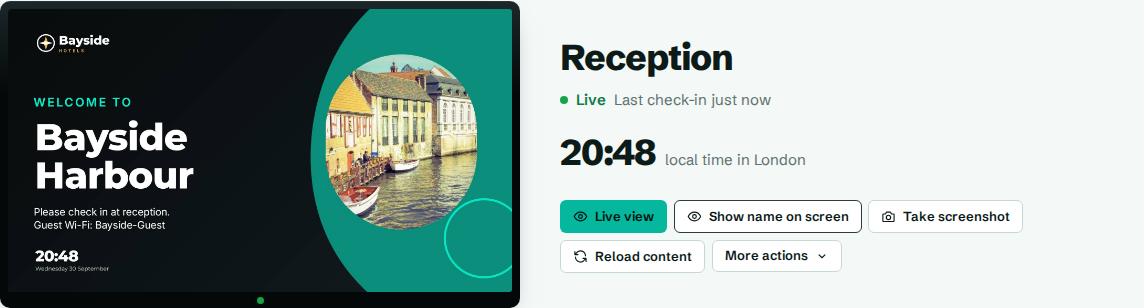
The actions
| Action | What it does | Works on |
|---|---|---|
| Live view | Watch the screen, updated every few seconds. See Live view. | Android app |
| Show name on screen | Shows the screen's name in large letters for 15 seconds. Handy when you're standing in front of several TVs. | All |
| Take screenshot | Takes a picture of what's on the screen. It appears on the screen's page and card. | Android app |
| Reload content | Starts the player again and fetches the latest content. Try this first when something looks wrong. | All |
| Restart app | Restarts the CompleteVantage app. The screen goes blank for up to a minute. | Android app |
| Reboot device | Restarts the whole box. The screen goes blank for up to a minute. | Android app in kiosk mode, or a rooted box |
| Turn display off | Turns the display off (or black) now. | All |
| Turn display on | Turns it back on. | All |
| Clear cached media | Deletes the screen's saved copy of your media and downloads it again. Use it if images or videos look broken. | All |
Restart app and Reboot device ask you to confirm first, because the screen goes blank while they run.
Check that it worked
The Recent actions panel on the screen's page lists each action and who sent it, with its status:
| Status | Meaning |
|---|---|
| Waiting | The screen hasn't checked in yet. |
| Delivered | The screen has received it. |
| Done | The screen carried it out. |
| Failed | The screen couldn't do it. |
| Replaced | A newer action replaced this one before it was delivered. |
Troubleshooting
The action stays on Waiting. The screen isn't checking in. Check its status. If it's Offline, the action runs when it reconnects. See Screen status.
Reboot device fails. Rebooting needs the box to be in kiosk mode (device owner), or rooted. Use Restart app instead, or set up kiosk mode.
Take screenshot fails on a browser screen. Browsers can't capture their own screen. Use Preview in What plays here to see what it's showing.
Turn display off only makes the screen black. The box doesn't have display power control. See Display hours.