
Display hours turn a screen off when nobody's around and back on in time for the day. It saves power, extends the life of the TV and stops people seeing a lit screen in an empty building.
Before you start:
- You need the editor role or above.
- For the TV to actually switch off, the Android box needs display power control and the TV needs HDMI-CEC. See "What the TV does" below.
Set display hours for a screen
- Go to Screens and select the screen.
- In Display hours and updates, tick Turn the display off outside set hours.
- Set the first row: select the days, then the On and off times. The first row starts as Monday to Friday, 07:00 to 19:00.
- To add different hours for other days, select Add hours. For example, Saturday and Sunday from 09:00 to 17:00.
- Select Save.
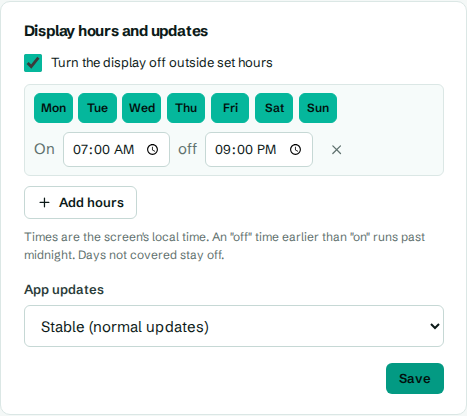
You'll see Saved. The screen applies it within a minute.
A few rules:
- Times are the screen's local time, in its own timezone.
- Days you don't tick in any row stay off all day.
- An off time earlier than the on time runs past midnight. For example, on at 18:00 and off at 02:00 keeps a bar's screen on until 2 in the morning.
- To remove a row, select its × button.
Set display hours for a whole group
- Go to Screens.
- In the Groups panel, select the pencil icon next to the group.
- Under Display hours, tick Turn the display off outside set hours and add hours as above.
- Select Save group.
Screens in the group follow these hours unless they have their own. A screen without its own hours says Without its own hours, this screen follows its group's. See Groups.
What the TV does
What happens at "off" time depends on the box:
| Box setup | At off time | At on time |
|---|---|---|
| Display power control allowed, and HDMI-CEC on in the TV and box | The box sleeps and the TV turns off | The box wakes itself and the TV turns on |
| Display power control allowed, no HDMI-CEC | The box sleeps. The TV shows "no signal" and may go to standby on its own | The box wakes itself |
| Kiosk mode (device owner) | Same as display power control allowed | Same |
| Neither, or a web browser | The screen shows black. The box stays on | Content comes back |
To allow display power control, go to the TV, press Back five times quickly to open the app's settings screen, and select Allow display power control. Accept the Android prompt. See The app's settings screen.
To turn on HDMI-CEC, look in the TV's settings for a name like HDMI-CEC, Anynet+ (Samsung), Simplink (LG), Bravia Sync (Sony) or CEC control. Also turn it on in the box's settings if it has the option.
Status while the display is off
While a screen is off by its schedule, its status is Display off, not offline. It doesn't trigger offline alerts. See Screen status.
Turn a display off or on right now
Use More actions on the screen's page, then Turn display off or Turn display on. With display hours set, this lasts until the next scheduled change. Without display hours, it lasts until you turn it back on. See Remote actions.
Troubleshooting
The TV stays on but shows black. Display power control isn't allowed on the box, or the box doesn't support it. Allow it from the app's settings screen. If the button isn't offered or nothing happens, the box can't do it, and black is the best it can do.
The box sleeps but the TV stays on. HDMI-CEC is off in the TV or the box, or the TV doesn't support it. Turn it on in both.
The screen comes back on late. Some boxes running Android 13 or later only allow approximate wake-up times, which can be several minutes late. Set the on time a little earlier.
The screen doesn't come back on at all. Check the box has power and the TV is on the right input. Press a button on the box's remote to wake it. If this keeps happening, set up kiosk mode.