
Each screen has its own settings page. Here you rename it, move it to another group, set its timezone, turn it to portrait and keep notes for whoever looks after it.
Before you start: changing settings needs the editor role or above. Removing a screen needs admin or owner.
Open a screen's settings
- Go to Screens.
- Select the screen's card. Use Find a screen or the group menu if you have many.
- The Settings panel is on the left, under the screen's picture.
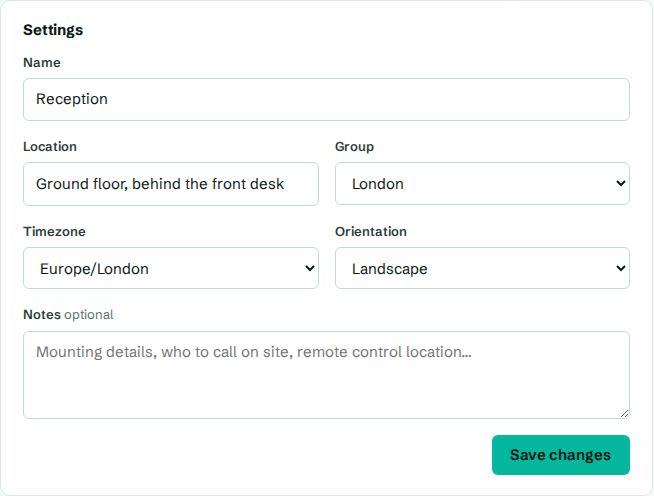
Change the settings
- Change any of these:
- Name: what everyone sees in the dashboard, reports and alerts.
- Location: where it is, like
Ground floor, behind the desk. - Group: the group it belongs to, or No group. See Groups.
- Timezone: where the screen is. See below.
- Orientation: how the TV is mounted. See below.
- Notes: anything useful for whoever visits the screen, like mounting details, who to call on site or where the remote is.
- Select Save changes.
You'll see Screen saved. The screen picks up the change within a minute.
Timezone
The screen's timezone controls:
- clocks in layouts (unless a clock is set to another city),
- when schedules start and stop,
- display hours,
- the local time shown on the screen's card and page.
Pick the city nearest the screen, like Europe/London or America/New_York. Daylight saving is handled for you.
Orientation and portrait screens
Choose how the TV is physically mounted:
| Choose | When |
|---|---|
| Landscape | The TV is the normal way round. |
| Portrait | The TV is turned on its side. |
| Landscape, upside down | The TV is mounted upside down, for example hanging from a ceiling bracket. |
| Portrait, upside down | The TV is on its side, the other way. |
You don't need to change anything on the box. CompleteVantage rotates the picture itself. If a portrait screen's picture comes out upside down, switch between Portrait and Portrait, upside down.
For content that fills a portrait screen properly, use portrait layouts and templates. See Portrait layouts.
Remove a screen
Remove a screen when you take it out of service or want to pair it to another organization.
- On the screen's page, scroll to Remove screen.
- Select Remove screen, then confirm.
The TV goes back to showing a pairing code. The screen's settings and history are deleted. Proof-of-play reports keep its past plays as (removed screen).