
Portrait screens stand on their side, like a poster. They're great for menus, directories, door panels and notices in corridors and lifts. You need two things: a portrait layout, and the screen set to portrait.
You'll need: the editor role or higher.
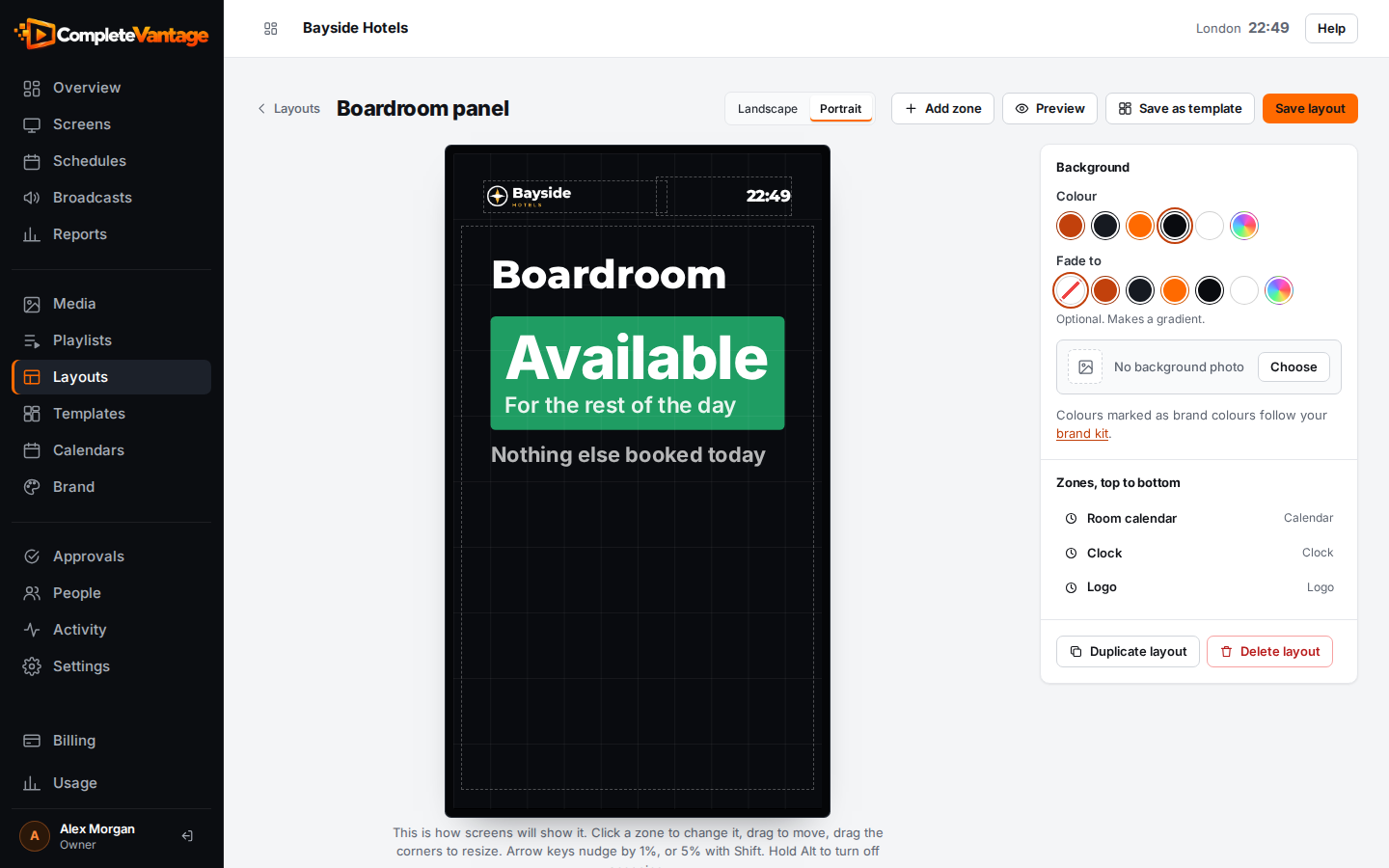
Make a portrait layout
Choose one of these:
- From a template. Under Templates, choose Portrait at the top. Good starting points are Notice board, Price board, Room door panel, Building directory, Agenda, Today's visitors and In an emergency.
- From blank. Under Layouts, select Blank layout and set Orientation to Portrait (9:16).
- Switch an existing layout. In the designer's top bar, choose Portrait. Zones keep their percentage positions, so you'll need to rearrange them.
The designer's canvas turns tall so you see exactly what the screen will show.
Set the screen to portrait
Most TV boxes always send a landscape picture, even when the TV is turned on its side. CompleteVantage turns the picture for you:
- Open the screen's page under Screens.
- In Orientation, choose Portrait.
- Select Save changes.
If the picture comes out upside down, choose Portrait, upside down instead. It depends on which way the TV was turned when it was mounted. See Screen settings.
Tips for portrait design
- Put the most important thing in the top half, at eye level.
- Use bigger text than on landscape screens. People often read portrait screens from further away as they walk past.
- Use portrait photos for photo zones and backgrounds, or they'll be heavily cropped.