
The logo widget shows the logo from your brand kit. Change the logo under Brand, and every layout that uses this widget updates on every screen.
You'll need: the editor role or higher to add the widget. Setting the logo itself needs the admin role.
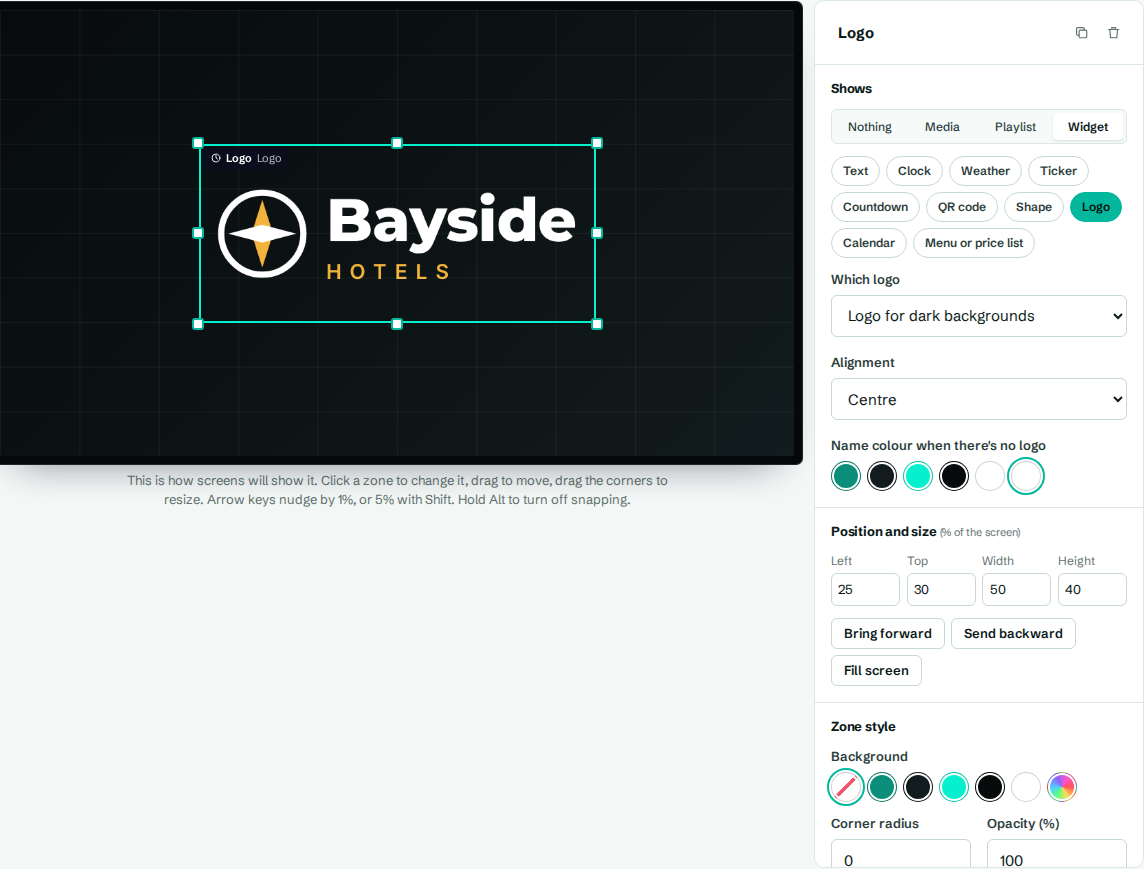
Add your logo
- In the designer, select a zone. A wide, short zone suits most logos.
- Under Shows, choose Widget, then Logo.
- Adjust the settings and select Save layout.
Settings
| Setting | What it does |
|---|---|
| Which logo | Automatic for the background, Logo for light backgrounds, or Logo for dark backgrounds. |
| Alignment | Left, Centre or Right within the zone. |
| Name colour when there's no logo | If your brand kit has no logo yet, the widget shows your organization's name in this colour. |
How "Automatic" chooses
Your brand kit can hold two logos: one for light backgrounds, and an optional one for dark backgrounds (often a white version). With Automatic for the background, CompleteVantage looks at the zone's background colour, or the layout's background colour if the zone has none. On a dark colour it uses your dark-background logo, if you have one. Otherwise it uses your main logo.
The logo keeps its shape and fits inside the zone.
Troubleshooting
The zone shows our name instead of the logo. No logo is set in the brand kit. An admin can add one under Brand. See Set up your brand kit.
The logo is hard to see. Add a white or light version as the logo for dark backgrounds, or give the zone a light Background in zone style.