
A ticker scrolls text across a zone, like a news channel. It can show your own messages or headlines from an RSS or Atom feed.
You'll need: the editor role or higher.
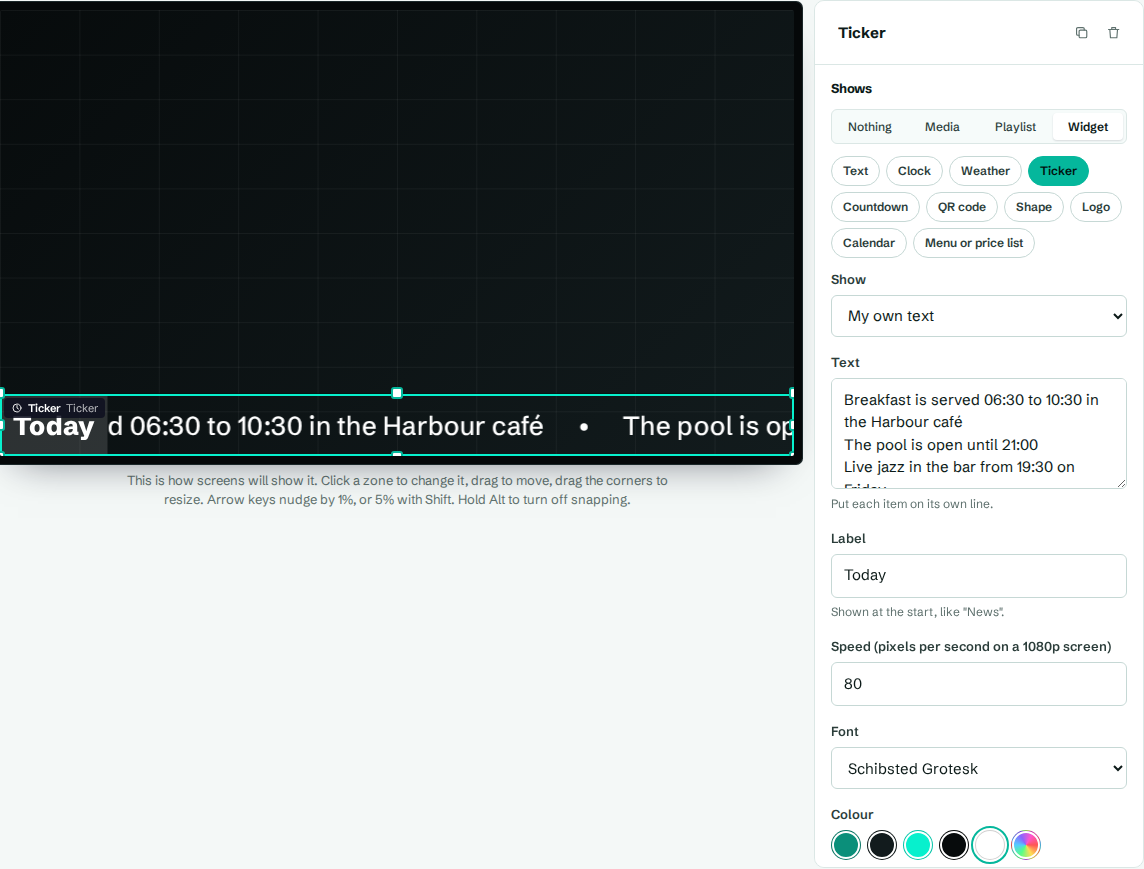
Add a ticker
- In the designer, select a zone. A strip about 10% high across the bottom works well.
- Under Shows, choose Widget, then Ticker.
- Choose what to show in Show, fill in the text or feed, and select Save layout.
The Main, sidebar and ticker blank layout and the News, weather and time template already include a ticker.
Settings
| Setting | What it does |
|---|---|
| Show | My own text, or Headlines from an RSS feed. |
| Text | Your messages, one per line. Shown when Show is My own text. Items are separated by a dot as they scroll. |
| Feed address | The address of an RSS or Atom feed, for example a news site's. Shown when Show is Headlines from an RSS feed. |
| Label | A short label shown at the start, like "News" or "Today". Optional. |
| Speed (pixels per second on a 1080p screen) | How fast it scrolls, from 10 to 400. 60 is the default and easy to read. The speed looks the same on any resolution. |
| Font | A brand font or a specific font. |
| Colour | Colour of the text. |
Using a news feed
- Find the feed address on the news site. Look for "RSS" or a feed icon. It often ends in
/rss,.xmlor/feed. - Paste the full address, starting with
https://, into Feed address. - Save the layout.
CompleteVantage's server fetches the feed for your screens and checks it for new headlines every 10 minutes. Each screen remembers the last headlines, so the ticker keeps scrolling if the internet drops.
Troubleshooting
The ticker is empty. Check that Show matches what you filled in. With a feed, open the feed address in your browser: it should show a page of code starting with <rss or <feed, not a normal web page.
Headlines are old. Feeds are checked every 10 minutes. Some sites update their feed less often.