
The layout designer is where you arrange zones on the screen. The canvas is drawn by the real player, so what you see is what your screens will show: the same fonts, colours, widgets and pictures.
You'll need: the editor role or higher to make changes. Viewers can open a layout but not change it.
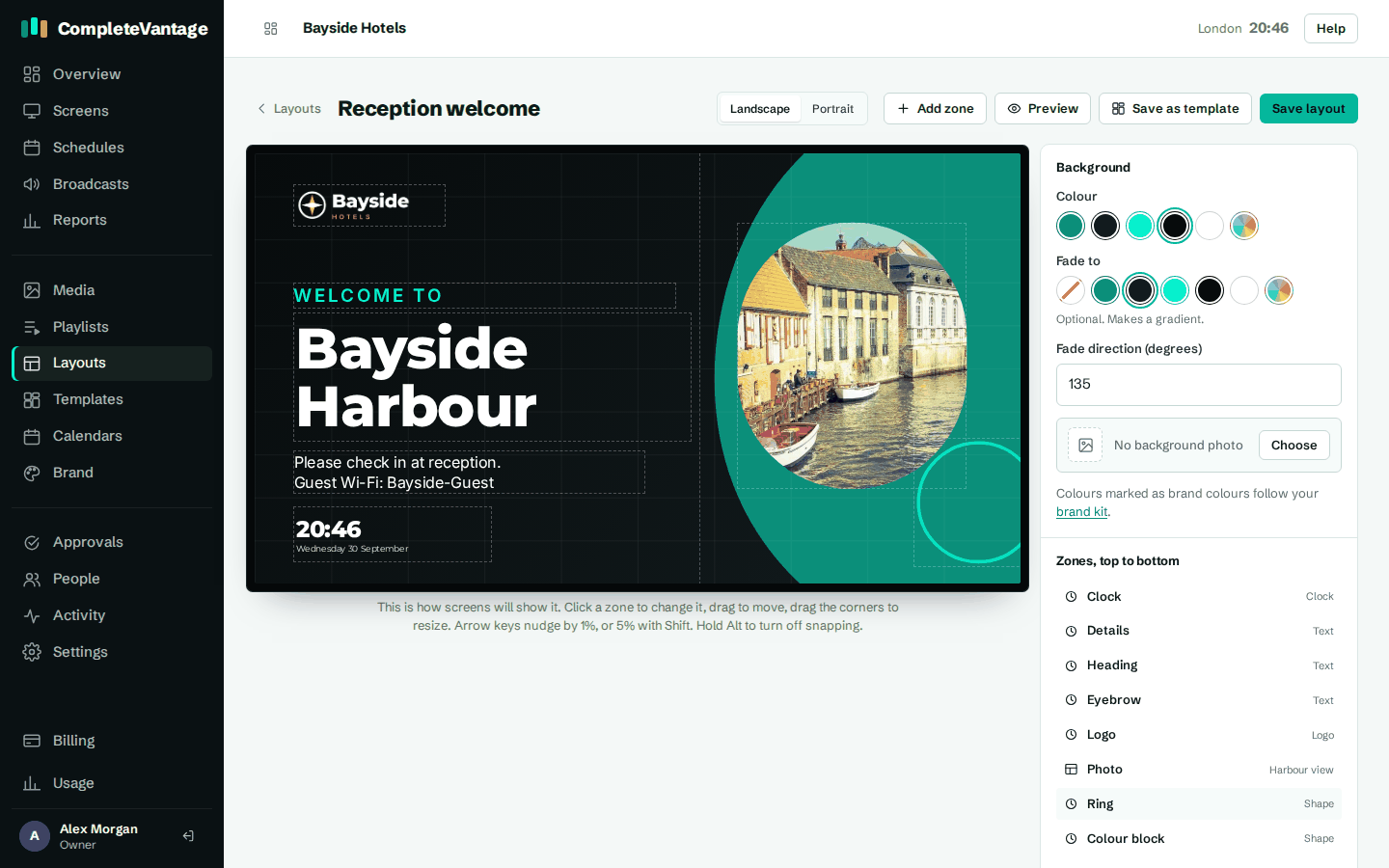
The parts of the designer
- Top bar: the layout's name (select it to rename), Landscape or Portrait, Add zone, Preview, Save as template and Save layout.
- Canvas: the screen, with a frame around each zone. Each frame has a tag with the zone's name and what it shows.
- Settings panel on the right. With no zone selected, it shows the layout's Background, the list Zones, top to bottom, and Used by. With a zone selected, it shows that zone's settings.
Add a zone
- Select Add zone. A new zone appears in the middle of the screen and is selected.
- Rename it at the top of the settings panel, for example "Weather".
- Under Shows, choose Nothing, Media, Playlist or Widget.
Select, move and resize
- Select a zone by clicking it on the canvas, or by choosing it in Zones, top to bottom.
- Move a zone by dragging it.
- Resize a zone by dragging its edges or corners.
- Deselect by clicking outside the zones, or pressing Esc.
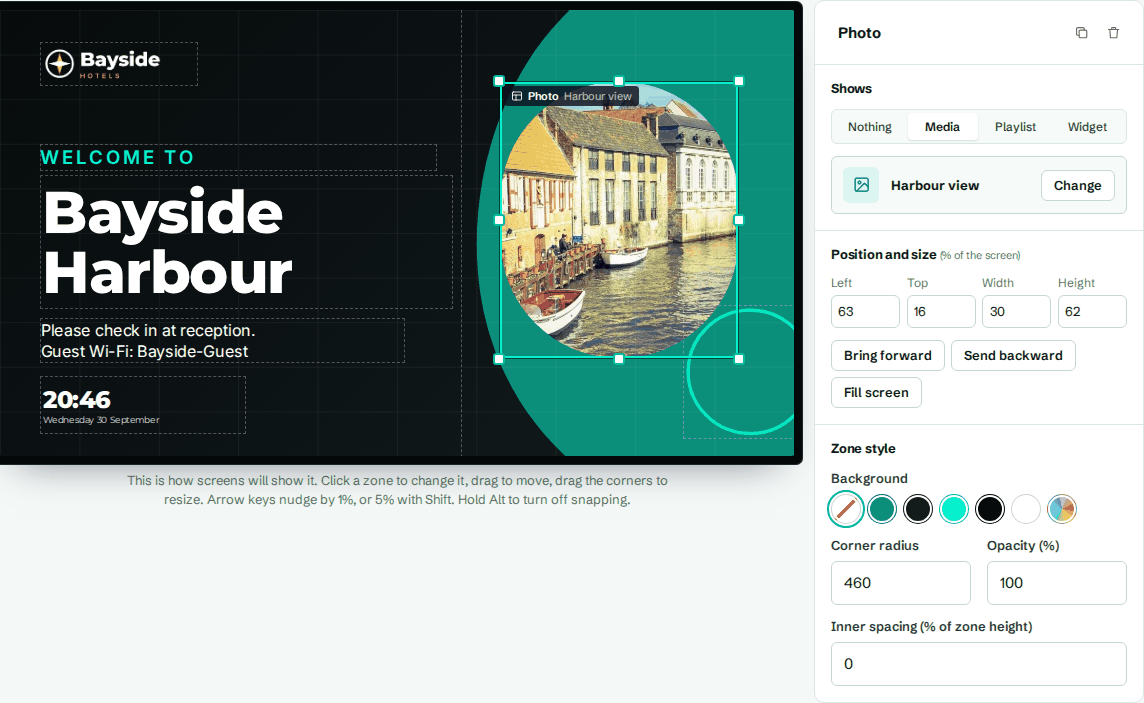
Snapping
While you drag, zones snap to a 1% grid, to the edges and centre of the screen, and to the edges of other zones. This makes it easy to line things up. Hold Alt while dragging to turn snapping off for fine placement.
Keyboard nudging
With a zone selected:
| Key | What it does |
|---|---|
| Arrow keys | Move the zone by 1% of the screen |
| Shift + arrow keys | Move the zone by 5% |
| Delete or Backspace | Remove the zone (asks first if it isn't empty) |
| Esc | Deselect |
| Ctrl + S (Cmd + S on a Mac) | Save the layout |
Exact position and size
Under Position and size (% of the screen), type exact values for Left, Top, Width and Height. Positions are percentages, so a layout fits any screen resolution.
Fill screen makes the selected zone cover the whole screen.
Duplicate or remove a zone
At the top of the settings panel, next to the zone's name:
- The copy icon (Duplicate zone) makes a copy slightly offset from the original, with all its settings.
- The bin icon (Remove zone) deletes it. Zones that show something ask you to confirm.
Save and preview
- Select Save layout. You'll see "Layout saved. Screens update within a minute."
- Select Preview to open the layout full size in a new tab. If you have unsaved changes, Preview saves first so it shows what you see.
If you try to leave the page with unsaved changes, your browser asks you to confirm.
Duplicate or delete the layout
Deselect all zones to see these at the bottom of the settings panel:
- Duplicate layout makes a full copy to experiment with.
- Delete layout removes it. This only works when no screen, group, playlist or schedule uses it. Otherwise you'll see which ones still use it, for example '"Lobby news" is still in use: Reception.' Remove it there first.
Used by lists every screen, group, playlist and schedule that shows the layout, so you know what a change will affect.
Troubleshooting
I can't drag anything. You have the viewer role, or the layout is read-only for you. Ask an admin for the editor role.
A zone is hidden behind another one. Select it from Zones, top to bottom, then use Bring forward. See Layers and zone style.
My change isn't on the screen yet. Check you selected Save layout. Screens pick up changes within a minute.