
When your organization uses approvals, your changes as an editor wait for an admin before they reach screens. You work the same way as before. This article explains the differences.
You need: the editor role, in an organization with approvals turned on.
How you can tell approvals are on
Save buttons say Submit for approval instead of Save. For example, Save playlist becomes Submit for approval on a playlist that's already on screens.
New items
When you add something new, such as a playlist, it's saved right away. Screens don't show it until an admin approves it. You'll see "Saved. Screens show it once an admin approves it."
- New items show Waiting for approval on their card and in the content picker.
- You can keep changing a new item while it waits.
- You can assign it to a screen, but the screen skips it until it's approved.
- To cancel a new item, delete it. New items can't be withdrawn.
Changes to items already on screens
When you change something that's already on screens, your change is sent as a request. You'll see "Sent for approval. Screens keep showing the approved version until an admin approves it."
A banner above the item says: "Waiting for approval. Screens show the approved version. You're editing your proposed change."
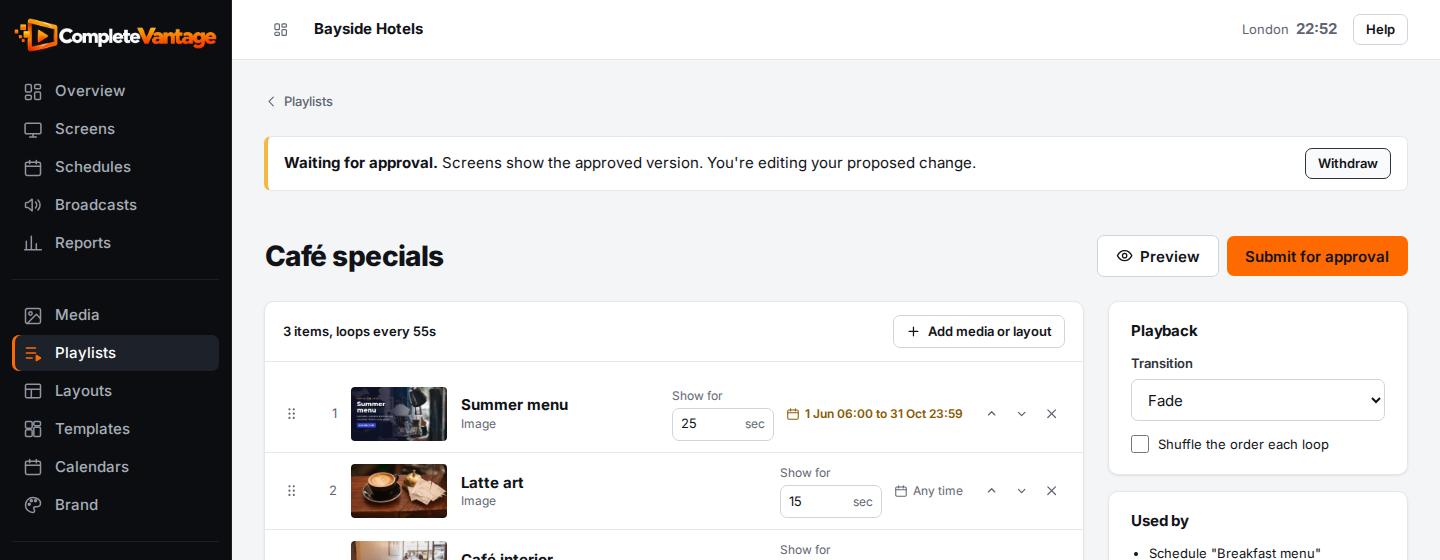
- Keep editing. Each save replaces your request, so there's only ever one per item.
- Select Preview to see your proposed version as screens would show it.
- Select Withdraw to take the request back. Screens keep the approved version.
Pausing or resuming a schedule counts as a change too.
Deleting items already on screens
Deleting sends a delete request: "Delete request sent for approval." The item stays on screens until an admin approves. Select Withdraw in the banner to cancel the request.
When a change isn't approved
If an admin turns your request down, the item shows Not approved and the admin's note, if they left one. For example: "Not approved. Priya Shah turned down the change: The price is wrong: it should be £4.50."
- For a new item, fix it and save again to send it back for approval.
- For a change, screens keep the approved version. Make the change again if needed.
Troubleshooting
"Only the person who submitted this change, or an admin, can withdraw it." Someone else sent this request. Ask them or an admin to withdraw it.
"New items can't be withdrawn. Delete the item instead." Delete the item if you no longer want it.