
When approvals are on, editors' new items, changes and deletes wait on the Approvals page. As an approver, you check each one and decide.
You need: the admin or owner role.
Find waiting requests
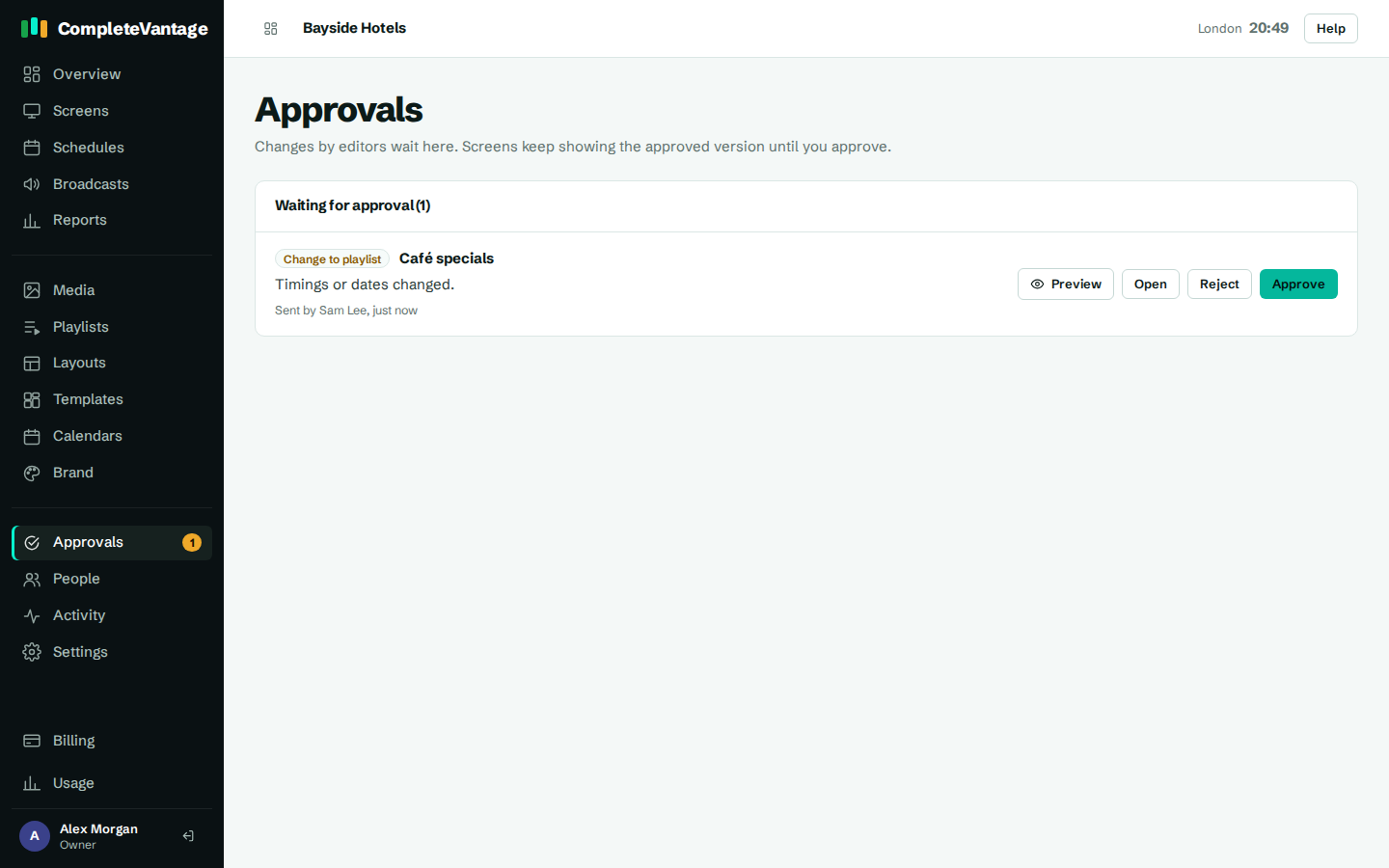
The Approvals link in the menu shows a count when something is waiting. Items with a waiting request also show a banner with a Review link.
Review a request
- In the menu, select Approvals.
- Under Waiting for approval, each request shows:
- what it is, such as New playlist, Change to layout or Delete media item
- its name and a short summary of what changed
- who sent it and when
- Select Preview to see the proposed version on a screen, or Open to open the item.
- Decide:
- Select Approve to publish it. Screens show the new version within a minute.
- Select Reject to turn it down.
Approving a delete asks you to confirm, because it can't be undone. Select Approve and delete.
Reject with a note
- Select Reject.
- In Note for the editor, explain what to fix, for example
The price is wrong: it should be £4.50.The note is optional. - Select Reject.
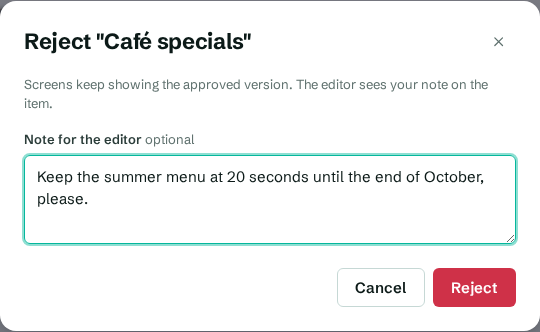
Screens keep the approved version. The editor sees your note on the item.
Approving by saving
If you open a new item that's waiting and save it yourself, it's published and its request is approved. Your own changes never need approval.
Recent decisions
Below the queue, Recent decisions lists what was approved or not approved, who sent it, who decided and any note. Every request, approval, rejection and withdrawal is also in the activity log.
Troubleshooting
"This request was already decided or withdrawn." Another approver got there first, or the editor withdrew it. Refresh the page.
"That item no longer exists, so there was nothing to approve." The item was deleted after the request was sent. The request is closed for you.