
Alerts tell the right people when something needs attention, so a blank screen in reception gets fixed before a visitor notices. You choose where alerts go (an alert destination) and which events each destination hears about.
Before you start: you need the admin or owner role.
Add an alert destination
- In the menu, select Settings.
- In the Alerts panel, select Add alert destination.
- Choose how to send alerts: Email, Microsoft Teams, Slack or Webhook.
- In Name, type something that says who gets it, for example "IT on-call".
- Fill in Send to (email addresses) or Webhook address. The steps for each kind are in the articles linked below.
- Under Alert me when, tick the events this destination should hear about.
- Select Save.
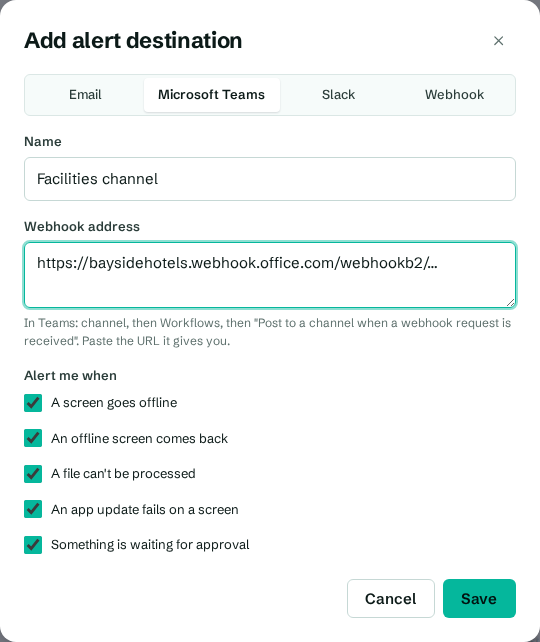
You can add as many destinations as you like. For example, send offline alerts to the IT team's Teams channel, and approval requests to the marketing lead by email.
The events you can choose
| Event | When it's sent |
|---|---|
| A screen goes offline | A screen has stopped checking in for longer than your offline threshold. |
| An offline screen comes back | A screen you were alerted about is checking in again. The message says roughly how long it was offline. |
| A file can't be processed | An upload, such as a PowerPoint or video, failed to convert. |
| An app update fails on a screen | An Android screen couldn't install a new version of the app, or someone pressed Cancel on the TV. |
| Something is waiting for approval | An editor sent a change for approval. Only used when approvals are on. |
Each alert includes a link that opens the screen, the media library or the approvals page.
Choose when a screen counts as offline
Screens check in about every 30 seconds. A short network blip shouldn't wake anyone up, so alerts wait for a threshold you choose.
- In Settings, find the Organization panel.
- In Alert when a screen has been offline for, enter the number of minutes. You can use 2 to 1440 minutes (24 hours). The default is 10.
- Select Save settings.
You get one alert when a screen crosses the threshold, and one more when it comes back. You won't get repeated alerts while it stays offline.
Send a test
After saving a destination, check it works.
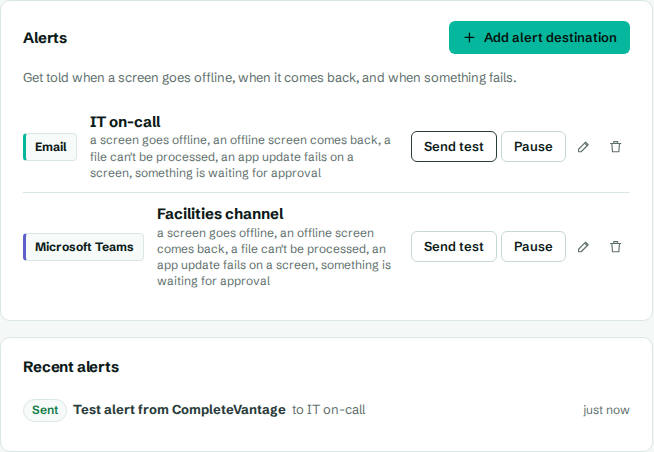
- In the Alerts panel, find the destination.
- Select Send test.
You'll see "Test sent to …" if it was delivered, or "Not delivered:" with the reason. The test message says "If you can read this, alerts for Bayside Hotels reach …".
Pause, change or remove a destination
- Pause stops alerts to that destination without deleting it. Select Resume to start them again.
- The pencil button opens the destination so you can change its address or events. Saving it also resumes it if it was paused.
- The bin button removes it.
Check recent alerts
Under Recent alerts, you'll see the last 15 alerts, each marked Sent or Failed, with the error for failed ones. A destination whose last attempt failed also shows "Last attempt failed:" and the reason.
Troubleshooting
Email alerts don't arrive. Email needs an outgoing mail server set up for your account. If the Alerts panel shows a notice about SMTP, email can't be sent yet. Use Teams, Slack or a webhook meanwhile, or ask your CompleteVantage administrator. See Email alerts.
"Webhook addresses must start with https://". Paste the full address, including https://.
"Webhook answered 404" or similar. The receiving service refused the message. The link may have been deleted or regenerated. Create a new one and paste it in.
I got an offline alert but the screen looks fine. The screen lost its network connection for longer than your threshold, then recovered. Check the "back online" alert for how long it was gone. If it happens often, see Troubleshooting screens.