
Alerts in a Teams channel are seen by the whole team, and anyone can pick them up. CompleteVantage posts each alert as a card with the details and an Open in dashboard button.
Before you start:
- You need the admin or owner role in CompleteVantage.
- In Teams, you need permission to add workflows to the channel. If you can't, ask your Microsoft 365 administrator.
Step 1: get a webhook address from Teams
- In Microsoft Teams, go to the channel where alerts should appear, for example "Screens".
- Next to the channel name, select More options (the three dots), then Workflows.
- Search for and choose Post to a channel when a webhook request is received.
- Give the workflow a name, such as "Screen alerts", and select Next.
- Check the team and channel, then select Add workflow.
- Teams shows a URL. Select the copy button next to it.
Step 2: add it in CompleteVantage
- In CompleteVantage, select Settings in the menu.
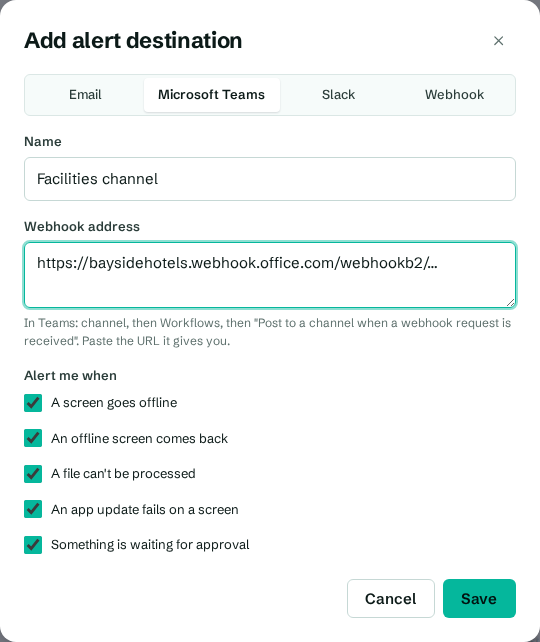
- In the Alerts panel, select Add alert destination.
- Choose Microsoft Teams.
- In Name, type the channel's name, such as "Screens channel".
- Paste the URL into Webhook address.
- Under Alert me when, tick the events you want.
- Select Save.
- Select Send test. A card titled "Test alert from CompleteVantage" should appear in the channel within a few seconds.
Troubleshooting
"Webhook answered 400" or "Webhook answered 404". The workflow was switched off, deleted or changed. Open the workflow in Teams, check it's on, or create a new one and paste the new URL.
The test says it was sent, but nothing shows in Teams. Workflows can take a minute to run. Check the workflow's run history in Teams (in the Workflows app) for errors, for example if the account that created it has lost access to the channel.
We used the older "Incoming Webhook" connector. Microsoft is retiring those connectors. Create a Workflows webhook as described above and replace the address.