
The proof of play report shows what your screens actually showed, not just what you planned. Use it to check a campaign ran, to answer "was it on the lobby screen last Tuesday?", or to send evidence to a client.
Before you start: you need the editor, admin or owner role. Viewers don't see Reports.
Open the report
- In the menu, select Reports.
- The page opens on Proof of play for the last seven days, grouped by content.
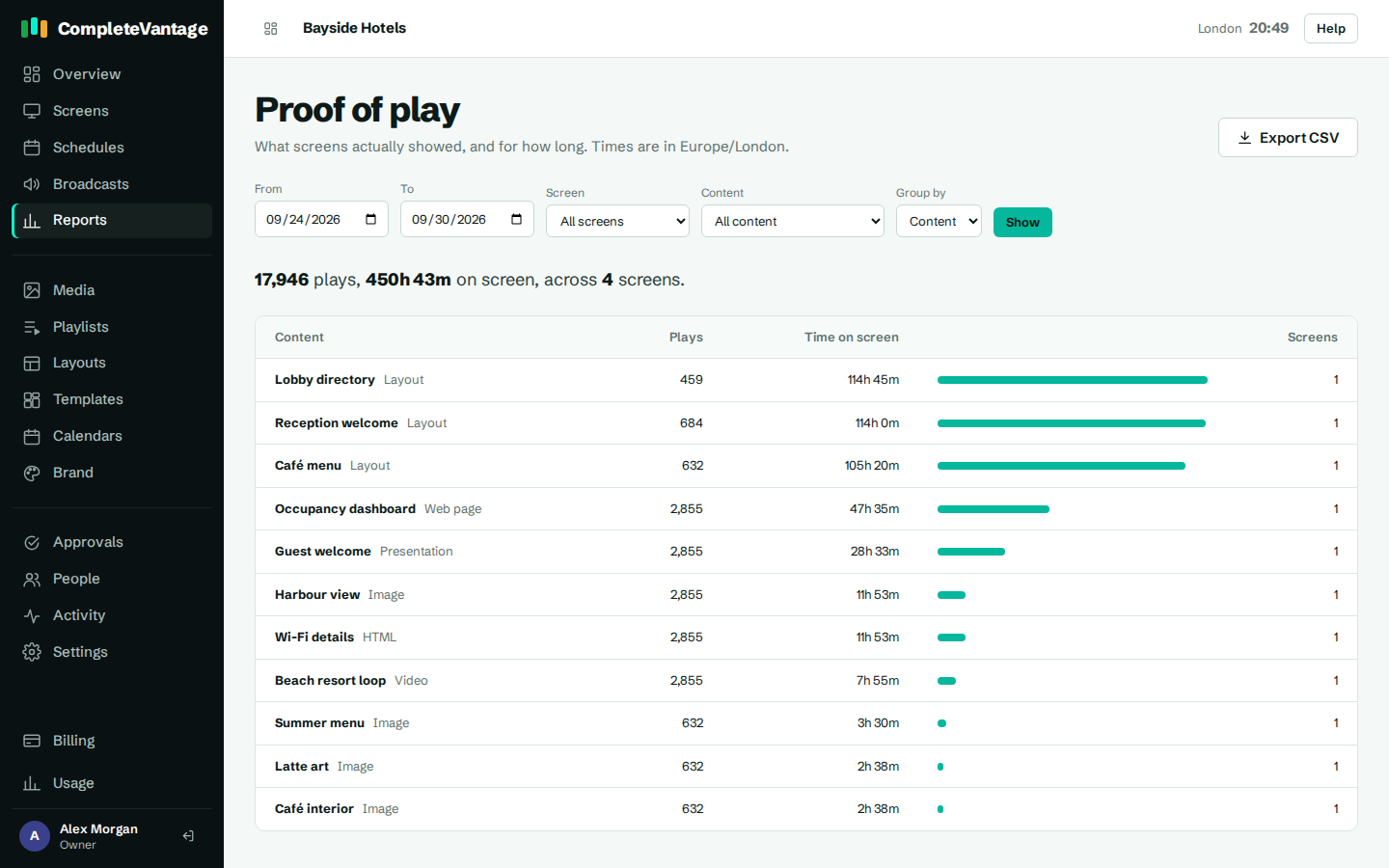
The line above the table sums up the period, for example "1,240 plays, 18h 20m on screen, across 5 screens".
Filter and group the report
The bar at the top narrows the report down.
| Field | What it does |
|---|---|
| From and To | The dates to include. Both days are included in full. |
| Screen | One screen, or All screens. |
| Content | One item from your media library, or All content. |
| Group by | Content, Screen or Day. |
- Choose the dates and filters you want.
- Pick how to group the rows in Group by.
- Select Show.
Each row shows the number of Plays, the Time on screen, a bar comparing it with the other rows and, unless you group by screen, how many Screens showed it.
How plays are counted
- A play is recorded each time an item finishes its turn on screen, with how long it was shown.
- Items inside a layout or playlist are counted too, so you can see the video that played inside a zone.
- Dates and times use your organization's timezone, which you set under Settings. The report header says which timezone it's using.
- Screens keep plays while they're offline and upload them when they reconnect. A screen that was offline yesterday may fill in yesterday's numbers later.
- Plays from screens you've since removed still count. They appear as (removed screen).
Troubleshooting
"Reports isn't included in your plan." Proof of play reports depend on your plan. Screens still record their plays, so the report is ready once an owner chooses a plan that includes it. See Plans and limits.
The report is empty. Check the dates first. If they're right, check the screen is Live on the Screens page. A screen that has never connected has nothing to report.
Numbers look low for today. Screens upload plays each time they check in, about every 30 seconds. An offline screen uploads its plays when it comes back.
A content item is missing from the Content list. The list shows items in your media library. To see a layout or playlist, leave Content on All content and group by Content.