
Every screen shows a status on its card and its page. It tells you whether the screen is checking in with CompleteVantage. This article explains each one and what to do about it.
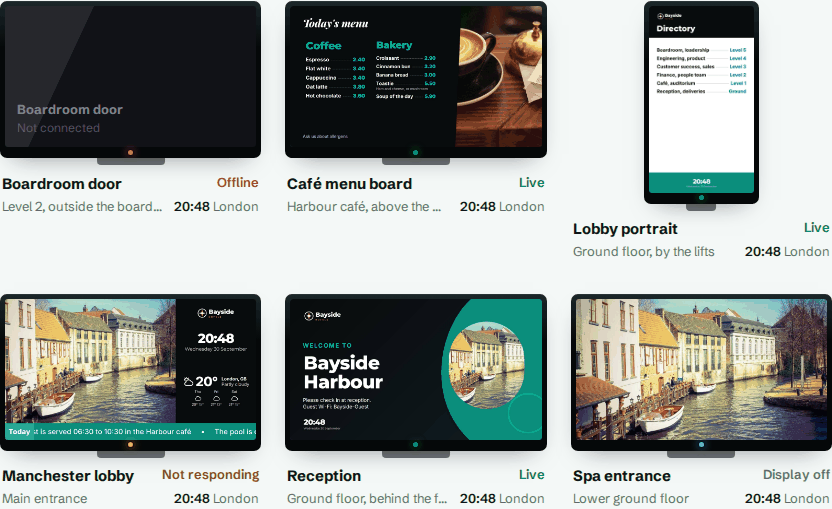
What each status means
| Status | Colour | Meaning |
|---|---|---|
| Live | Green | The screen checked in within the last 90 seconds. All good. |
| Not responding | Amber | No check-in for between 90 seconds and 5 minutes. Often a short network blip or a restart. |
| Offline | Red | No check-in for more than 5 minutes. |
| Display off | Blue-grey | The display is off until a set time, because of its display hours. It isn't counted as offline. |
| Waiting to pair | A TV showing a code that hasn't been paired yet. You won't usually see this in your list. |
Screens check in about every 30 seconds. The status updates on its own while you have the page open.
Where you see it
- Overview sums it up, for example 5 of 6 screens are live, 1 offline.
- Screens lets you filter by status with the Live, Not responding and Offline chips.
- A screen's page shows its status and Last check-in, like Last check-in 12 seconds ago.
- An offline screen's card says what it last showed, like Last showed Lobby loop.
Offline doesn't mean blank
A screen that's offline to you usually still shows content. It lost its connection, not its power. It carries on with its saved copy of your content and schedules. See How screens work offline.
Get told when a screen goes offline
Set up an alert so you hear about offline screens by email, Teams, Slack or webhook. You choose how long a screen must be offline before you're told, from 2 minutes up. See Set up alerts.
What to do when a screen isn't live
- Wait a couple of minutes. Not responding often clears by itself.
- Check the screen's Last check-in time on its page.
- Ask someone near the screen whether it has power and the TV is on.
- Check the network where the screen is. Other devices there may be offline too.
- See Troubleshooting screens for more.