
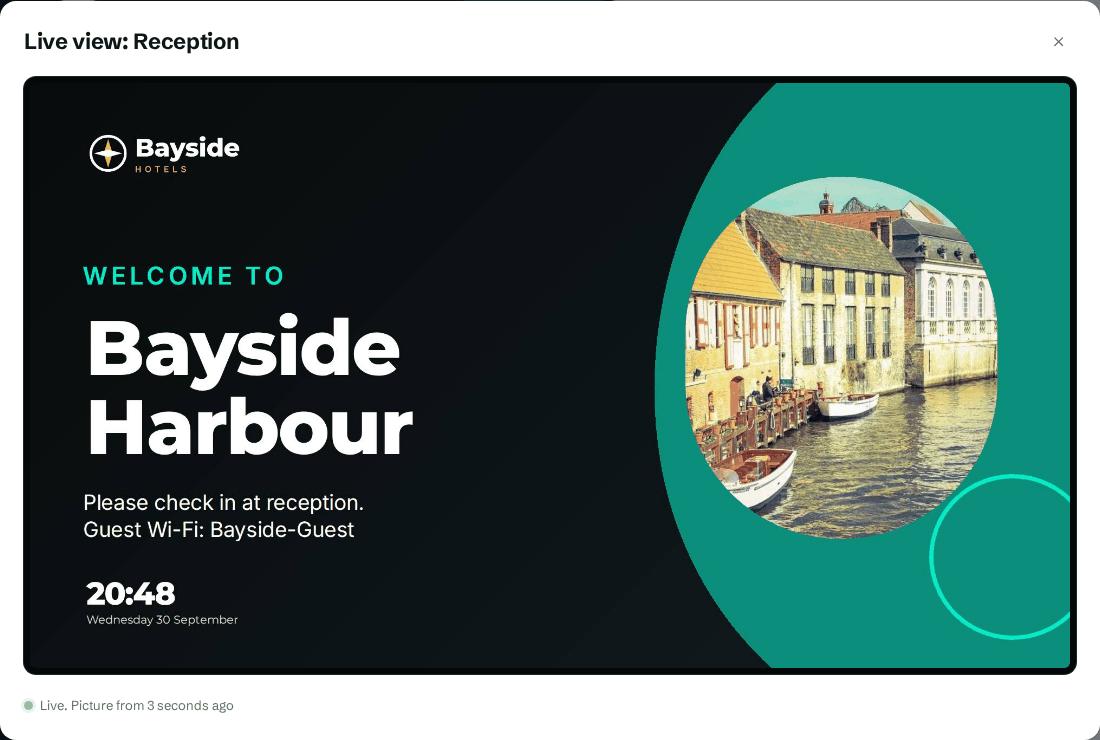
Live view shows you what's on an Android screen right now. The picture refreshes every few seconds while the window is open, so you can check a change landed or see what a caller is describing.
Before you start:
- You need the editor role or above.
- The screen must run the CompleteVantage Android app, version 1.3.0 or later. Live view isn't available for browser players.
- The screen must be online.
Open live view
- Go to Screens and select the screen.
- Select Live view.
- A window opens saying Asking the screen to start. It picks this up at its next check-in, usually within 30 seconds.
- The picture appears. Underneath, it says how fresh it is, like Live. Picture from 2 seconds ago.
Close the window when you're done. The screen stops sending pictures.
Good to know
- The picture updates about every 3 seconds. It's a series of screenshots, not video, so animations and videos look jumpy.
- Dashboards and web pages are included in the picture.
- Live view keeps going for as long as the window is open. If your browser closes without closing the window first, the screen stops sending pictures by itself within five minutes.
- Opening live view is recorded in the activity log.
Troubleshooting
"Live view isn't included in your plan." Live view depends on your plan. An owner can choose a plan that includes it. See Plans and limits.
It stays on "Asking the screen to start". Wait 30 seconds, the time between check-ins. If nothing appears, check the screen is Live on its page.
"The screen hasn't checked in for a while. It may be offline or asleep." The screen is offline, or its display is off by schedule. See Screen status.
"Waiting for a new picture". The screen is slow to send pictures, often on a busy or slow network. It carries on when the next one arrives.
I don't see the Live view button. The screen is a browser player, or you're a viewer. Use Preview in What plays here instead.