
Approvals let editors prepare content while admins decide what goes on screen. Nothing an editor adds or changes reaches your screens until an admin or owner approves it. It's off unless you turn it on.
You need: the admin or owner role.
Turn it on
- In the menu, select Settings.
- In the Organization panel, find Approval.
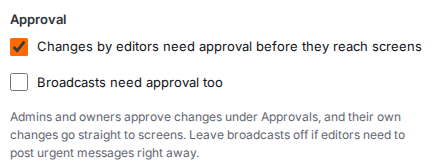
- Tick Changes by editors need approval before they reach screens.
- If broadcasts should wait too, tick Broadcasts need approval too.
- Select Save settings.
What needs approval
With approvals on, these wait for an admin when an editor does them:
- adding media: uploads, web pages, YouTube videos and streams, and HTML snippets
- creating playlists and layouts, including duplicates and layouts made from templates
- creating schedules
- changing any of these once they're on screens, including pausing or resuming a schedule
- deleting any of these once they're on screens
- broadcasts, if you ticked Broadcasts need approval too
These don't need approval: screen settings, what plays on a screen or group, groups, display hours, calendars and the brand kit.
Who approves
Admins and owners are the approvers. Their own changes always go straight to screens. Viewers can't make changes, so approvals don't affect them.
Get told about new requests
Add an alert destination that includes the event Something is waiting for approval, and approvers hear about each new request by email, Teams, Slack or webhook. See Set up alerts.
Turning approvals off
Untick Changes by editors need approval before they reach screens and select Save settings. Editors' changes go straight to screens again.
If Content approval isn't in your plan
Content approval depends on your plan. If yours doesn't include it, the Approvals page says Content approval isn't included in your plan. An owner can choose a plan that includes it. See Plans and limits.