
Using a template makes a new layout that's a copy of the design. You then edit it in the layout designer like any other layout. The template itself doesn't change, so you can use it again.
You'll need: the editor role or higher.
Make a layout from a template
- In the menu, choose Templates.
- Find the design you want. For example, Lobby welcome in the Welcome category.
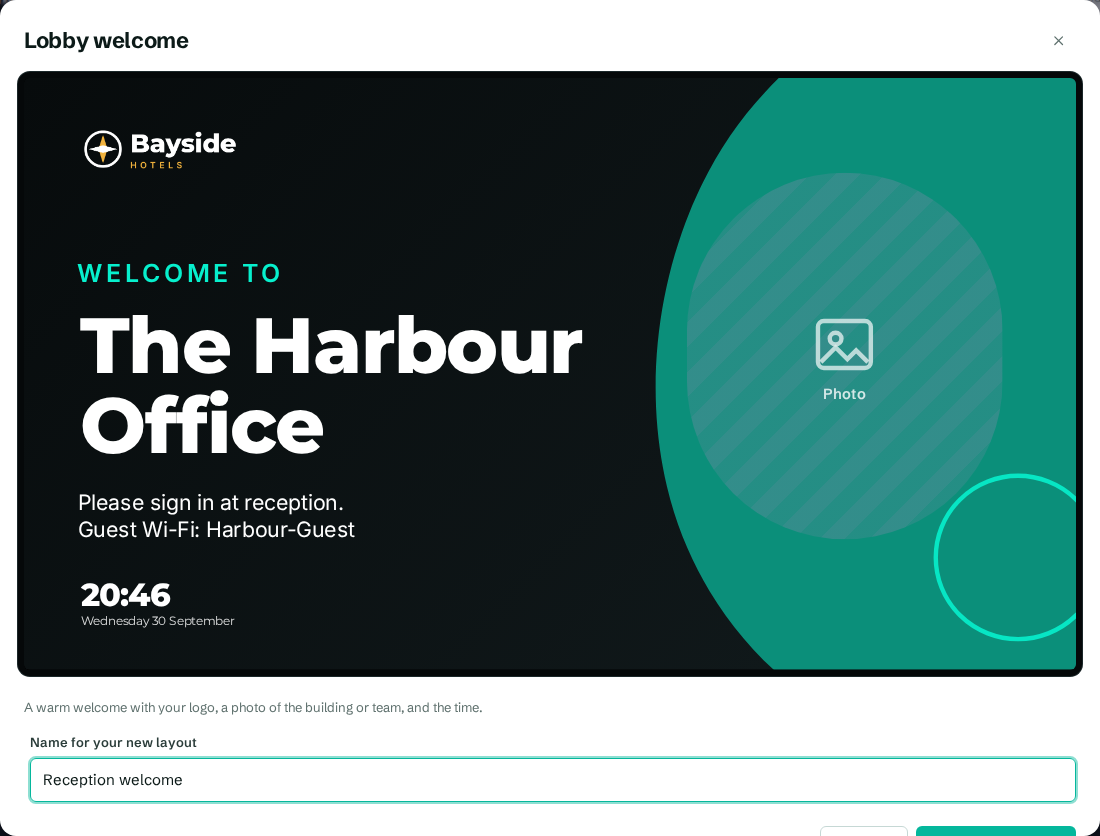
- Select Use on its card. The preview window opens.
- In Name for your new layout, type a name your team will recognise, such as "Reception welcome".
- Select Use this template.
CompleteVantage creates the layout and opens it in the designer with the message "Layout created from "Lobby welcome". Change the text and pictures, then save."
You can also start from the Layouts page: select Start from a template.
Make it yours
- Select a text zone on the canvas, such as the heading. Change the words in Text on the right.
- Select each zone marked Photo and choose an image or video from your media. See Show media and playlists in zones.
- For room boards, select the calendar zone and choose your room's calendar in Calendar.
- Select Save layout.
Put it on a screen
A new layout doesn't play anywhere until you choose it. Open a screen, a group or a schedule and pick the layout as its content. See Choose what plays on a screen.
Troubleshooting
There's no Use button. You have the viewer role. Ask an admin to make you an editor.
My logo doesn't appear. The logo zone uses the logo from your brand kit. Add one under Brand. Until then, the zone shows your organization's name.
The colours aren't ours. Your brand kit still has the default colours. Change them under Brand and the layout follows.