
Setting up your brand takes a few minutes, and it's worth doing before you pick templates. In this article you'll add your logos and check the result. Colours and fonts have their own articles.
You'll need: the admin or owner role to change the brand. Editors and viewers can see the Brand page but can't change it.
Before you start
Get your logo as a PNG with a transparent background. Ideally you have two versions:
- one for light backgrounds (usually your normal, dark-coloured logo)
- one for dark backgrounds (usually an all-white version)
Upload both to your media library first. See Upload images, video and documents. Name them clearly, for example "Bayside logo" and "Bayside logo white".
Add your logos
- In the menu, select Brand.
- Under Logo, next to For light backgrounds, select Choose, then pick your normal logo.
- Next to For dark backgrounds (optional), select Choose, then pick your white logo.
- Select Save brand at the top of the page. You'll see "Brand saved. Screens that follow it update within a minute."
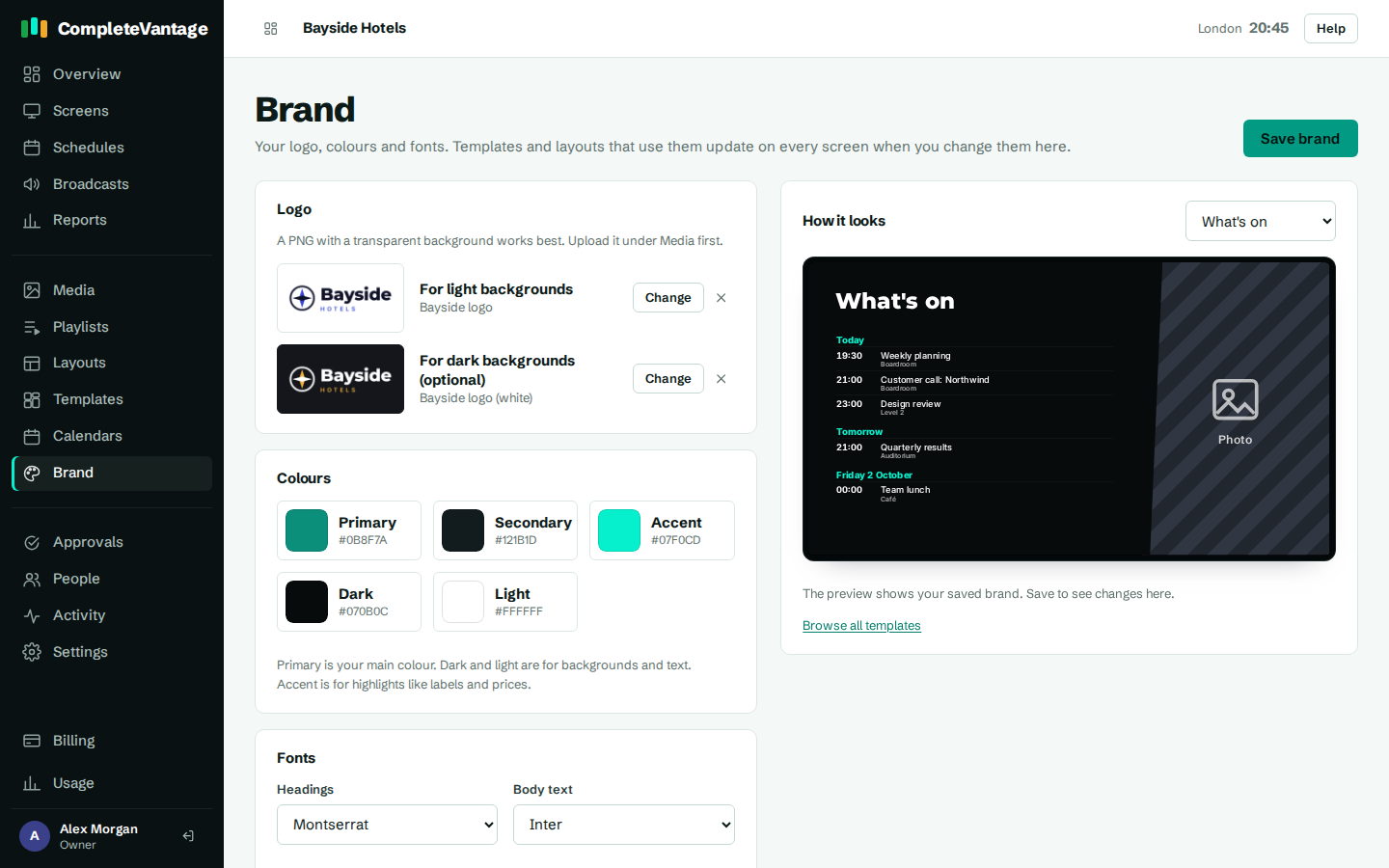
To remove a logo, select the × next to it, then Save brand.
How CompleteVantage chooses a logo
The logo widget in a layout picks the right version automatically: the logo for dark backgrounds when the zone or layout behind it is dark, and your normal logo otherwise. If you only add one logo, it's used everywhere. If you add no logo, the widget shows your organization's name instead.
Check how it looks
The How it looks panel shows a real template drawn in your brand, exactly as a screen would show it. Use the menu above it to switch between sample templates.
What updates when you change your brand
Templates, and layouts made from them, refer to your brand rather than to fixed colours and fonts. When you save a change:
- every layout zone set to a brand colour takes the new colour
- every text set to Brand heading font or Brand body font takes the new font
- every logo widget shows the new logo
Screens showing those layouts update within a minute. Anything set to a custom colour or a specific font stays as it is.