
Everything you show on a screen starts in the media library. In this article you'll upload files and check they're ready to use.
You'll need: the editor, admin or owner role. Viewers can look at the library but can't add to it.
Upload files
- In the menu, select Media.
- Select Upload files.
- Choose one or more files, then confirm.
Each file appears in a list at the top of the page with a progress bar. When the bar reaches 100%, it says Saving, then Done, and the file joins the library.
You can also drag files from your computer anywhere onto the Media page. The page shows Drop to upload while you drag. Let go, and the upload starts.
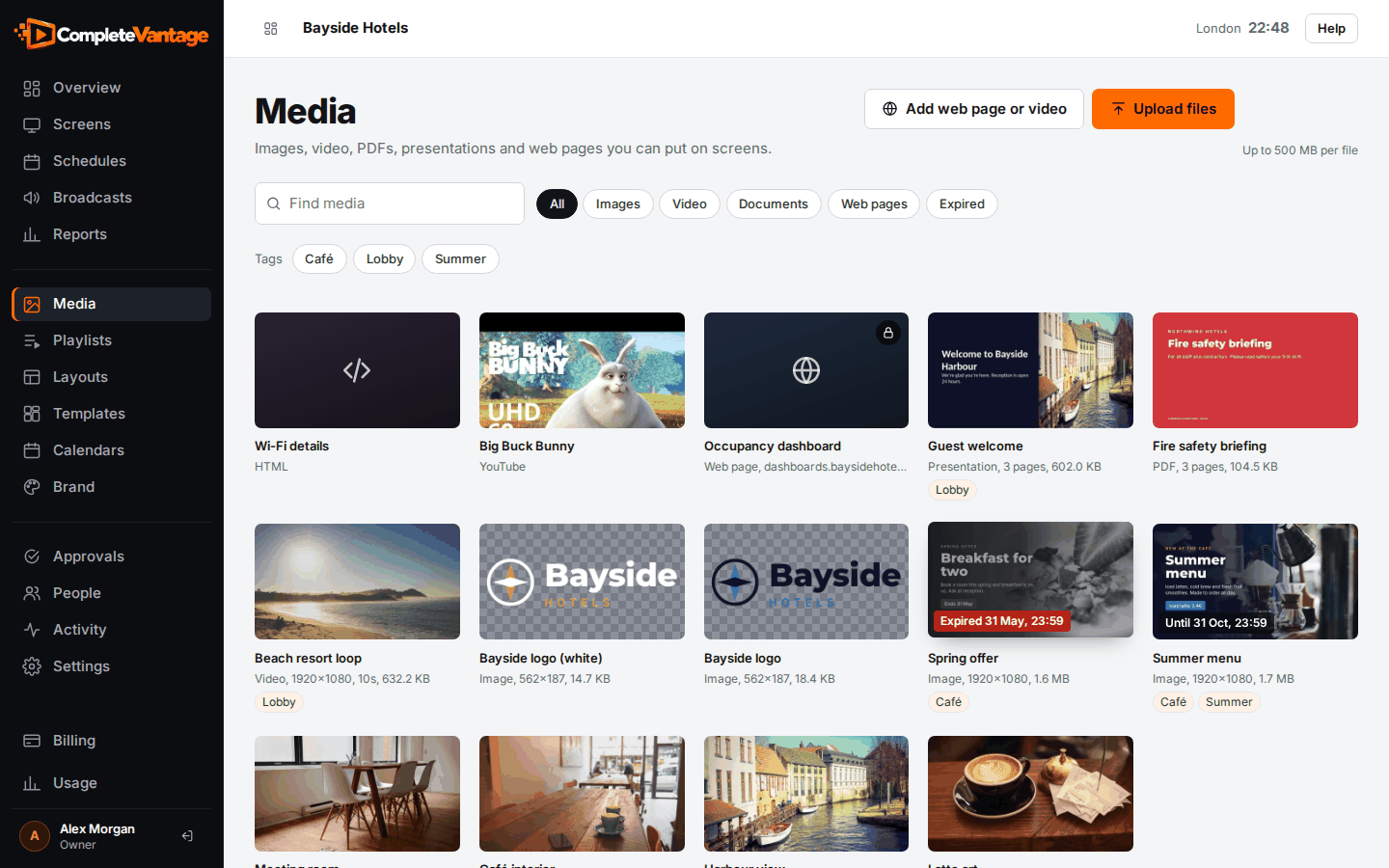
Wait for processing
Images are ready straight away. Some files need a little work on our side first:
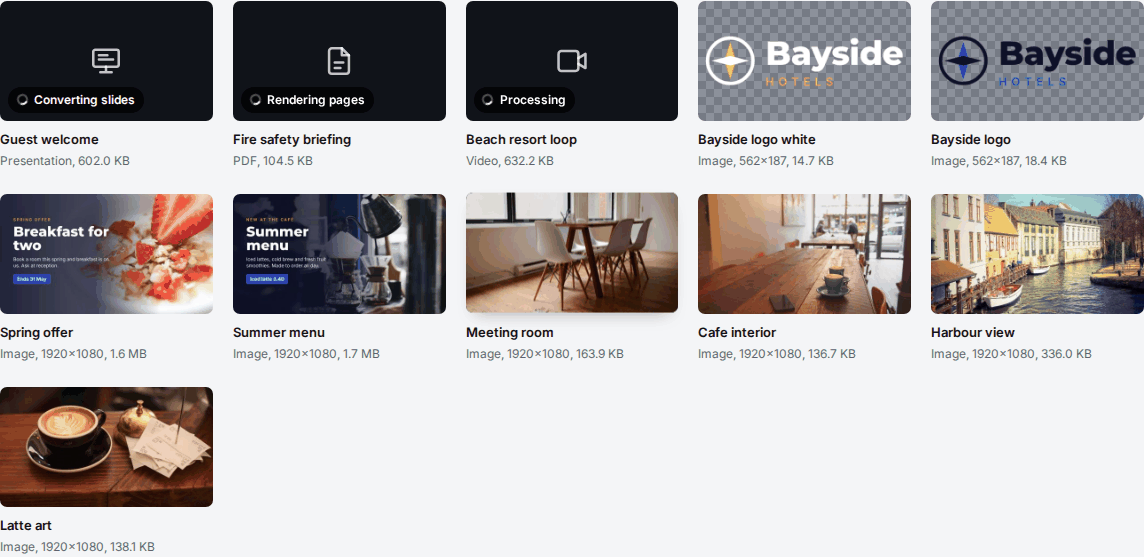
- Videos get a thumbnail and are prepared for smooth playback. The card shows Processing.
- PDFs are turned into one picture per page. The card shows Rendering pages.
- PowerPoint files are turned into one picture per slide. The card shows Converting slides.
This usually takes a few seconds to a minute. The page updates by itself, so you don't need to reload it.
File names
CompleteVantage tidies file names into readable names. For example, guest-welcome_v2.pptx becomes Guest welcome v2. You can rename anything later: select it, change the Name and select Save changes.
If an upload fails
The upload list says what went wrong. The most common messages:
| Message | What to do |
|---|---|
| "Too large for the server" or "…is over the 500 MB limit" | Make the file smaller. For video, export at 1080p with a lower bitrate. |
| "…doesn't look like a real .jpg file" | The file's content doesn't match its extension. Open it and save it again in the right format. |
| "The upload was interrupted. Try again." | Your connection dropped. Upload it again. |
| "This file is … but only … of your … storage is left." | You've reached your storage limit. Delete media you no longer use, or ask an owner to choose a plan with more storage. See Plans and limits. |
If a file uploads but the card says Couldn't process, select it to see the reason, then select Try again. If it fails again, re-export the file (for example, save the presentation as a new .pptx) and upload that.