
Some dashboards only open with a key: a token in the address, or a header such as Authorization. Access keys let you give screens that key without showing it to everyone who uses CompleteVantage. In this article you'll add one.
You'll need: the editor, admin or owner role, and the key from the dashboard's owner. Most dashboard tools call this a "share token", "API key" or "kiosk link".
How access keys work
- Keys are added to the page address, or sent as headers, only when the page is sent to a screen.
- After you save, the value is never shown again, not even to you. The key's name stays visible so you know it's there.
- Previews in CompleteVantage never include keys, so a preview may show the dashboard's sign-in page. That's expected.
- Items that use keys show a padlock on their card in the media library.
Add a URL parameter
Use this when the dashboard's link looks like https://dashboards.example.com/occupancy?token=abc123.
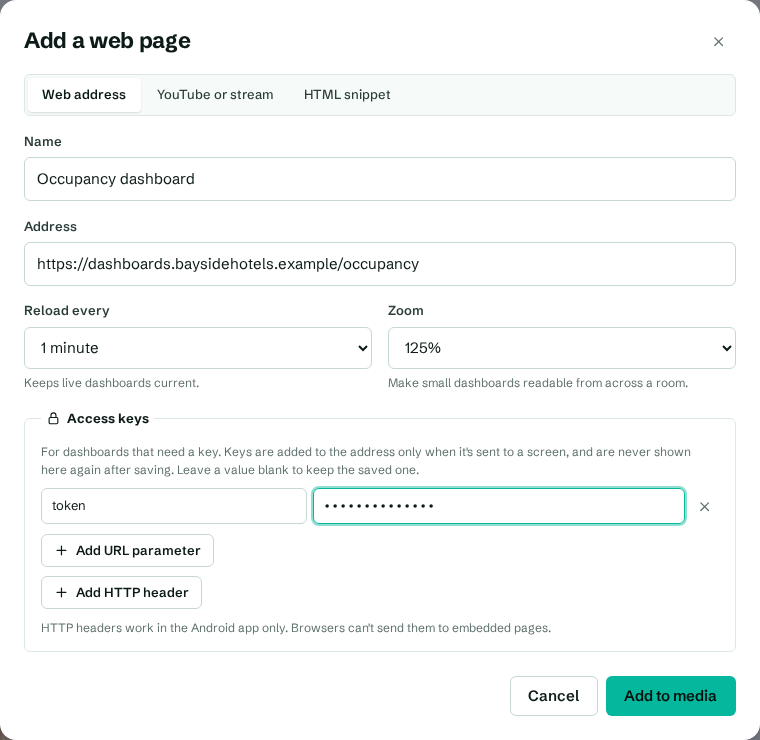
- Go to Media and select Add web page or video (or select an existing web page to edit it).
- In Address, enter the address without the secret part:
https://dashboards.example.com/occupancy. - Under Access keys, select Add URL parameter.
- In the first box, type the parameter's name, for example
token. - In the second box, paste the value, for example
abc123. - Select Add to media (or Save changes).
Screens now open https://dashboards.example.com/occupancy?token=abc123, while CompleteVantage only ever shows the name token.
Add an HTTP header
Use this when the dashboard expects a header, such as Authorization: Bearer abc123.
- Open the web page's dialog as above.
- Under Access keys, select Add HTTP header.
- In the first box, type the header name, for example
Authorization. - In the second box, paste the full value, for example
Bearer abc123. - Save.
Change or remove a key
- Keep a key: leave its value blank. The box says "Saved (leave blank to keep)".
- Change a key: type the new value in its box and save.
- Remove a key: select the × at the end of its row and save.
Key names can use letters, numbers, dashes, dots, underscores and square brackets. A row with other characters in its name is ignored when you save.
Good practice
- Ask for a read-only key that can only view this one dashboard.
- Rotate the key now and then: create a new one in the dashboard tool, paste it here, then revoke the old one.
- Remember that anyone standing at the screen can see the dashboard itself. Only show data that's fine for that room.
Troubleshooting
- The screen shows a sign-in page. Check the key's name matches exactly (it's case-sensitive), paste the value again and save. If you used a header, check the screen uses the Android app.
- The preview shows a sign-in page but the screen works. That's normal: previews never include keys.