
Each item in your media library has a few settings that control how it looks on screen. In this article you'll open an item and change them.
You'll need: the editor, admin or owner role. Viewers can open items but can't change them.
Open an item
- Go to Media.
- Select the item's card. A dialog opens with a preview, details such as size and length, and the settings for that kind of item.
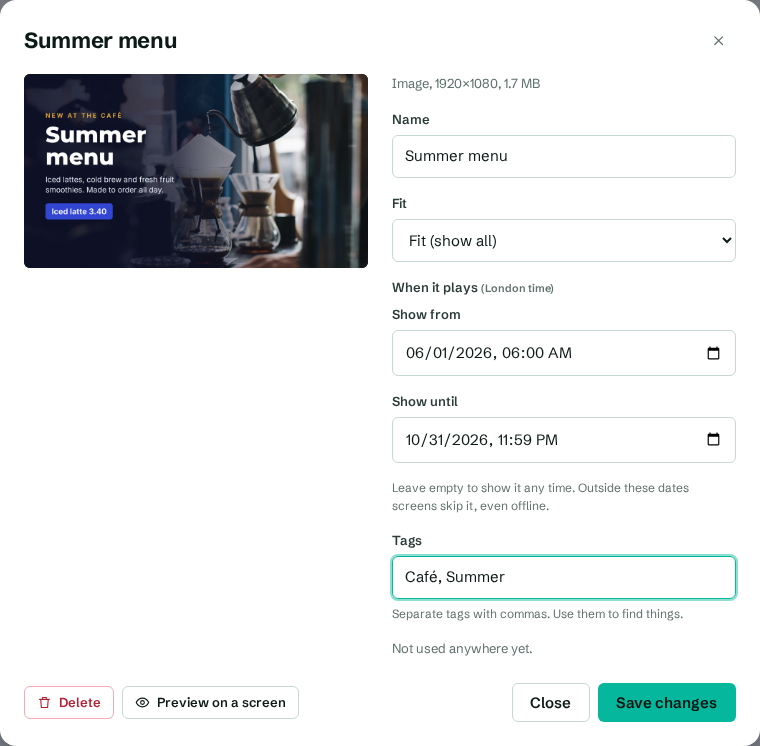
Settings by type
| Type | Setting | Choices |
|---|---|---|
| Image | Fit | Fill (crop edges) fills the whole space and trims what doesn't fit. Fit (show all) shows the whole picture with bars. Stretch fills the space and distorts the picture if the shapes differ. |
| Video | Fit | Fit (show all) or Fill (crop edges). |
| Video | Sound | Muted or Play sound. |
| PDF or presentation | Seconds per page or Seconds per slide, and Fit | See Show PowerPoint and PDF files. |
| Web page | Address, Reload every, Zoom, access keys | See Show web pages and live dashboards. |
| YouTube or stream | Link, Sound (and Fit for streams) | See Show YouTube videos and live streams. |
| HTML | HTML | See Add an HTML snippet. |
Every item also has Name, Show from and Show until, and Tags. See Set show dates and tags.
When you're done, select Save changes. You'll see "Saved. Screens update within a minute."
Check it on a screen
Select Preview on a screen at the bottom of the dialog. A new tab shows the item exactly as a TV would.
Sound on screens
Videos play muted unless you choose Play sound. Sound works in the Android app. Browser players start videos muted.