
Seasonal offers, event notices and temporary signs should disappear on time, even if nobody remembers to remove them. In this article you'll give an item show dates and tags.
You'll need: the editor, admin or owner role.
Set show from and until dates
- Go to Media and select the item, for example Summer menu.
- Under When it plays, fill in one or both:
- Show from: the first date and time it may show.
- Show until: the moment it stops showing.
- Select Save changes.
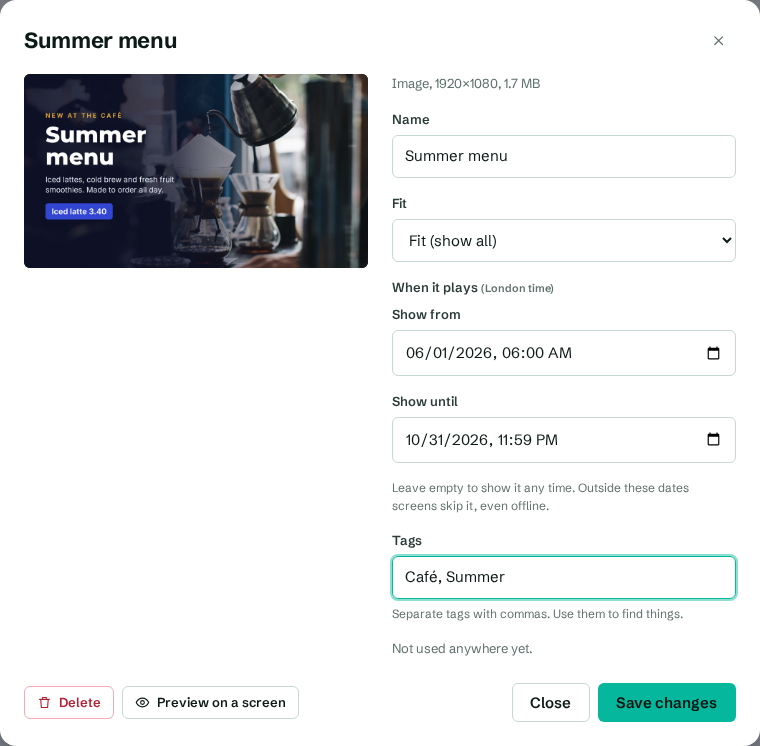
Leave both empty to show the item any time.
How the dates work:
- Dates are in your organization's timezone, shown next to When it plays (for example "London time"). You can change it in organization settings.
- Outside its dates, the item is skipped everywhere it's used: on screens, in playlists and in layouts.
- Screens check the dates themselves, so an item stops on time even if the screen is offline. The change happens within about 15 seconds of the time you set.
- Show until has to be after Show from. If not, you'll see "The end has to be after the start."
See what's starting and ending
Cards in the library show a badge:
- Starts 3 Oct, 09:00: not showing yet.
- Until 30 Sep, 23:59: showing now, with an end date.
- Expired 1 Sep, 18:00: no longer shows anywhere. Expired cards are faded.
To list only expired items, select the Expired filter above the library. It's a quick way to tidy up.
Add tags
Tags help you find things in a big library, for example by site, campaign or team.
- Open the item.
- In Tags, type one or more tags separated by commas, for example
Café, Summer campaign. Tags you've used before are suggested as you type. - Select Save changes.
Tags appear on the cards. Above the library, a Tags row lists every tag: select one to show only items with that tag, and select it again to show everything. The Find media search box also matches tags.
Other ways to control timing
- To show an item only in a playlist on certain dates, set dates on the playlist item instead. See Set dates for playlist items.
- To show content at certain times of day or on certain days, use a schedule.