
You don't have to upload every video. You can link a YouTube video, a YouTube playlist, a live broadcast or a video stream. In this article you'll add one and choose the sound setting.
You'll need: the editor, admin or owner role, and screens with internet access.
Add a YouTube video or stream
- Go to Media and select Add web page or video.
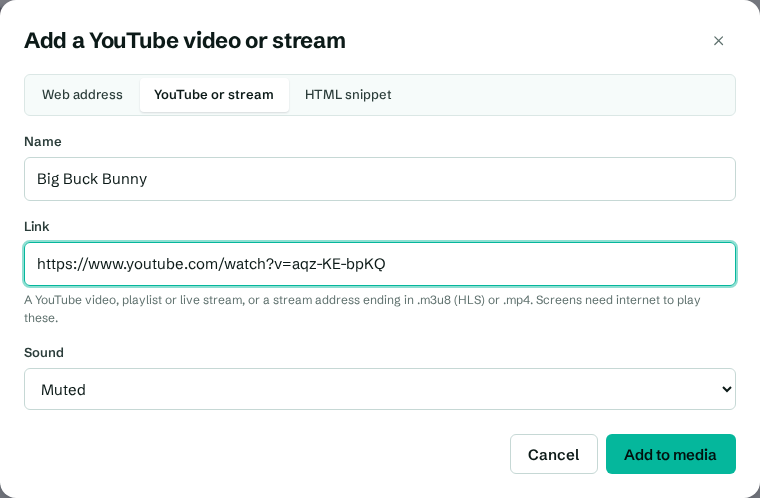
- At the top, select YouTube or stream. The dialog's title changes to Add a YouTube video or stream.
- In Name, type a name, for example "Hotel news".
- In Link, paste the address. Any of these work:
- a YouTube video:
https://www.youtube.com/watch?v=…orhttps://youtu.be/… - a YouTube Short or live stream:
https://www.youtube.com/shorts/…,https://www.youtube.com/live/… - a YouTube playlist: a link containing
list=… - a stream ending in
.m3u8(HLS), or a direct video file ending in.mp4or.webm
- a YouTube video:
- In Sound, choose Muted or Play sound (Android screens).
- Select Add to media.
YouTube items show YouTube's own thumbnail in your library. A link with a start time (&t=90) starts from that point.
Sound
Screens start muted unless you choose Play sound (Android screens). Sound works in the Android app. Web browsers don't allow videos to start with sound on their own, so a browser player plays the video muted even if you chose sound.
How they play
- YouTube: played through YouTube's privacy-enhanced player, without controls or suggestions. If a video can't play (removed, private, or blocked from embedding), a playlist skips to its next item.
- HLS streams (.m3u8): played natively in the Android app, and with a built-in stream player in browsers.
- MP4 and WebM links: played directly and looped.
To change how a stream fills the screen, select it and choose Fit: Fit (show all) or Fill (crop edges).
Troubleshooting
- "Paste a YouTube link, or a stream address ending in .m3u8 or .mp4." The link isn't one CompleteVantage recognises. Copy the address from the browser's address bar or YouTube's Share button. For streams, the address must end in
.m3u8,.mp4,.m4vor.webm. - The video is black or skipped. The owner may have turned off embedding on YouTube, or the video is private or age-restricted. Try it in a YouTube embed, or use another video.
- No sound. Check Sound is set to Play sound (Android screens), the screen uses the Android app, and the TV isn't muted.